
Inspiring
Nov 11, 2026 2:56 PM UTC
Question

Trouble with colour fixing of scanned negatives

Hello,

I am a beginner.
I scanned my family's negatives and am having problems with the colour ones.

This is the scanned image:
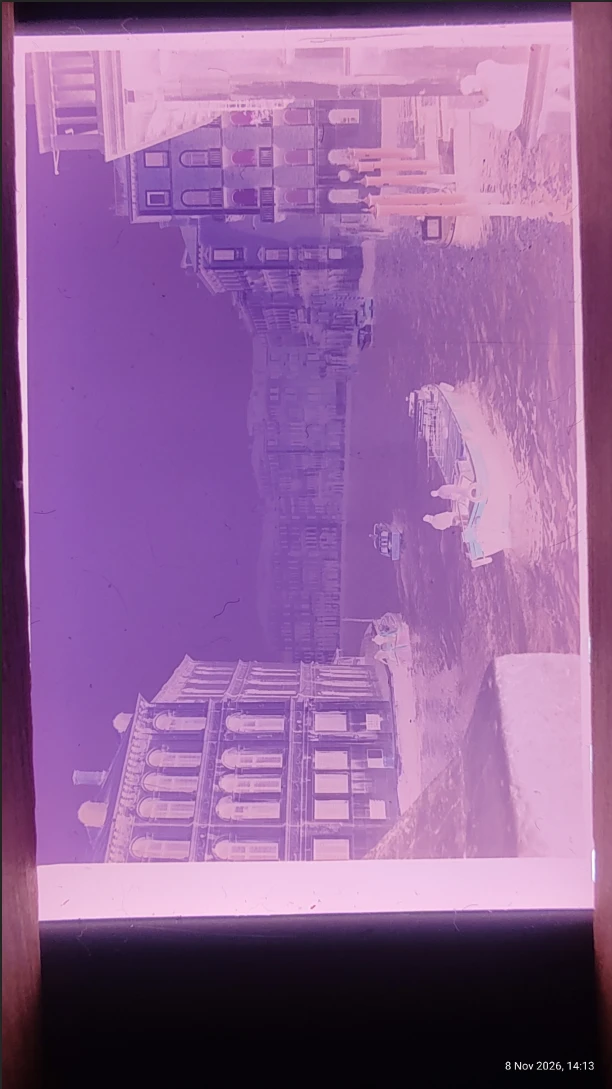
And this is when I use CTRL+I (windows11pro)
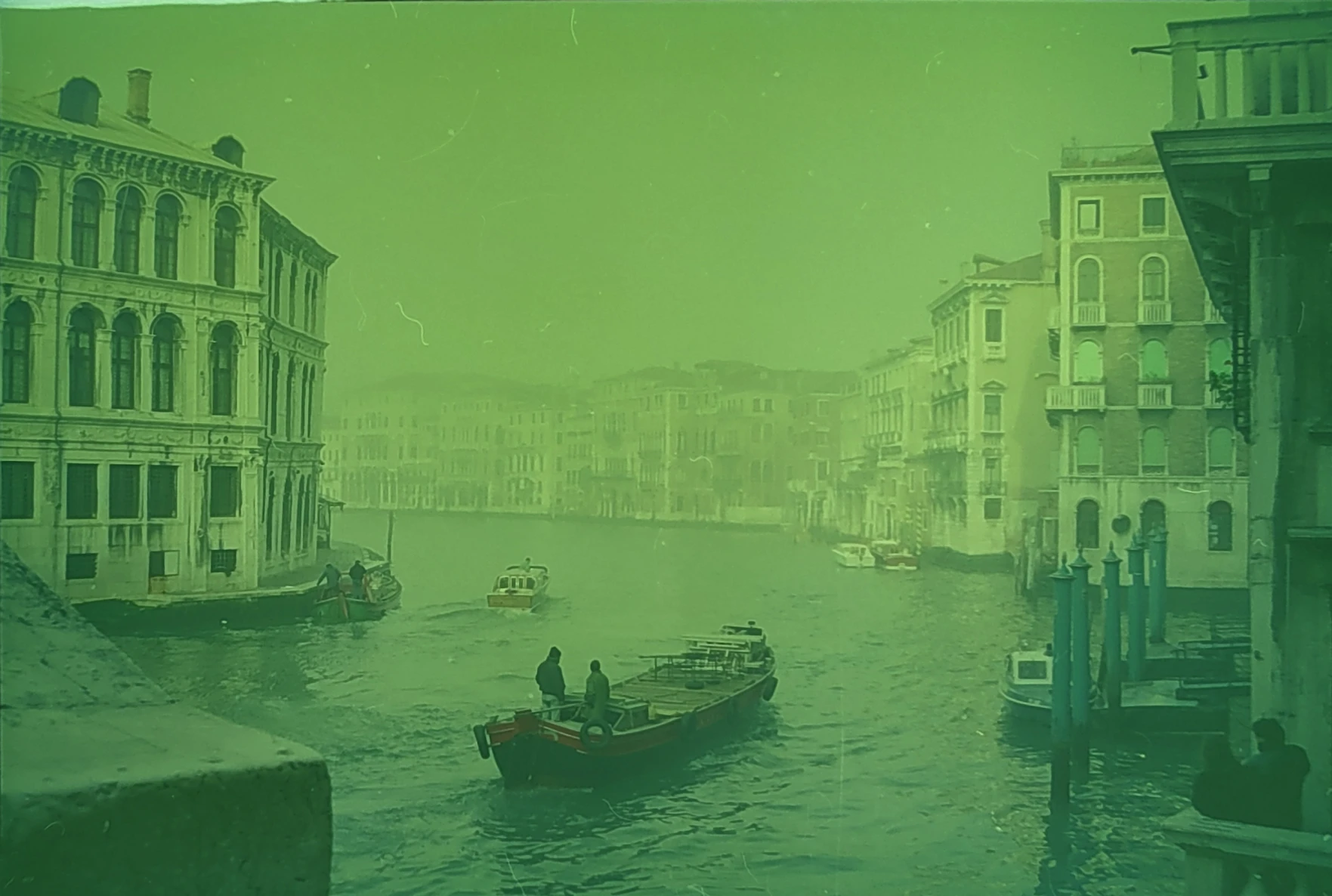
I try to fix the color with AI : “fix the damages and scratches , fix the color, do not modify anything else”

But it always creates extra boats, people or other unnecessary things.

How can I tell the AI not to create anything extra?

    4 replies

    Participating Frequently
    Nov 13, 2026 5:47 AM UTC

    I ran into the same thing with my own family negatives, and Generative Fill kept adding boats and people I never asked for. I stopped using it for the whole picture and only used it on tiny damaged spots, with the colour fixed by Curves instead. Keeping an untouched copy of each scan made it much less stressful to experiment.

    Translate
    Per Berntsen
    Community Expert
    Community Expert
    Nov 12, 2026 8:50 PM UTC

    Inverting scanned color negatives in Photoshop is tricky. The Color negative preset in Curves can sometimes produce a good result, but not with this image.
    The preset is designed to correct for the orange mask that color negatives have. The image you posted doesn’t seem to have one, which makes me suspect that it was taken before 1950, when Kodak started using the orange mask on Kodacolor film.

    In any case, you’ll get much better results using software designed for converting negatives.
    I use Negative Lab Pro, which is a plugin for Lightroom Classic.
    The image below was converted with NLP. It’s not perfect, but way better than Photoshop.
    This image is difficult to convert, probably because it’s (presumably) very old film, and there is no orange mask.
    See also this thread:


    Other than that, I agree with ​@CORCTON34033231  that this is not a job for AI.
    Retouching is easy with the Spot healing brush tool and the Clone stamp.


    Translate
    Semaphoric
    Community Expert
    Community Expert
    Nov 12, 2026 4:16 PM UTC

    What light source are you using?

    Translate
    CORCTON34033231
    Community Expert
    Community Expert
    Nov 11, 2026 6:05 PM UTC

    Hi Gabor — welcome, and that's a lovely project. The short answer is: you can't tell Generative Fill not to invent things, because generating new pixels is exactly what it does — even with a prompt like "do not modify anything else", it will still create new content to fill the area. So for restoring old negatives, don't use Generative Fill for the colour work at all.


    Try this instead, on a copy of your scan:


    1. Invert with Ctrl+I, as you already did — that's the right first step.

    2. Fix the colour cast with a non-generative adjustment: Image > Adjustments > Curves (or the Camera Raw Filter). The strong green cast in your inverted image is the film's orange mask showing through after inversion — in Curves, pull the green channel down a little and lift red and blue until the whites look neutral, using a part of the image you know should be white or grey as your guide.

    3. For scratches and dust, use the Remove Tool or the Spot Healing Brush instead of Generative Fill. Those tools copy real pixels from the surrounding area, so they clean the damage without inventing boats or people. Work on small spots, one at a time.


    Generative Fill is still useful, but only for small damaged areas where there is nothing important to preserve — select just the scratch, leave the prompt empty, and check each variation it offers before accepting one.


    Good luck with the family archive — take it one image at a time, and keep an untouched copy of every scan before you start editing.

    Translate