Participating Frequently
February 16, 2013
Answered

Trying to align series of layers. Auto align greyed out. All layers selected

The auto align button is greyed out. I've seen a lot of answers on this but they are not applicable.  I have all the layers selected.  They are all at 100% opacity. 

    tiffany0D44Correct answer
    Participant
    December 12, 2022

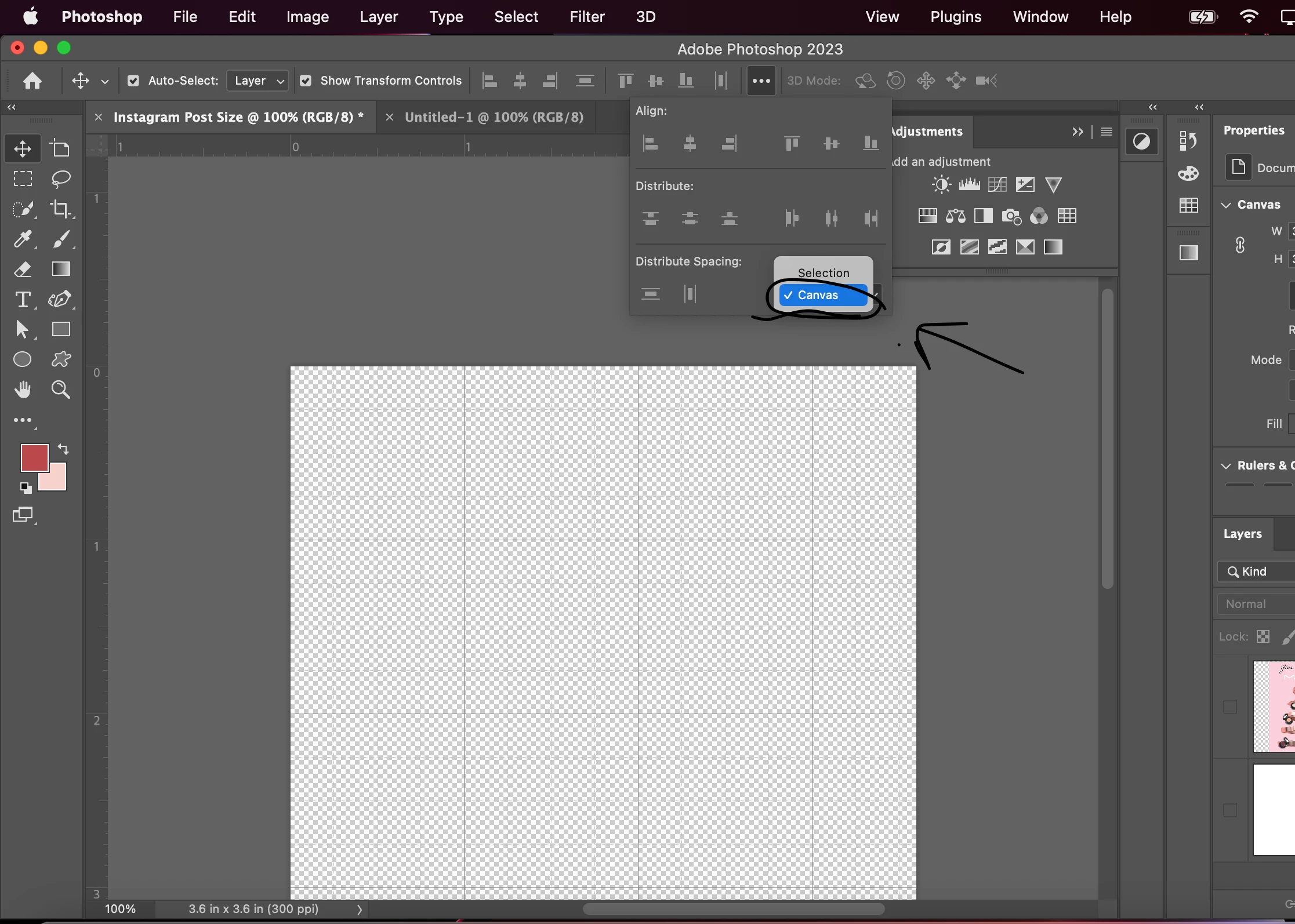
    Also after Rasterizing the Smart Object make sure you have "Align To: Canvas" selected in Properties. 

    21 replies

    spicy.graphics
    Inspiring
    October 26, 2026

    Built a free plugin that offers a more intuitive align panel. 

    Defaults to selection and you can hold shift to align multiple layers to the canvas (without needing to group them) 

    • No more dropdown menu!
    • No more grayed-out buttons !
    • also includes a “center-align” button
    Translate
    Trevor.Dennis
    Community Expert
    Community Expert
    October 26, 2026

    Do you know how Auto Align works?  It is not the same as the align options for the Move tool, but more of a manual method for Photomerge. The usual workflow is to follow Auto Align with Auto Blend.   You can also use it with multiple shots of the same area, but with different lighting, as with a ‘painting with light’ approach to light an interior with a torch or speedlight directed at different areas for each shot.

    The options your GIF demonstrates appear to be similar to the Move Tool’s distribute centres and equal space.   Is your script on Adobe Exchange?  There are one or two similar plugins there.   LINK

    Translate
    spicy.graphics
    Inspiring
    October 26, 2026

    This is a plugin, not a script. 

    It’s not on exchange. 

    I looked at the options on there, but I didn’t like any of them. 

    Most are not as simple, compact, and don’t blend in as well. Oh, and some are not free. 

    I created something that can align multiple layers to the canvas without grouping them. And can toggle between align to “canvas” and “selection” by using a shift modifier.  

    That simple. 


    Translate
    Participant
    May 16, 2024
    Screenshot_(27).png
    Translate
    tiffany0D44Correct answer
    Participant
    December 12, 2022

    Also after Rasterizing the Smart Object make sure you have "Align To: Canvas" selected in Properties. 

    Translate
    Inspiring
    January 17, 2024

    That was the solution! I knew there was a way to align it without ruining my layout by rasterizing the layer. I just needed to select Canvas instead of Selection. Thank you so much.

    Translate
    Ankiz
    Participant
    January 5, 2019

    I have the same issue, even the choose Rasterize Layers. option is greyed out, whats wrong?

    I have most upto-date version of lightroom + photoshop (monthly subscription , auto update)

    Translate
    davescm
    Community Expert
    Community Expert
    January 5, 2019

    Hi

    It looks like you have opened the image layers from Lightroom.

    There is an issue in the current version.

    Close both apps. Open Photoshop and leave it open. Now open Lightroom. You should now be able to take your images from Lightroom to Photoshop and the menus should work.

    Dave

    Translate
    Ankiz
    Participant
    January 5, 2019

    you are exactly right Dave, and yes your steps fixed my problem.

    And I think you are a genius davescm

    Translate
    KShinabery212
    Community Expert
    Community Expert
    June 26, 2017

    You an easy solution that would look better would to be just to retake the photo with the PANARAMA MODE selected on a person's cell phone.

    Then the images are also stitched together a little better.  Plus you will have an image that you do not have to play with to align.  Getting rid of all those seams would make a better image.

    Some cameras also have PANARAMA MODE as well.

    Just another option.

    Translate
    Let's connect on LinkedIn. https://www.linkedin.com/in/kshinabery/
    Jeff Arola
    Community Expert
    Community Expert
    February 16, 2013

    Hi,

    What version of photoshop and operating system are you using?

    Could you post a screenshot of photoshop including the layers panel?

    Translate
    cmmarsicoAuthor
    Participating Frequently
    February 16, 2013

    Hi, thank you for answering.  I'm trying right now to figure out how to take a screenshot.  I've done it before on other things but can't figure out how to do it for the photoshop page.

    Translate
    cmmarsicoAuthor
    Participating Frequently
    February 16, 2013

    Oh by the way this is for photoshop CS6, the cloud.   I'm using a MAC OSX, version 10.7.5,

    Translate