

Hani.sawiress
Inspiring
December 15, 2025
Resuelto

Unexpected Behavior with the Remove Tool

  • December 15, 2025
  • 2 respuestas
  • 277 visualizaciones

Product: Adobe Photoshop

Version: [ 27.1.0]

Operating System: windows 11


Dear Adobe Photoshop Team,

I am writing to report a reproducible bug I have encountered with the Remove Tool following the most recent update of Photoshop (Version 27.1).

Issue Description

When attempting to use the Remove Tool (J), the brush selection/application frequently begins at a random, unintended location on the document canvas, instead of where the cursor is currently positioned.

Specific Behavior

  1. I select the Remove Tool.
  2. I position the cursor/brush over the area I intend to remove.
  3. Upon clicking and starting to paint/drag to select an area, the selection does not initiate from the cursor's starting point.
  4. Instead, the brush appears to begin painting from a completely arbitrary, off-canvas, or previously used location within the document boundaries.
  5. The tool then proceeds to select and mark areas I did not intentionally cover, leading to unexpected and incorrect removals.

This behavior makes the Remove Tool unusable as it is impossible to accurately target desired content for removal.

Troubleshooting Performed

  • I restarted the Photoshop application multiple times.

  • I restarted my entire computer system.

  • The issue persisted consistently even after restarts, allowing me to anticipate and predict the erratic behavior.

Video Evidence

I have recorded a video demonstrating this exact issue to provide visual confirmation of the random brush starting points and the resulting incorrect selections. video attached

Request

Could you please investigate this bug? This is a significant regression that severely impacts the usability of a core feature in the latest version of Photoshop.

Thank you for your time and assistance in addressing this matter.

Best regards,
Mejor respuesta de Ged_Traynor

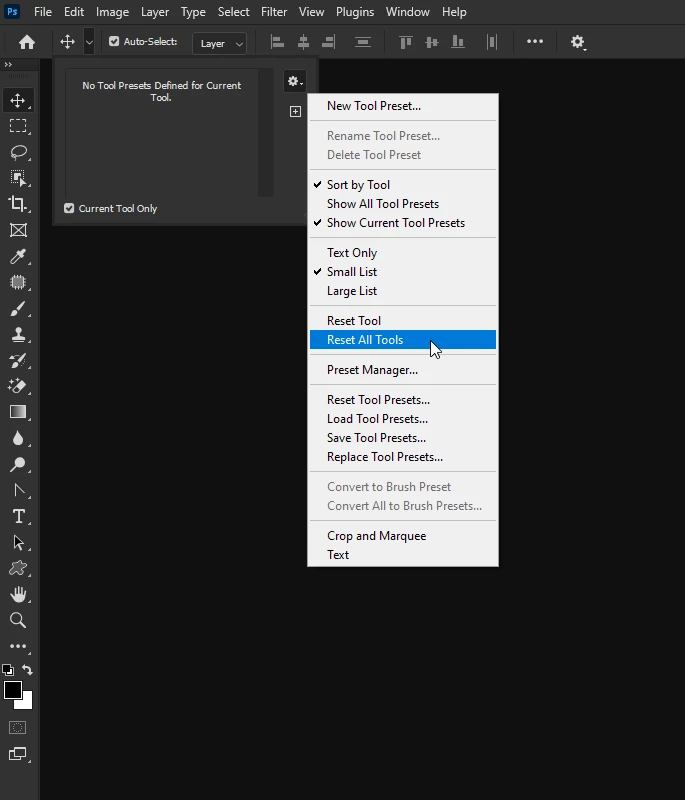
@Hani.sawiress have you tried resetting the tools

2024-05-29 07_48_00-Adobe Photoshop 2024.png

If that doesn't help, try manually resetting your Photoshop preferences
https://helpx.adobe.com/ie/photoshop/using/preferences.html#Manually
Remember to back up your settings before doing the preference reset
https://helpx.adobe.com/ie/photoshop/using/preset-migration.html

2 respuestas

Participant
January 6, 2026

Resetting all tools and resetting all preferences does not resolve this issue. Not sure why it is marked as the correct answer. It isn't.

Issue persists on 27.2.0 Latest and  27.3.0 Beta.
Issue persists if you uninstall application, delete preferences and reinstall.

Issue is happening when you use the spot healing brush or remove tool after doing any sort of navigation of the canvas (zooming in or panning)
If you use the tool without moving the canvas, your next brush strokes will be fine. As soon as you move the canvas you will have issues.

Sameer K
Community Manager
Community Manager
January 6, 2026

Hey, @metalpuppy. Welcome to the Photoshop Community. Thanks for adding your comment. I'll need more info to help you figure this out. 


Please share the system information by opening Photoshop Help > System Info, copying it, and then pasting it into a text document. Next, upload and attach the document here. 


Does this happen with documents of all sizes? Do you use a Stylus input, or the usual keyboard-mouse combo for input? 

Try this:

Go to Photoshop > Settings (CMD/CTRL + K) > Performance > Advanced Settings > Disable 'GPU Compositing' & restart Photoshop. 


Check if it helps & let us know how it goes. Thanks!

Sameer K

(Type '@' and type my name to mention me when you reply)

Participant
January 12, 2026

Hi @Sameer K!
The issue is now resolved for me, but I'll answer your questions and then note the steps I took.

System Config attached.
It was happening regardless of the document size.
I have a wacom tablet on my computer so it has stylus drivers installed but these tests were all with a mouse.
The issue was resolved for me before I could try Disabling GPU Compositing, so I cannot test that.

What I did:
Quite boring but it started working for me after simply:
- Update Nvidia driver to 582.16
- Test Photoshop (still bugged)
- Reboot Windows
- Test Photosohp (Fixed)

Not sure if it was actually the driver update that fixed it, as the issue wasn't fixed directly after updating.
I honestly wonder if a system reboot is the thing that actually fixed it. Unfortunately, I did not try a reboot before upgrading the drivers.

I also performed a Windows Update while I was rebooting. So unfortunately there were a handful of variables at play that make it difficult to know which thing fixed it. Maybe someone else will chime in who is still having the problem.  I'll reply back if the issue returns.

Ged_Traynor
Community Expert
Ged_TraynorCommunity ExpertRespuesta
Community Expert
December 15, 2025

@Hani.sawiress have you tried resetting the tools

2024-05-29 07_48_00-Adobe Photoshop 2024.png

If that doesn't help, try manually resetting your Photoshop preferences
https://helpx.adobe.com/ie/photoshop/using/preferences.html#Manually
Remember to back up your settings before doing the preference reset
https://helpx.adobe.com/ie/photoshop/using/preset-migration.html