philippemaurice
Participant
June 4, 2017
Answered

Wacom tablet stopped adjusting brush size

  • June 4, 2017
  • 9 replies
  • 33787 views

hey guys ,

i have a wacom tablet intuos 5 touch , i was working fine till a couple of days ago , i restarted the computer and downloaded the new software ,

everything was working perfectly till i had to adjust the brush size by using the control + alt and the pen.

this shortcut stopped working , when i use the mouse it function properly ,

i did a reinstall and restore from my time machine backup , didnt work , and i did another clean installation , and still not working.

any ideas ?

help ?

Philippe

Correct answer JJMack

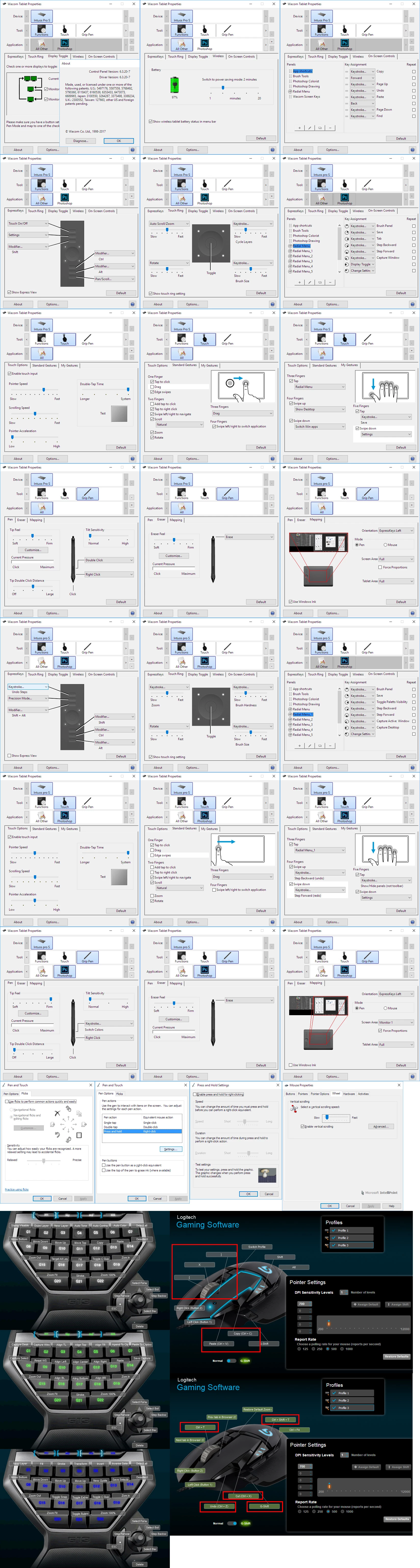
As Trevor points out The Atl+Ctrl+right-click+Drag requires GPU support. On windows the +Ctrl is not required.  Photoshop supports many input devices and some can be customize for Applications like Photoshop, Tablets, Gaming Keyboards and Mice. There Are also OS feature that can interfere with Photoshop operation these devices.   Configuring all to work together can be tricky.  There are several ways you can setup change Photoshop Brush size and hardness. A device  may have several ways to change these and more than one device can be used to change them. Keyboards, Mice, tablet controls, pens, joystick. You may want to use different devices depending on which device you are holding at the moment.  Here is what my windows setup look like at this time.  I do change setting from time to time.

9 replies

Participant
March 11, 2018

hey! i was having the  same problem...windows 10, tablet: one by wacom, photoshop cc 2017. so i did this after searching so much on google wacom tablet setting<mapping then deselected use windows ink and it worked for me.

Noceur
Participant
September 15, 2023

Mega thread necro alert on my comment but none of the solutions above worked for me. I did however find another solution, I rebound my brush size change to a button that doesn't require a modifier (on a Swedish keyboard "[" and "]" requires that you hold down "alt gr", I just rebound it to å and ö in photoshop (Edit -> keyboard shortcuts -> "shortcuts for:" tools -> brush size increase & decrease å and ö. Then I did the same for the tablet and it worked perfectly. Hope this helps someone. 🙂

V_DOSS
Participant
January 11, 2018

Hi I had the same problem after updating to windows 10
this solution fixed mine:
got to wacom tablet properties

go to mapping tab
uncheck windows ink

Participant
January 6, 2018

Hi, I too had the same problem. I could not change the hardness and size of the brush using Alt+right click.

I found this in the end> The option called "Use Windows Ink" in Wacom Tablet Properties> Grip Pen> Mapping was checked. Uncheck it and it will work fine. It worked for me.

Hope this helps.

Participant
February 18, 2018

This reply should have golden stroke around it.

Worked like a charm!

<3

Participant
January 1, 2018

Hello there, the same problem here! Wacom Intuos P, Win10, Photoshop cc2018 and adjusting size and hardness is not working anymore. Since I am using this feature on daily basis it is really frustrating. Nothing did work (clean instalation of win, photoshop and drivers - older or newer) :/.

Participating Frequently
December 30, 2017

Ï have the same problem after updating Photoshop to CC 2018. Not changing brush size and hardness is not working anymore, also the CTRL+z key is acting like CTRL+F4 and I just managed to get the 'show sampling ring' to be activated (it took me a whole day to figure out what was wrong). This is not funny anymore. I only updated Photoshop and am struggling to get all things working again (started 2 days ago) :-( ... I think this release is a sloppy one, hope the next update will be better tested!

Participating Frequently
January 1, 2018

Hi all, I've found a solution:

Photoshop CC 2018: I am not able to define the size of my brush with my wacom pen | Photoshop Family Customer Community

You can use the solution janthomae​ suggested..

This works for me. I've an Intuos Pro M and just updated the drivers to the latest version. It still works. Also my other problem (the color ring) is working too. Also the CTL+z is working again like it should. I don't know what went wrong but I've managed it to work thanks to the above link. Hope this helps the rest of you too..

Trevor.Dennis
Community Expert
Community Expert
January 1, 2018

HTB_Raghnall  wrote

Hi all, I've found a solution:

Is there an echo in here?

Glenn Crosse
Participant
June 9, 2017

I have had that problem as well.  I finally fixed it today.  The problem was the new Wacom intuos driver !!

I fell back to the old driver and all was fixed.  This link describes the problem and the fix :

Wacom Intuos driver + macOS = nightmare

JJMack
Community Expert
Community Expert
June 8, 2017

Trevor, I have not been doing much Editing with Photoshop lately.  If I had I had to do specific types of editing  Jobs I would create more profiles for the G13. You can create  many set of Profiles for the G13.  I call them Profile set for a Profile has three sets of keys you can change between with a press of a button. You can scroll between Profiles using the scroll keys or auto switch like the Wacom for Applications.  The active Profile cam be locked with a pres of a button scrolling and auto switch profiles do not work then,

I would most likely keep its joystick programmed the way I have it now for all profiles. Its easy to scroll Backwards and Forward  in history and layer stack. I would also keep my zooming keys set where I have them.  There are just some many things I can remember some things  need to be more reflex than memory.

I have just purchased the G502 mouse  for on workstations  I was experience more and more mouse lag problem with my Bluetooth mouse my Logitech wireless mouse and Dell wireless mouse with Windows 10.   I'm not having problems with my Surface Pro 3 Windows 10 and my Microsoft Comfort Bluetooth Mouse. One of my Dell wired mouse right mouse button also had problem so I went for the wired G502.

The G502 support three profiles the first two are set up for gaming the third more for application.  The Logitech Gaming software also recognizes many game and may change thins for them.  I have no game installed computers beet me up so I do not play.  You can program the three profile any way you like.  Mouse sensitivity is very programmable A profile can have 5 DPI sensitivity settings and a mouse polling rate.  You can scroll between the 5 dpi settings abd shift between the current DPI and a shift DPI setting.  One of the 5 DPI setting can be set to the shift setting and one set ads the default setting.  Support different Logictech mouse pads and surfaces tuning IMO its a great mouse.

I read you thread on the Space mouse. I could find little to nothing about its Photoshop Plug-in 3DxPhotoshop.  I saw that Space Mouse had Plugins for applications like Sketchup, 3DMAS Photoshop and others.  You like the way Space Mouse plug-in for sketchup works. I  did find this https://www.photoshoptutorials.ws/product-reviews/design-tools/3d-mouse-works-photoshop-3dconnexion-spacemouse-pro-revie…

They stated they can rotate the 3D object with the space mouse.  They enable the “Dominant” option in the 3Dconnexion  properties which will limit the movements to one axis at a time.  However the Space Mouse quick Views keys do not work in Photoshop.

JJMack
Glenn Crosse
Participant
June 6, 2017

I have the same problem.  Its frustrating as this problem renders the tablet useless

Trevor.Dennis
Community Expert
Community Expert
June 7, 2017

Adjusting brush size that way requires GPU acceleration to be turned on

And the lower pen button set to Right Click

Out of interest, what sort of tablet are you using?  I use the Express wheel to control brush size with my Intuos 4, but that can only control size and not hardness.

Hey, here's a thought.  At the moment I toggle between brush size and canvas rotation, but I rarely use it for canvas rotation (because I prefer the spring loaded R key), so I wonder if there is a key stoke I can set for brush hardness?   Who's awake out there with an answer before I can Google it? 

Trevor.Dennis
Community Expert
Community Expert
June 7, 2017

Got it — but will I remember to use it?

JJMack
Community Expert
Community Expert
June 4, 2017

What did you update Mac OSX, Photoshop, ACR, Wacom Drivers? Maybe some other Mac user can help you if you provide more facts.  Have you tried resettinf tou Photoshop preferences and tour Wacom preferences. Use Wacom utility to remove all current preferences.

JJMack
philippemaurice
Participant
June 4, 2017

right now i am on a clean installation , no settings or what so ever , except the settings from the adobe sync i guess. and for the wacom software there is nothing customized yet

JJMack
Community Expert
Community Expert
June 4, 2017

By clean install do you mean you formatted you disk installed OSX the Photoshop.  If you had Photoshop install, then uninstalled Photoshop and then re-installed Photoshop it may not be clean. Photoshop Preferences can survive re-installing Photoshop. They are not created when Photoshop is installed. They Are created the first time  a User ID run Photoshop.  So It you reinstall Photoshop. When you start Photoshop your old user ID Photoshop preferences may still be used.  Photoshop Preferences do get corrupted. Also Wacom Preferences can become a problem.  If you have not deleted these shut down Photoshop and delete your Photoshop preferences. And use Wacom Utility to remove your current Wacom preferences.  Then start Photoshop no Preferences around start clean...

Preferences are in you user id space not in system space. Each users ID has their own...

JJMack