
johnc21834172
Participant
March 7, 2019
Question

When photos are exported, photos look less warm (more blue)

  • March 7, 2019
  • 4 replies
  • 661 views

My exported photos don't look washed out or green. It looks fairly look with the exception of being less warm. The photo just generally looks noticeably more blue.

I've tried everything, including changing color settings to the recommended one, using colorimeter device for monitor etc.

Photos are exported via sRGB.

Imported from Lr as Prophoto

Top photo is in photoshop, bottom in windows(even on facebook) looks alot less warmer.

Any help would be greatly appreciated!
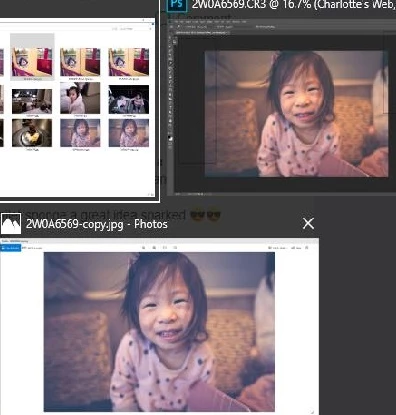
This topic has been closed for replies.

4 replies

D Fosse
Community Expert
Community Expert
March 8, 2019

John, you missed what Per said in post #3: Windows "Photos" is not color managed. So it will not match Photoshop, and it's not supposed to. Windows "Photos" is wrong, Photoshop is right - as long as you embed the document profile, and you have a valid monitor profile for Photoshop to use.

Color managed applications convert from the document profile and into the monitor profile, and sends those corrected values to your display. Applications without color management just pass the original numbers straight through uncorrected. All profiles are ignored.

If your monitor profile is broken you can either get a calibrator to make a new one, or as a temporary solution use sRGB until you do.

Per Berntsen
Community Expert
Community Expert
March 7, 2019

The Photos app is not color managed, and will not display correct colors. The Windows Photo Viewer is color managed, and will display correct colors. It's hidden on Winodws 10, do a search for it.

johnc21834172 wrote

(even on facebook) looks alot less warmer.

Which web browser do you use? The Edge browser is not color managed. Use a color managed browser like Chrome, Firefox or Opera.

mark-heaps wrote

It sounds like you are switching between color profiles, or gamuts, in your workflow.

You'll need to align between each stage to make sure you are working with something like AdobeRGB all the way across.

There is no need for document profiles or working spaces to match.

An image converted from ProPhoto to sRGB should display correctly, as long as it's viewed in a color managed application.

davescm
Community Expert
Community Expert
March 7, 2019

When you export your image , make sure Convert to sRGB and Embed Color Profile are checked. This is best practice for sending images into the big world of the internet. To view correctly though, view in a colour managed viewer/browser which will use the embedded color profile to translate the colors correctly to your monitor.

Dave

johnc21834172
Participant
March 7, 2019

Thanks for your reply.

Yeah I've been doing the sRGB conversion and embed color option. The problem still persists.

Ive been using PS for a long time and haven't had this issue with my other computers.

sharp_hands16B8
Community Expert
Community Expert
March 7, 2019

It sounds like you are switching between color profiles, or gamuts, in your workflow.

You'll need to align between each stage to make sure you are working with something like AdobeRGB all the way across.

If your client is viewing them all on the web, or that's where your work is finalized, you'll want to process through to sRGB.

JJMack
Community Expert
Community Expert
March 7, 2019

johnc21834172  wrote

Photos are exported via sRGB.

Imported from Lr as Prophoto

How is the Color space switching being done? Are you converting the colors between color spaces or Assigning the color space. Not changing color values?

What are you using to view you image files does the viewer use color management to display correct colors.  If done correctly you images should look the same in either color space.

JJMack