Participant
January 5, 2025
Answered

Where are those two icons?

  • January 5, 2025
  • 3 replies
  • 612 views

Hello everyone, i think its a simple question but i cant find any solutions for this.

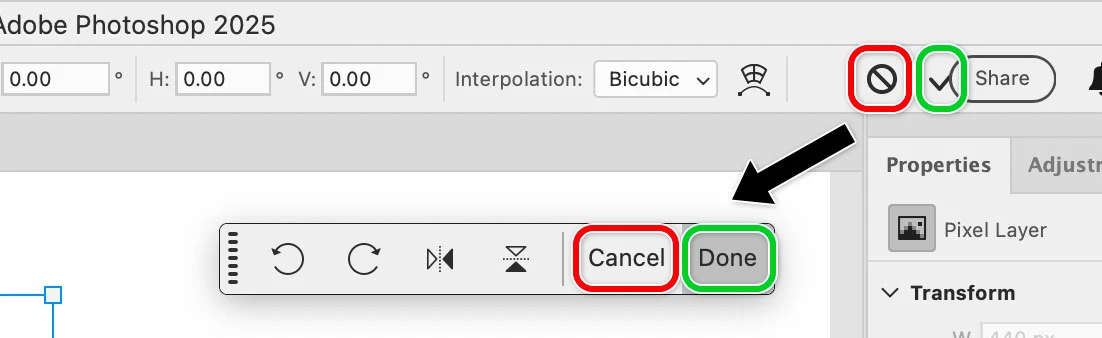
A while back, before the last update of Photoshop (my current version 26.2.0), i can no longer see those icons. I draw:) the place were they're  supposed to be. As you folks can see, it appears when you select a layer and want to resize'em or whatever. SImple ✅ and 🚫. 

Correct answer Conrad_C

You know, that’s a really good tip to remember. If the Cancel/Done buttons on the options bar get covered up, the buttons on the Contextual Task Bar give us a new Cancel/Done alternative in addition to the keyboard shortcuts.


I don’t think the Cancel and Done buttons in the Contextual Task Bar replaced others, from what I’ve seen they’ve only added to the others…more options are good. On large displays, the buttons on the Contextual Task Bar are often a shorter round trip from the image than going all the way up to the corner of the screen at the options bar.

3 replies

Trevor.Dennis
Community Expert
Community Expert
January 7, 2025

I've noticed that some functions are now OK'd from the Contextual Task Bar for me.  I've not looked into why it changed, although it was annoying to start with.  I use a large screen with things well spaced out, FWTIW.  I just check the crop tool, which I think was one of the functions that was doing this, and the icons were in the Options bar like they used to be.

Conrad_C
Community Expert
Conrad_CCommunity ExpertCorrect answer
Community Expert
January 7, 2025

You know, that’s a really good tip to remember. If the Cancel/Done buttons on the options bar get covered up, the buttons on the Contextual Task Bar give us a new Cancel/Done alternative in addition to the keyboard shortcuts.


I don’t think the Cancel and Done buttons in the Contextual Task Bar replaced others, from what I’ve seen they’ve only added to the others…more options are good. On large displays, the buttons on the Contextual Task Bar are often a shorter round trip from the image than going all the way up to the corner of the screen at the options bar.

Conrad_C
Community Expert
Community Expert
January 7, 2025

If the application window can be made wider, widen it.

If the application window is already maximized to the full width of the screen, try reducing the screen resolution and/or scaling percentage…in Windows those are two different options in Display settings.


If nothing helps, maybe use the keyboard shortcut for each button.


The shortcut for the Apply (√) button is the Enter key on the numeric keypad. If your keyboard doesn’t have a numeric keypad, it might work to press Fn+Enter.


The shortcut for the Cancel (\) button is the Esc key. In many cases, the shortcut Ctrl - . (period) does the same thing in Windows, and Command - . (period) does the same thing on macOS. (Those are US English shortcuts, might be different in other languages.) 


(Edit) Trevor.Dennis’ reply reminds us that the Cancel and Done buttons now also appear on the Contextual Task Bar, which is often much closer to where you’re actually working. So that’s yet another way to apply or cancel the current edit.

Participant
January 7, 2025

Reducing the scale from 150% to 125% really worked. However, this resolution makes everything too small for me 🤓. I loved the idea of having the same options in the contextual text bar. The only problem is that sometimes it bugs out. But I think this will be the solution—reducing the scale and leaving everything very small ends up affecting my vision. Thanks, guys!

Stephen Marsh
Community Expert
Community Expert
January 5, 2025

@Julya324037323co0 


It may sound like a pop-culture joke reference, but have you tried resetting preferences? Corrupted prefs are often the cause of inexplicable behaviour.


https://community.adobe.com/t5/photoshop-ecosystem-discussions/quick-tip-how-to-reset-photoshop-preferences/td-p/12502668


https://helpx.adobe.com/au/photoshop/using/video/preferences-video.html


https://helpx.adobe.com/au/photoshop/using/preferences.html


Before resetting preferences, it's always a good idea to manually back up your custom actions and custom presets such as brushes for safety (saving actions to .atn file, brushes to .abr files etc).


https://helpx.adobe.com/photoshop/using/preferences.html#backup-photoshop-preferences


https://helpx.adobe.com/photoshop/using/preferences.html#Manually


Participant
January 6, 2025

Yes I tried to reset all preferences, same problem. Tried to check and uncheck the "Enable narrow options bar", same problem. The main reason is the Share button (compartilhar in my language), is blocking the view of these two icons. I know for a fact that this button cannot be erased or hidden

Stephen Marsh
Community Expert
Community Expert
January 6, 2025

What monitor resolution are you running? Is Photoshop full screen or smaller?


The big blue share button isn't popular with some users, this looks like another reason why it may be disfavoured.