Ahmadsultan
Participant
May 15, 2026
Answered

Why are my Photoshop exported images too large for websites?

  • May 15, 2026
  • 3 replies
  • 41 views

I optimized my images, but the file sizes are still heavy and affecting page speed. What export settings or formats do you recommend for better web performance?

    Correct answer gary_sc

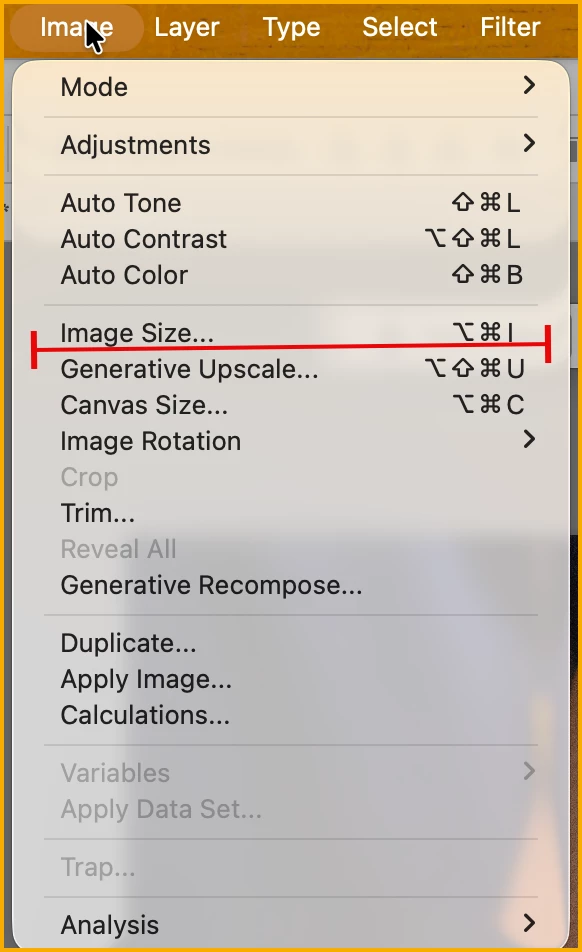
    Hi, ​@Ahmadsultan, if you go into Image (menu), and select “Image size,” you’ll see where you need to work with images for the web (and other needs).

    If you set the fields to show pixels, you can see the width and height of the current state of the image.
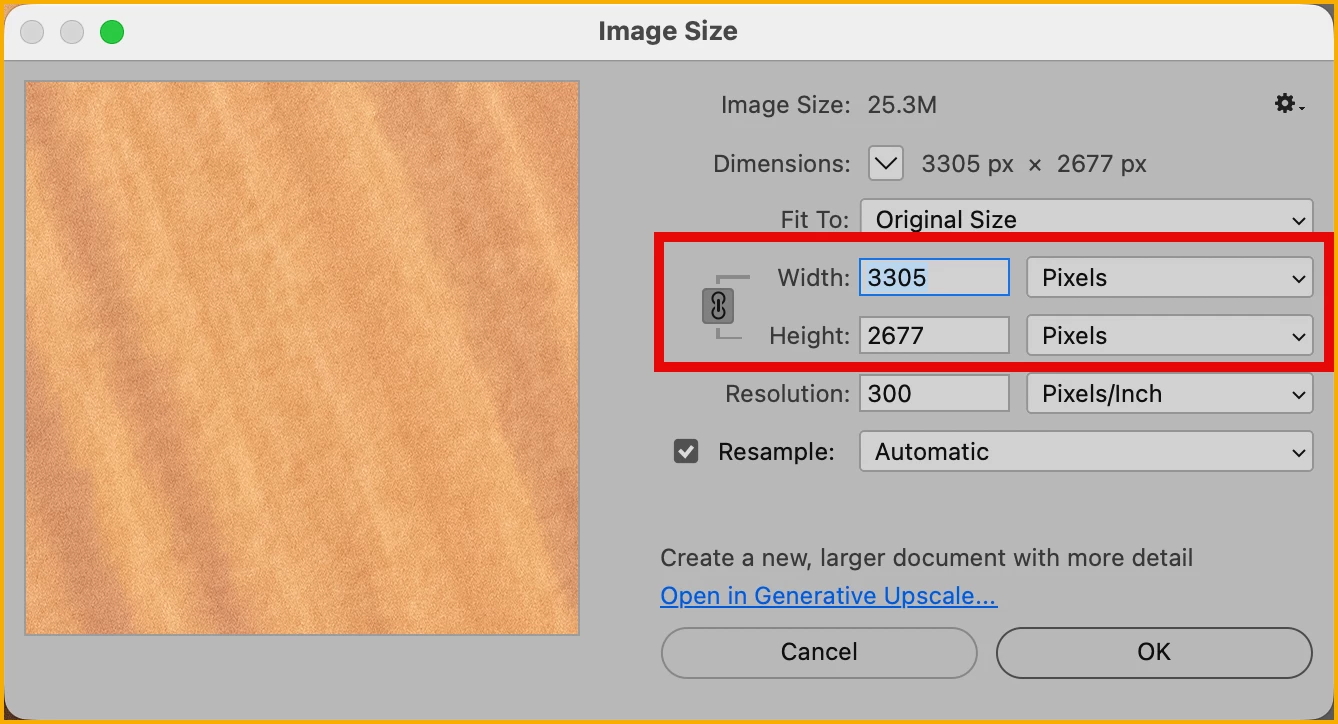
    Typically, and this varies all over the place depending on the needs of the website, the size may be between 600 pixels in width up to 1600. But the lower end is more common. Please note that the resolution on the web is irrelevant. If that little “chain” icon is dark as shown, any change you make in one field will respond in kind in the other.
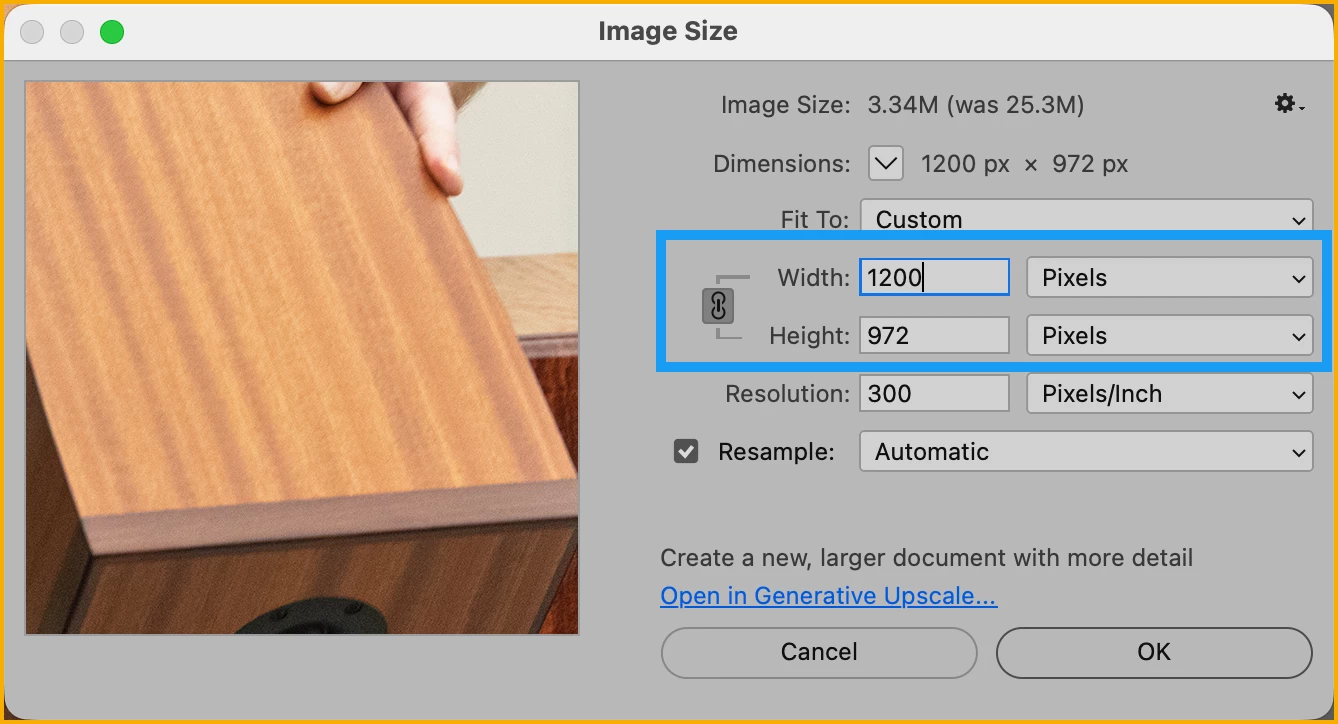
    The reason for all this is you are not printing, rather, you are placing each pixel of the image for each pixel on a monitor. Thus, a low resolution monitor will show the same image much larger than a higher resolution monitor—the pixels are smaller.

    Once you determine the necessary resolution for the image, THAN you can set the compression for the image. Too high of compression and you start to get JPG degredation.


    3 replies

    gary_sc
    Community Expert
    gary_scCommunity ExpertCorrect answer
    Community Expert
    May 15, 2026

    Hi, ​@Ahmadsultan, if you go into Image (menu), and select “Image size,” you’ll see where you need to work with images for the web (and other needs).

    If you set the fields to show pixels, you can see the width and height of the current state of the image.

    Typically, and this varies all over the place depending on the needs of the website, the size may be between 600 pixels in width up to 1600. But the lower end is more common. Please note that the resolution on the web is irrelevant. If that little “chain” icon is dark as shown, any change you make in one field will respond in kind in the other.

    The reason for all this is you are not printing, rather, you are placing each pixel of the image for each pixel on a monitor. Thus, a low resolution monitor will show the same image much larger than a higher resolution monitor—the pixels are smaller.

    Once you determine the necessary resolution for the image, THAN you can set the compression for the image. Too high of compression and you start to get JPG degredation.


    D Fosse
    Community Expert
    Community Expert
    May 15, 2026

    And crucially, how many pixels w x h?

    MarekMularczyk
    Community Expert
    Community Expert
    May 15, 2026

    Exactly 😉

    Adobe Community ExpertAdobe Certified Professional
    MarekMularczyk
    Community Expert
    Community Expert
    May 15, 2026

    How do you optimise your images for the web? What are your settings?

    Adobe Community ExpertAdobe Certified Professional
    Ahmadsultan
    Participant
    May 19, 2026

    I faced the same issue while uploading images to my website. Even after optimization, the image sizes were still too large and affecting page speed. What worked for me was resizing the images in Photoshop first, then exporting them using compressed JPG/WebP settings with lower quality percentages. After reducing the dimensions and compression level, the file size became much smaller without losing too much image quality. It really helped improve my website loading speed.If you want to check the images look this
    Thanks you.