
Participating Frequently
Nov 19, 2026 10:17 PM UTC
Question

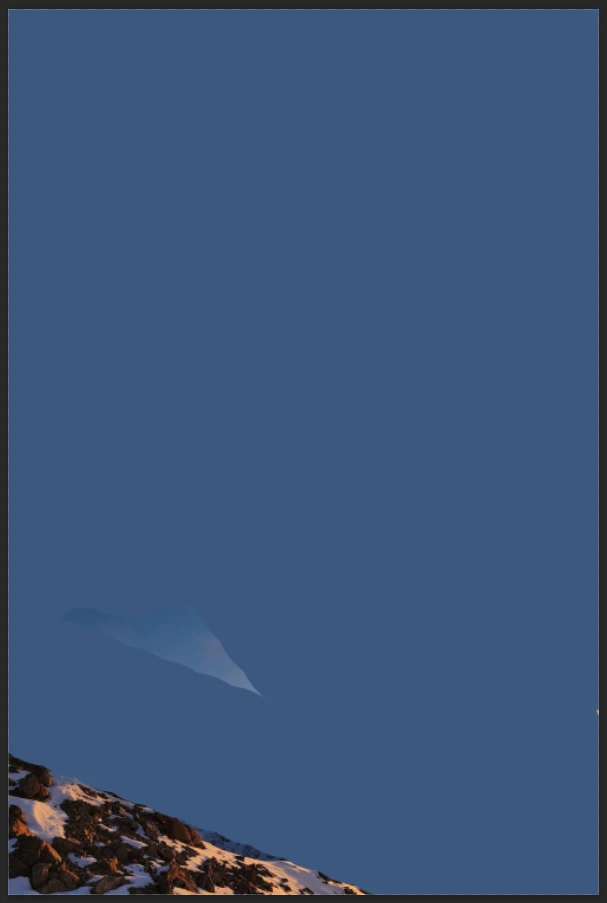
Why are the brush and eraser tools suddenly taking away big chunks of the photo?

Hi everyone. The brush and eraser tools in Photoshop are behaving VERY strangely!

I’ve been using Photoshop for 20+ years and I’ve never seen this before.


What happens: I select the eraser tool. I make one single click (to erase one spot). The eraser tool makes wild random streaks across the whole page. I press Ctrl+Z to undo. Start again. One click. More wild random streaks in different places.

See screenshots below (before and after).

The same thing is happening with the brush tool. One click and the paint makes wild random streaks across the image.


Any ideas why this is happening??


Note: This has happened before AND after updating to the latest version (v28.0), so it’s not related to the current update.

Note: I am NOT using the AI Assisted function.


IMAGE BEFORE
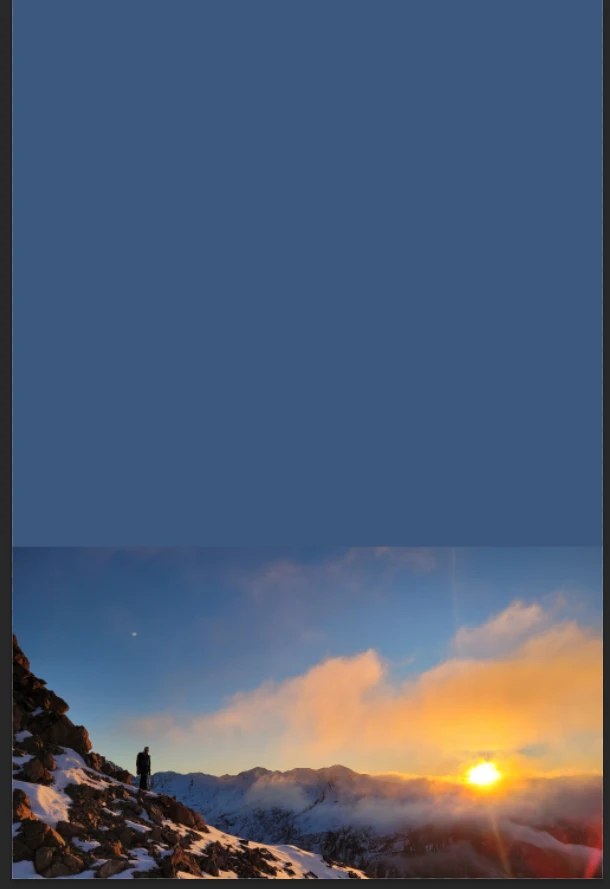


IMAGE AFTER MAKING ONE CLICK WITH THE ERASER (example #1)
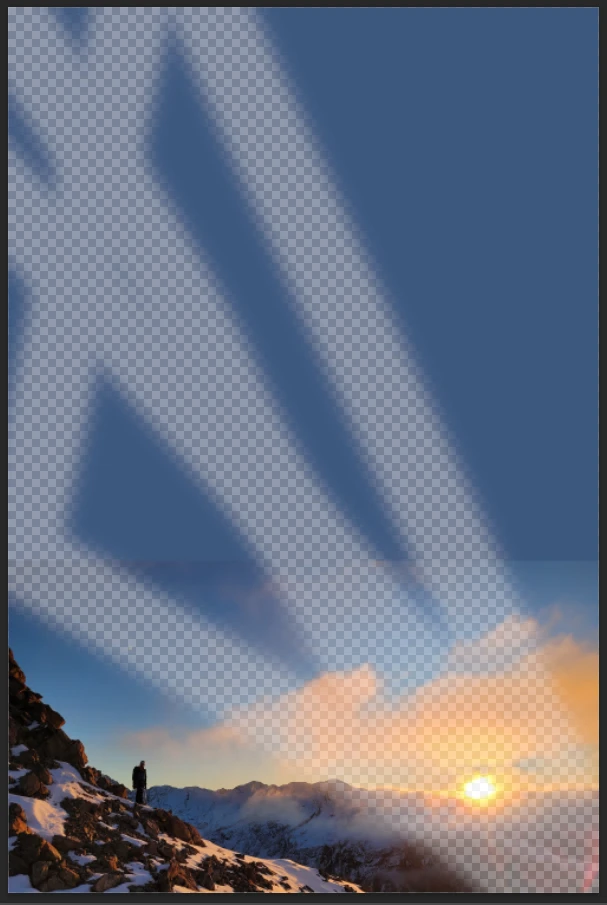


IMAGE AFTER MAKING ONE CLICK WITH THE ERASER (example #2)
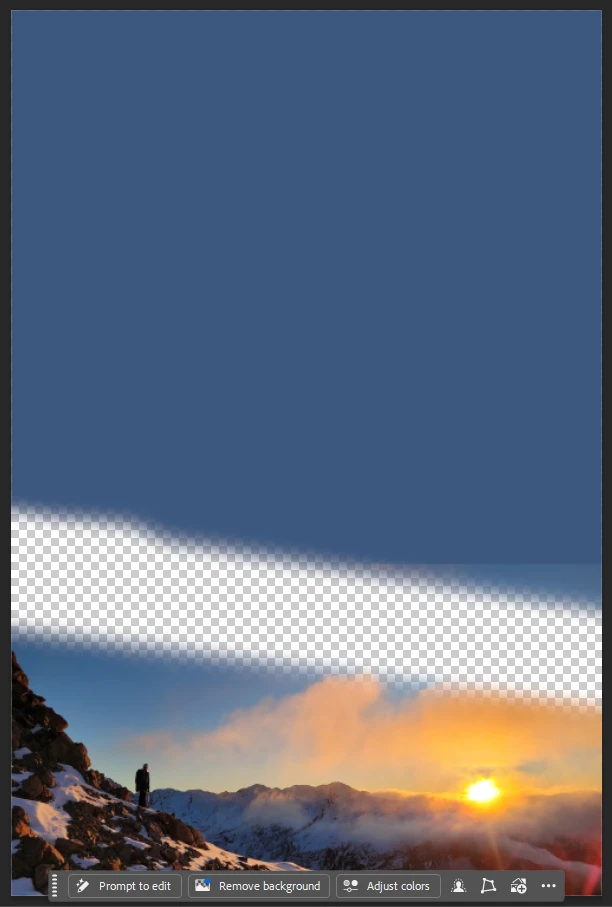


IMAGE AFTER MAKING ONE CLICK WITH THE ERASER (example #3)
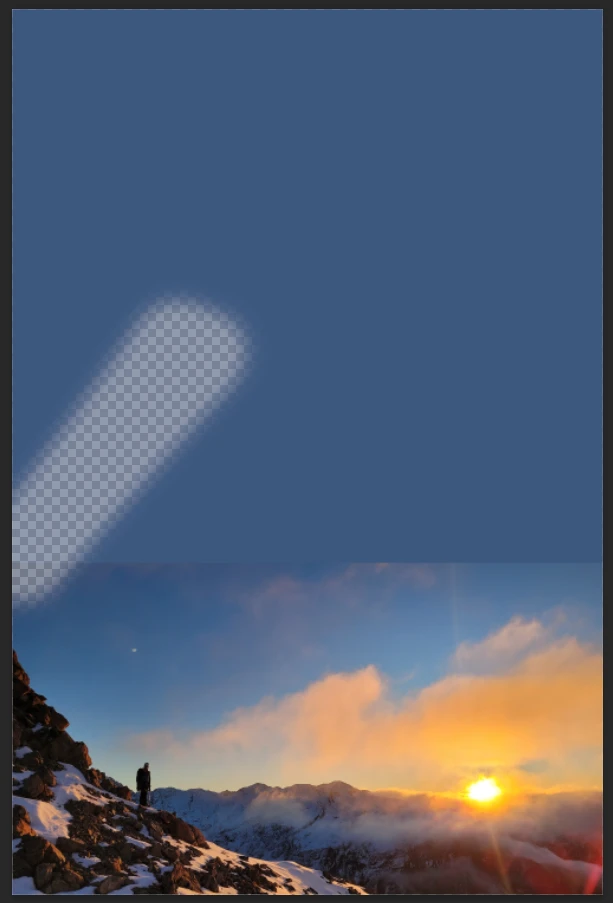


IMAGE AFTER MAKING ONE CLICK WITH THE BRUSH TOOL (example #1)


Why is Photoshop doing this and how do I turn it off???

Thanks


    4 replies

    Participating Frequently
    Nov 20, 2026 1:01 AM UTC

    UPDATE: This is also happening with the dodge and burn tools and spot healing brush.

    Translate
    S_Gans
    Community Expert
    Community Expert
    Nov 19, 2026 11:46 PM UTC

    This is VERY strange - but it’s ringing a bell for me.
    You don’t mention whether you’re using a computer with a keyboard/mouse/pen tablet, or a laptop with a touchpad, or any variation. But, long ago, I found that I had both a sticky shift key AND a bad mouse! So, the machine kept thinking that I was clicking and then connecting clicks. It took me a long time to figure out, but when I saw the effect like in your top 3 images, I was reminded of the way the Polygonal Lasso tool worked. It fixed, when I tried first, another mouse, then another mouse and keyboard.
    Just a thought...🤔

    Looking more closely, it looks like there may also be something happening with a number key, as the transparency of the brush/eraser seem to be affected, too.

    Translate
    Adobe Community Expert / Adobe Certified Instructor
    Participating Frequently
    Nov 20, 2026 12:59 AM UTC

    Hmmm interesting thought. I use a PC desktop with keyboard and mouse. I haven’t had any issues with the mouse, but I can try another mouse and see if that helps.

    I didn’t use the shift key for this. The transparency will look different because I tried a few different transparency percentages to see if that was affecting anything.

    Translate
    S_Gans
    Community Expert
    Community Expert
    Nov 20, 2026 10:55 PM UTC

    The device info helps. I am sure you didn’t use the shift key (or you wouldn’t be concerned about this! 😁). But I’m not all that sure your keyboard knows that. Mine was something sticky in my keyboard, so there was some kind of short or pressure that was happening. 
    I’d had something like that at a different time, with text… RANDOM capital letters. And, one time, keys repeating over and over. When keys get things like a tiny short or something that slows them down, it does weird stuff. The behavior is as if the shift key is down, so I was wondering if it’s really a keyboard issue.
    Hope it’s just the mouse, and it’s resolved!

    Translate
    Adobe Community Expert / Adobe Certified Instructor