August 27, 2013
Answered

Why do my images look washed out...

  • August 27, 2013
  • 3 replies
  • 29403 views

Why do my images look washed out after I have worked in Photoshop CS6 and saved them in Finder? I have been a Photoshop user for a while now and have never experienced this problem. It started 2 months ago and no one can seem to tell me why or how to fix it. I am a professional photographer and I have clients waiting on their images but I can't send them looking as horrible as they do. My workflow is: drag and drop an image from iPhoto or Finder to Photoshop. I change things like levels, contrast, image size and use the healing too. Then I save to Finder so I can upload to dropbox or to website or burn to a DVD. Now when I save the image the thumbnail looks washed out, without color and looks horrible!!! I don't know if my photo files are corrupted or ? If I open the image in Photoshop or Bridge it looks fine. I would be grateful for any suggestions or explanation. Things were working just fine, but not now.

    This topic has been closed for replies.
    Correct answer

    Examining the image direct from the camera of the child on the beach, using http://regex.info/exif.cgi  there is a small embedded thumbnail (with black bars top-and-bottom to letterbox it to the LCD aspect ratio), and a small preview probably used for zooming in on the camera LCD screen, and the fullsize jpg image all contained in the one JPG file.  All three of these seem to have identical histograms other than the black-bars causing a dark peak on the thumbnail image, but otherwise the shapes of the histograms and the position of the peaks from light to dark are the same. 

    In other words the full-size JPG and the embedded preview and thumbnail all seem the same other than size so the darkened version seen in Finder is not coming from the camera.  The one issue the above website reports is that the camera JPG has a color-profile tag (name of the profile) but does not actually contain the color profile, itself.  All other versions of the image have an actual embedded profile not just the name in a tag.  It is possible that this is confusing Finder into assuming a different profile or gamma curve for the image that sRGB warrants, but most all camera images have this issue so I wouldn't expect a Mac to show images from all cameras as too dark.

    It is a mystery to me why the Finder preview looks darker, but at least in the one side-by-side provided, it does, and is different-looking than all other representations of the image from what I can see.

    At the beginning of this thread you said you were worried the photos coming out of Photoshop were washed out and had bad colors.  From my perspective, what comes out of Photoshop looks the same as what comes out of the camera, so only Finder has it wrong.  Are you seeing the darker image anywhere else besides Finder (and perhaps iPhoto which we don't have a screenshot of)?

    Most importantly does the image you see on screen in Photoshop, while you're making adjustments, look dark like the pre-PS Finder thumbnail or does it look lighter, like the post-PS Finder thumbnail and all the images on DropBox? 

    If more than just the pre-PS Finder thumbnail is darker then you may have a monitor calibration issue that needs to be addressed, otherwise just ignore the pre-PS Finder thumbnail when evaluating if the image needs any adjustments and assume they are all ligher than the Finder image.

    BTW, I tested for a sRGB vs AdobeRGB mismatch, and if an sRGB image is assigned an Adobe profile then the colors become more intense but the whole image does not become darker so that can't explain what is happening. 


    Hey ssprengel,

    Thank you so much for taking the time to go through my images and make sure that nothing was going terribly wrong. What a big relief!!! The darker images that you see may be the originals from the camera that haven't been tweeked or lightened in Photoshop.

    I believe I may have discovered the problem.

    Click on Photoshop

              Preferences

                   File Handling

    Up pops a window that allows certain file saving options. Under image views there are a few boxes to either check or uncheck.

    The "Icon" box was checked!!!

    So, the preview in finder - the thumbnail - was a watered down low resolution icon rather than an image. That is why the thumbnails in finder looked to washed out and even a little blurry. As you said, the actual images are fine.
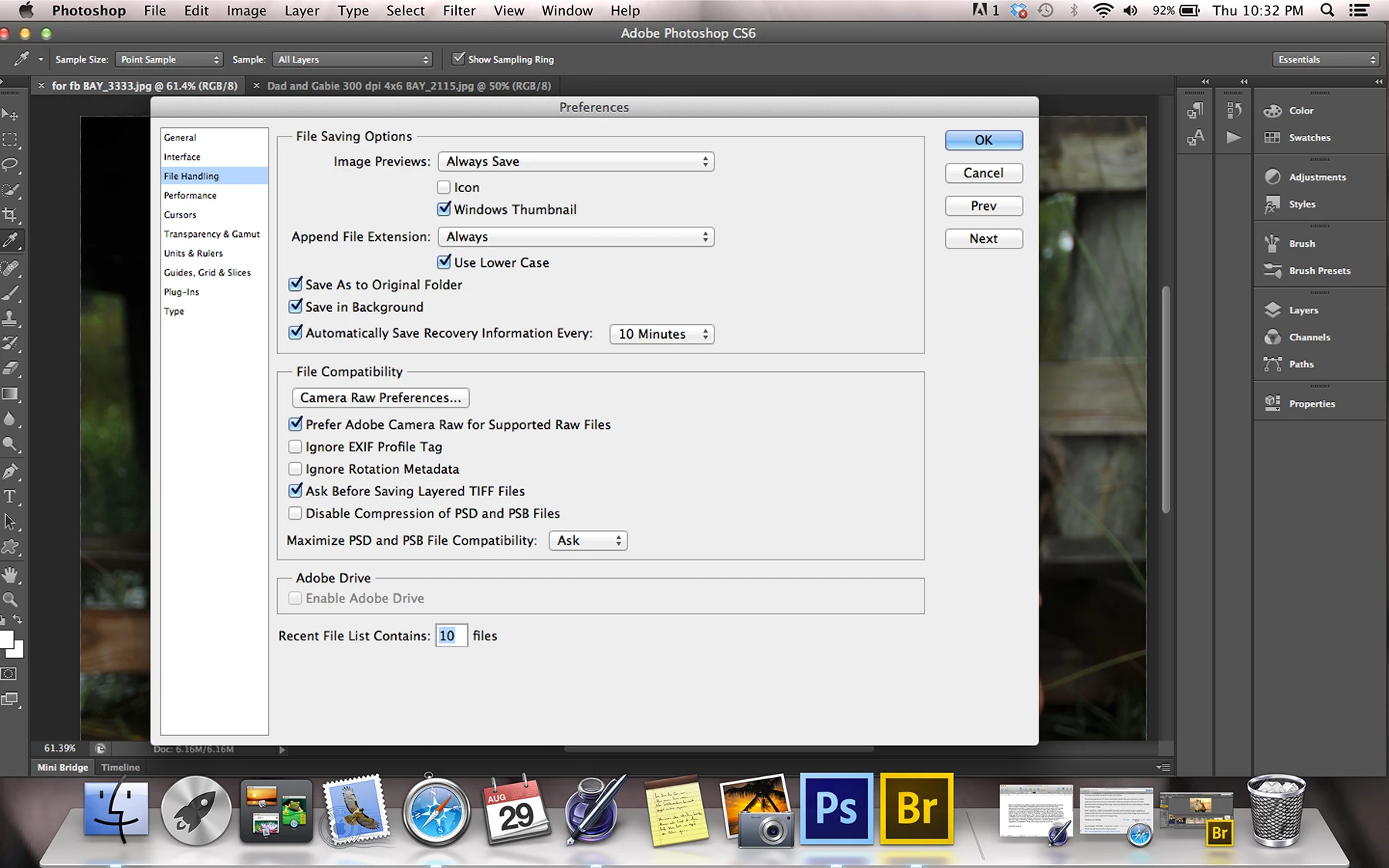
    So far, I made this change and the thumbnails in Finder look fine.

    I have learned so much. Thank you so much for the collaborative problem solving effort and for the great suggestions. Looking forward to learning even more!


    3 replies

    Participant
    August 25, 2017

    Switch your Photoshop file from CMYK to RGB before saving it to a jpeg.

    the_wine_snob
    Inspiring
    August 27, 2013

    I would eliminate iPhoto from your workflow. It does some odd things, regarding all files run through it.

    There are several threads on how iPhoto behaves, and what it does, to one's Images.

    Here are but a few:

    http://forums.adobe.com/message/5494894#5494894

    http://forums.adobe.com/message/5449992#5449992

    http://forums.adobe.com/message/5357310#5357310

    Good luck,

    Hunt

    August 27, 2013

    Wow! Thanks for the information! I really only use the iPhoto to view the images and mark the photos I want to further process. It seemed to be a simple format for folder and albums…But I can certainly stop using it. Is Aperture any better? Someone at the Mac store mentioned it was good…?

    Even if I take iPhoto out of the workflow I still get the same washed out look on the thumbnails. If I take my images from the scan disk card to a file in finder then open in Photoshop and save back in finder - the images don't look right. I am concerned that something has changed in the the image quality and that my clients are seeing the washed out look.

    Thanks so much for your help! I really appreciate it!

    Beth

    Participating Frequently
    August 27, 2013

    I suggest you use Bridge instead of iPhoto for image management.

    I'd also change the work color space from sRGB to ProPhoto or AdobeRGB, and make sure you are working on 16bit images.

    Washed out colors are often a problem of incorrectly tagged image (they have a different color space than the viewing environment requires).

    Also: did you say the thumbnails are washed out, but not the images?

    If you have to use iPhoto (I have never used it, so I can't give any info here) check what color space it is using (if there's a setting like this at all).

    c.pfaffenbichler
    Community Expert
    Community Expert
    August 27, 2013

    My workflow is: drag and drop an image from iPhoto or Finder to Photoshop.

    I doubt that a professional photographer should use iPhoto as part of their workflow.

    Edit: But as I do not work as a photographer I am not really qualified to judge this issue …

    Now when I save the image the thumbnail looks washed out, without color and looks horrible!!!

    Why do you care about the thumbnails?

    What are your Edit > Color Settings in Photoshop?

    Do you embed the profile when saving?

    What color space are the images?

    How do you process your RAW files?

    What is your OS?

    August 27, 2013

    I only use the iPhoto to view my images and mark the ones I want to further process. I can take it out of the equation and I still get the same results. If I take the images from scan disk card to photoshop to a saved file in finder I still get the same washed out look.

    Thumbnails - the didn't look horrible 2 months ago, so when something changes I wonder why. Several months ago I had problems with iPhoto and the Mac genius stated that the thumbnail files were "corrupted". I really don't know what this means other than they had to rebuild the thumbnails… But the main thing that concerns me is what my clients see when they open the images or a viewing the thumbnails. They may think something is wrong with the image… For that matter I am not sure if something really is wrong with the image or not…

    My edit color settings…North America General Purpose 2

    I do embed the color profile sRGB when saving.

    At the moment I am working in JPEG. I know I should shooting in RAW but most everything at the moment is JPEG.

    I have OS X version 10.8.4.

    Thanks for your response. I know there is ALOT I still have to learn and am grateful for your help!!!
