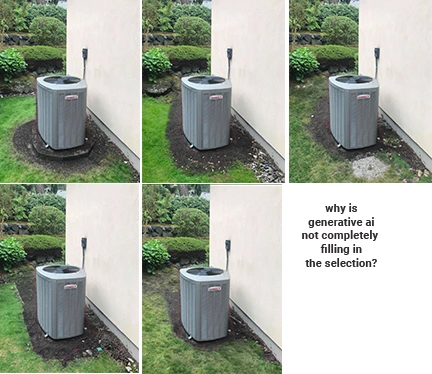
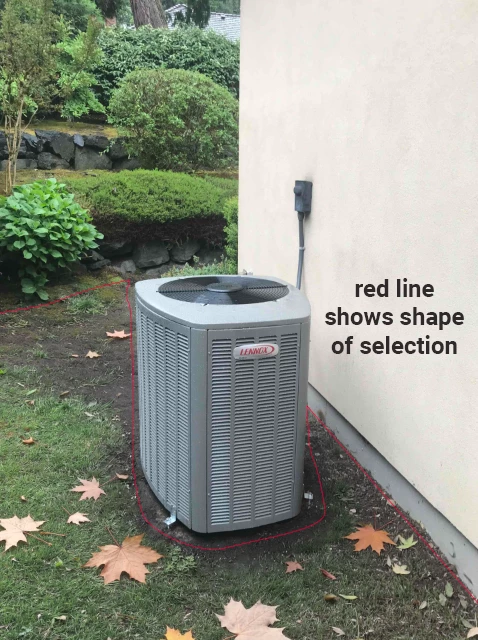
I create a selection, use generative ai to add (in this case) a grass lawn. Why does it not follow the lines of the selection? Why does it not completely fill in the selection?
I know that some models will use the smallest rectangle that fits the user’s selection, but ISTR that is not case with some other models. You need to be flexible which not only gets the job done, it also expands and maintains your Photoshop skills.
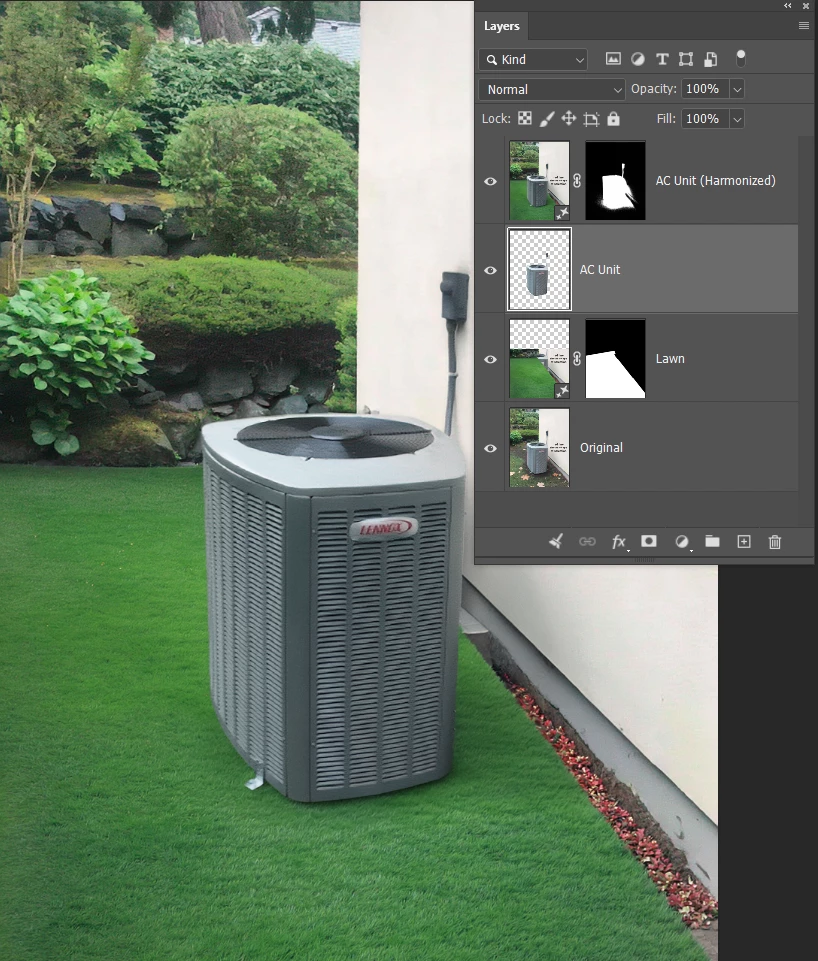
Start by copying the layer, and use Remove Background. That will isolate the AC unit.
Then select the area as if the AC unit was not there, and use Generative Fill with Firefly Fill & Expand I used ‘A neat well maintained lawn’
You now have the AC unit covering the new lawn, but it will look pants, so finally select the copied AC unit layer and use Harmonize. This will add shading and adjust lighting making everything look more real.
Photoshop is insanely powerful now, but there is a bit of a learning curve with the Generative Ai tools. I’ve attached a useful PDF guide from Colin Smith’s Photoshop Cafe site. It tells you which models to use, what resolution they can manage, and how many points they use.
Please feel free to ask all the questions you like on this forum. We really do enjoy answering them.
I mentioned the Photoshop Cafe YouTube channel. Together with The Photoshop Training Channel IMO they represent the very best resource for learning Photoshop. They both have websites (with the same names) and have in depth training you have to pay for. I did the Ai Mastery course on the Photoshop Training Channel which was excellent. Colin now has a similar course which is probably a bit more basic than Ai Mastery. Note, I have not done the other course, but I have spoken to someone who has.
I know that some models will use the smallest rectangle that fits the user’s selection, but ISTR that is not case with some other models. You need to be flexible which not only gets the job done, it also expands and maintains your Photoshop skills.
Start by copying the layer, and use Remove Background. That will isolate the AC unit.
Then select the area as if the AC unit was not there, and use Generative Fill with Firefly Fill & Expand I used ‘A neat well maintained lawn’
You now have the AC unit covering the new lawn, but it will look pants, so finally select the copied AC unit layer and use Harmonize. This will add shading and adjust lighting making everything look more real.
Photoshop is insanely powerful now, but there is a bit of a learning curve with the Generative Ai tools. I’ve attached a useful PDF guide from Colin Smith’s Photoshop Cafe site. It tells you which models to use, what resolution they can manage, and how many points they use.
Please feel free to ask all the questions you like on this forum. We really do enjoy answering them.




 AdChoices