Participating Frequently
November 11, 2014
Question

Why my stroke is pixelated ?

  • November 11, 2014
  • 6 replies
  • 26763 views

I have a problem with stroke in PS CS6. (2) When I use stroke on my curve line it looks pixelated and I don't know why ? (1) I did same line before and everything was clean and not pixelated.

Screen:
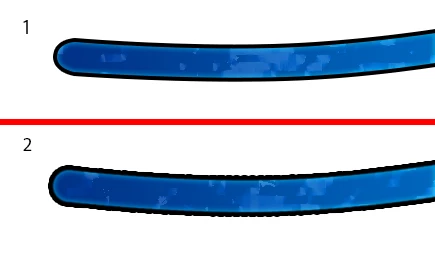
This topic has been closed for replies.

6 replies

artistic_nature98BC
Participating Frequently
May 17, 2018

have   the same problem, don't know why it  happens. For me i was apply stroke to smart object  what contain vector graphics

rayek.elfin
Legend
May 17, 2018

dmitriyt67949238  wrote

have   the same problem, don't know why it  happens. For me i was apply stroke to smart object  what contain vector graphics

It's a limitation of how this is implemented in Photoshop and/or a bug, depending on your view.

In competing software such as PhotoLine and Affinity it works as it should.

Perhaps the Photoshop developers will solve it one day, perhaps in a year or ten or twenty, but I wouldn't get your hopes up too high, since this bug's been present for a very long time.

artistic_nature98BC
Participating Frequently
May 17, 2018

will be glad to migrate to Affinity but it's not support smart object   what all using. I think i have solve my problem, i   was insert vector shape, it was ai file so it inserted as smart object, i was lazy to open it in illustrator and colored it as layer style to white,  but i was need to manupulate  with more styles so i was created from it new smart layer and apply stroke, color, change size etc. So the problem was what in first smart object(with white color) it was small resolution and produce pixilated stroke, but bevel was fine though

yoloooooooo
Participant
May 9, 2018

So I have had this problem too for a while, and I have found a solution using 'Unsharp Mask' that fixed this jaggy looking stroke issue for me.

I too was slamming my head against the wall because this problem was so frustrating xD.

All the answers that I found on the internet where either workarounds that don't directly fix the problem or answers from people who think it just all looks pixelated anyway and don't see the need to fix it.

I made a sheet describing the steps I took to fix this problem. All examples use the same stroke settings. In example 2 I recreated the problem with the jaggy looking stroke and I fixed it in example 3.

I hope this helps a lot of people out

rayek.elfin
Legend
May 10, 2018

Unfortunately not a real solution, and more of a patch to fix things afterwards. The moment a new stroke is added, the new stroke is again affected.

It's quite staggering that this bug has been around this long. Ah well, the bevel and emboss effect's been buggered up for as long as I remember as well.

Photoshop: bugs R us Inc.

jossejj
Participant
February 24, 2018

In some previous desing software I saw this, is not a problem, because is not pixelated. The first think that u have to try before do another thing is Export this to PNG and then check, the most of time (if is not the software or something) you will see it perfect.

Why this happen?? Well let suponse that the render in Adobe is in low quality for be more fast in performance, when u export, it do it depend the dpi that u use and size.. If u has work in 3D software before, suponse that when u are making the design is 50 samples and when u export is 100 samples (just a example).

And check the resolution of your monitor (just in case) if you can connect it via VDI, will be much better. In some cases, I dont know why some monitors (I guess) you look like if it have Not Anti-alias. But obviously in this case is not the monitor. (is just a suggestion).

Hope this help u.

freshmate
Participant
May 16, 2017

Try applying a gaussian blur and see if that helps soften up the edges.

Jeff Arola
Community Expert
Community Expert
November 13, 2014

Try setting your brush to 100% Hardness and 1% Spacing, use your brush and then try the Stroke and the stroke should be somewhat smoother.

CrossONEAuthor
Participating Frequently
November 13, 2014

Tried it before, didn't help. It is not the brush problem but stroke.

Jeff Arola
Community Expert
Community Expert
November 13, 2014

See if resetting the photoshop cs6 preferences makes any difference.

reset photoshop preferences

Press and hold down the Shift+Ctrl+Alt (Shift+Command+Option on a mac) keys just after starting the launch of photoshop cs6

Keep holding the keys down until you get a dialog asking if you want to delete the adobe photoshop settings file

Press Yes

Jeff Arola
Community Expert
Community Expert
November 12, 2014

How did you apply the stroke?

CrossONEAuthor
Participating Frequently
November 12, 2014

In Layer Style.

Participating Frequently
November 12, 2014

They both look pixelated to me.

I don't understand how you created that image.  It looks like a (not completely) blue brush, with a soft inner glow and outer hard-edged glow?  What's causing the color shift in the blue?  Is it part of the brush you're using, or are you applying some sort of effect to it after?
