


Known Participant
December 8, 2025
Answered

Windows 11 File Explorer PSD thumbnail view

  • December 8, 2025
  • 3 replies
  • 1319 views

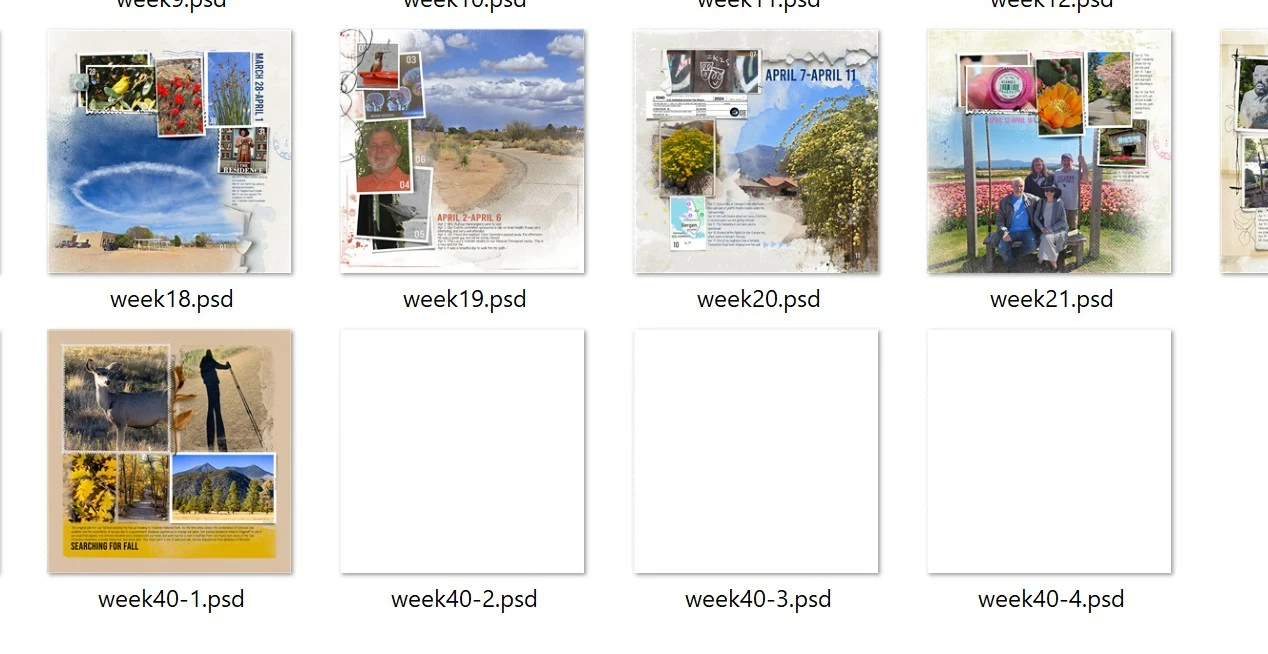
Hi, everyone. Over the last couple of days, new .PSD files display in File Explorer as plain white squares vs. thumbnails. Older .PSD files display properly.  I've Googled the problem and hit up Reddit and tried all the "fixes", but none work for me. What I've tried so far: 


1) Checked folder view to ensure that Always show icons, never thumbnails is UNchecked
2) Restarted File Explorer in the Task Manager
3) Restarted my computer
4) The folder I view from is a shortcut. I have checked the source folder as well - same behavior
5) Checked my graphics card driver and ensured it is up-to-date
6) Copied the errant .PSD files to my desktop - same behavior.


I thought perhaps just those 3 file thumbnails were corrupted some way, but I just created a new .PSD and I have the same issue.


Any ideas on the problem and how to fix it?
868450iABB581DA3DAD5FD5.jpg

Correct answer D Fosse

Windows Explorer does not display .psd thumbnails, period.


It started out as an age-old disagreement between Adobe and Microsoft dating back to Photoshop version 7.0 or so, back in the beginning of the 2000's, that was never resolved - and eventually the whole situation just settled and has been unresolved ever since.


A number of third-party codecs are out there to display .psd thumbnails in Windows Explorer. A lot of people have probably installed one of these at some point and forgotten about it.

3 replies

D Fosse
Community Expert
D FosseCommunity ExpertCorrect answer
Community Expert
January 22, 2026

Windows Explorer does not display .psd thumbnails, period.


It started out as an age-old disagreement between Adobe and Microsoft dating back to Photoshop version 7.0 or so, back in the beginning of the 2000's, that was never resolved - and eventually the whole situation just settled and has been unresolved ever since.


A number of third-party codecs are out there to display .psd thumbnails in Windows Explorer. A lot of people have probably installed one of these at some point and forgotten about it.

Known Participant
January 22, 2026

I've been having a slightly similar problem, though not exactly the same. Some of my PSD's when viewed in windows file explorer display as the blue Photoshop PS icon, others display thumbnail previews of the actual PSD's contents. I'd prefer they all display previews of course. I tried adjusting the setting you found "Maximize PSD and PSB File Compatibility" to "Always" like you said, and then resaved the PSD, but it didn't fix anything for me.

I'm also seeing other comments in the Adobe Community forums saying Windows doesn't natively have the ability to display PSD thumbnail previews like this. But then why is it doing so for me in some folders rather than others? I never installed anything special to make that happen as far as I'm aware. So something else must be going on here.

vawittAuthor
Known Participant
December 8, 2025

Replying to my own post because ChatGPT found the solution in less time than it took me to type this all out. 

When Maximize PSD File Compatibility is off, Photoshop stops embedding the flattened composite preview inside the PSD — and Windows Explorer can only display thumbnails from that embedded preview. No preview = white box.


I had disabled this for some reason. Once I turned it back on and resaved, the thumbnails started displaying again. Leaving this up for anyone who may have this issue.

Edit > Preferences > File Handling, set "Maximize PSD and PSB File Compatibility" to Always.
