

Participant
Oct 27, 2026 2:18 AM UTC
Question

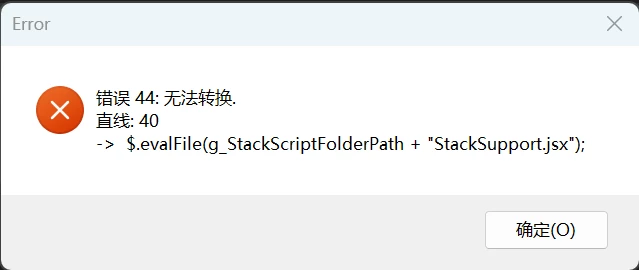
从creative cloud全新安装的photoshop 2026,在点击文件-脚本-将文件载入堆栈时,弹出一个故障提示,错误44:无法转换,直线:40,以及一行字符。这是什么问题?

从creative cloud全新安装的photoshop 2026,在点击文件-脚本-将文件载入堆栈时,跳出如下弹窗,这是什么问题?
 

    1 reply

    Community Expert
    Oct 31, 2026 7:21 AM UTC

    Hi,

    This is a known issue affecting Photoshop 2026 on Windows, and the error in your screenshot matches an existing bug report.

    The problem appears to be related to the character encoding of a Photoshop support script called StackSupport.jsx. Some versions contain characters that Photoshop's scripting engine cannot interpret correctly on certain Windows language configurations.

    An Adobe Community Manager has published a workaround.

    Try the following:

    1. Close Photoshop.

    2. Navigate to this folder:

      C:\Program Files\Adobe\Adobe Photoshop 2026\Presets\Scripts\Stack Scripts Only

    3. Locate StackSupport.jsx and make a backup copy before changing anything.

    4. Open the original file in Notepad.

    5. Choose File > Save As and select UTF-8 with BOM under Encoding.

    6. Make sure the filename remains StackSupport.jsx and the file type is set to All Files, so it doesn't acquire a .txt extension.

    7. Save the modified file, replacing the original. You may need administrator permission to write to the Photoshop installation folder.

    8. Restart Photoshop and try File > Scripts > Load Files into Stack again.

    Changing the encoding to UTF-8 with BOM has been reported to resolve this particular error.

    If you prefer not to modify the installation files, another reported workaround is reverting Photoshop to version 27.9.1 through Creative Cloud.

    You can follow the existing bug report here:

    https://community.adobe.com/bug-reports-711/p-win-photoshop-27-10-script-load-files-into-stack-fails-with-an-error-44-cannot-convert-and-cannot-be-executed-1639530

    This isn't necessarily a problem with your installation, and other users have reported that reinstalling Photoshop or resetting preferences doesn't fix it.

    Let us know whether changing the file encoding resolves the issue.

    Translate
