Participating Frequently
July 27, 2017
Answered

Add image to layer

  • July 27, 2017
  • 1 reply
  • 1298 views

I wish to do the following and have not seen an answer anywhere.

I want to put photo A as background, put photo photo B as layer 1, then increase transparency of photo B. 

I can create background layer, but if I create a new layer, select it, and then click on photo B,all that happens is that photo B becomes the background.  If I try to decrease opacity of other layer, nothing happens.  So how do I get photo B as layer 1?
    This topic has been closed for replies.
    Correct answer hatstead

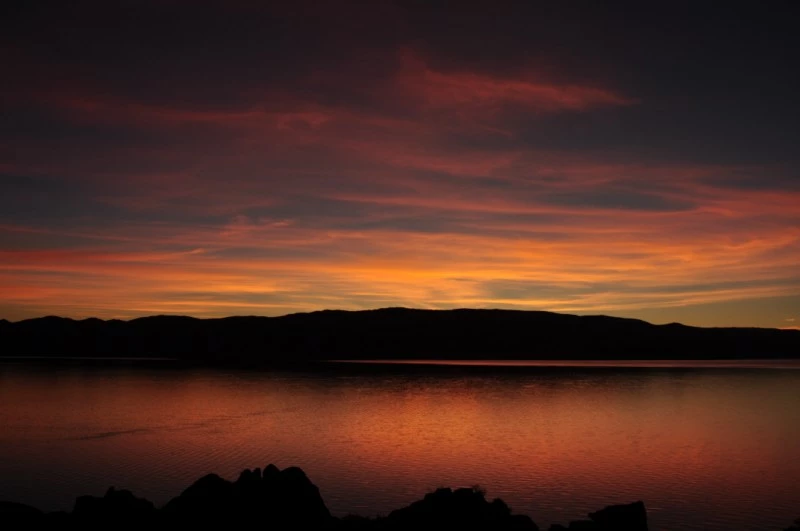
    All I want to do is have one photo be background--I can do that-- and the other layer 1, and play with the trasparency of layer 1.  My question remains how do you "load" the second photo into layer 1.  Jim


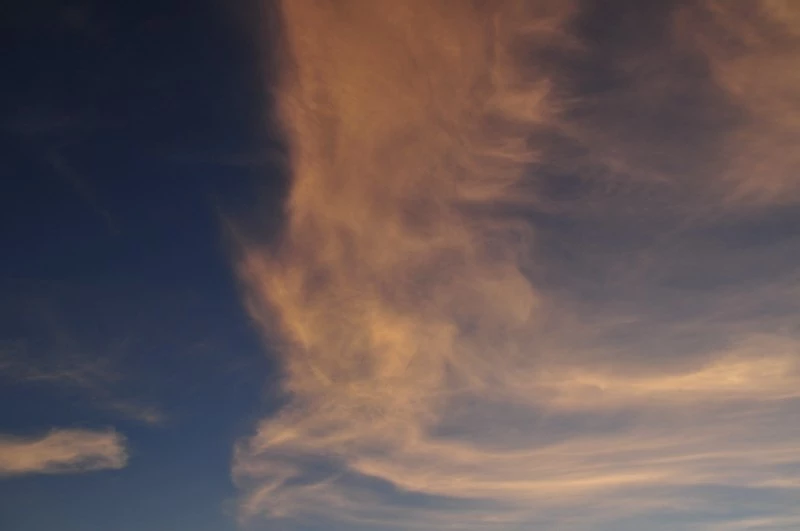
    1. Open the picture of the sky
    2. Go to Select>all
    3. Go to Edit>copy to put it on the clipboard
    4. Open the picture with the water
    5. Go to Edit>paste

    The pic of water is Background Layer

    Pic of sky is Layer 1

    Reduce the layer opacity of Layer 1 to suit.

    HTH

    1 reply

    hatstead
    Inspiring
    July 27, 2017

    In Editor, go to the expert tab.

    1. Open picture B, the one you wish to select something from to add to another picture.
    2. Use one of the selection tools, e.g. selection brush, lasso tool, to select the object. You will see an outline ("marching ants") once the selection is complete
    3. Go to Edit menu>copy to copy the selection to the clipboard
    4. Open picture A, then go to Edit>paste
    5. Use the move tool to position object from picture B.
    6. In the layers palette you should see picture A as the background layer, and object B on a separate layer.
    tamzuncAuthor
    Participating Frequently
    July 27, 2017

    Thank you, What I wish to do is have one photo file in one layer and one photofile in the other.  I'm not trying to use an object--rather a partly transparent photo over the background photo.

    hatstead
    Inspiring
    July 27, 2017

    tamzunc  wrote

    Thank you, What I wish to do is have one photo file in one layer and one photofile in the other.  I'm not trying to use an object--rather a partly transparent photo over the background photo.

    OK.

    You can reduce the global opacity of the layer above the background layer. This should enable you to "see through" the layer (your layer 1).

    If you are trying to add something like a logo, where you wish to delete background components, leaving just the information in the logo, let us know for directions.

    If you are so inclined, post the two photos (or similar) for more targeted directions. You can do that via the Insert Image icon at the top of the reply box here on the forum page.