
Inspiring
May 16, 2024
Answered

After Windows 11 update, cannot login to Photoshop Elements 8

  • May 16, 2024
  • 4 replies
  • 1085 views

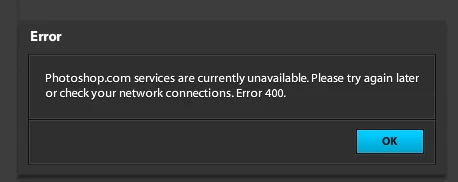
Windows 11 did an update overnight and now I can no longer login to Adobe Photoshop Elements 8.  Every time I try, it displays the message below (Error 400). 

Any advice would be greatly appreciated.
 

This topic has been closed for replies.
Correct answer lekkerder

There was no "OK" option, but I clicked on "Edit" and it opened!

Is there a way to set the computer to always open photos (jpg's, etc.) with Photoshop Elements 8? It was possible when using Win 10 but since installing Win 11, I can't find that option anywhere. It wants to open photos in "Photos".

Thanks very much!


4 replies

Greg_S.
Community Expert
Community Expert
May 16, 2024

@lekkerder said:  Is there a way to set the computer to always open photos (jpg's, etc.) with Photoshop Elements 8?


Go to Windows Settings>Apps>Default Apps> Choose defaults by file types:


Jeff Arola
Community Expert
Community Expert
May 16, 2024

 Photoshop.com was  taken down years ago so there is no need to login.


Here's a copy of the Adobe KB on the subject:


lekkerderAuthorCorrect answer
Inspiring
May 16, 2024

There was no "OK" option, but I clicked on "Edit" and it opened!

Is there a way to set the computer to always open photos (jpg's, etc.) with Photoshop Elements 8? It was possible when using Win 10 but since installing Win 11, I can't find that option anywhere. It wants to open photos in "Photos".

Thanks very much!


Greg_S.
Community Expert
Community Expert
May 16, 2024

I just tried launching Elements 6 and Elements 10 after this week's Win 11 update and was successful with both.  You may want to try launching the program in compatibility mode. 


  • Go to C:\Program Files (x86)\Adobe\Photoshop Elements 8.0
  • Right-click on the PhotoshopElementsEditor.exe file
  • Select Properties from the context menu
  • Click on the Compatibility tab
  • Check the Run in Compatibility Mode box
  • Select Windows 7 from the drop down menu.
  • Click Apply and OK to close out the dialog


Let us know if you get a different result.

Greg_S.
Community Expert
Community Expert
May 16, 2024

This may be a temporary server issue.  But I am also seeing an Error 400 on several Adobe Help pages that are designed  to assist users with this issue.  I shall report these problems to Adobe.

lekkerderAuthor
Inspiring
May 16, 2024

I hope it's due to a temporary server issue. If you find out this is the case and/or when it is fixed, please post again.

Thank you!