
Participant
May 16, 2025
Answered

Auto Fix not a selectable option for all photos

  • May 16, 2025
  • 2 replies
  • 566 views

Hello All

New here to the community. Quick question. I am using Elements 2022 with Windows 11 Home 64 Bit OS

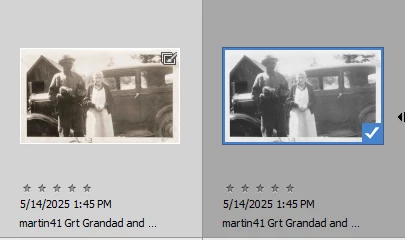
I use Auto fix for almost all my photos on an individual basis. I finished scanning many grey scale photos and saved them in a JPG Format. For some reason, the Auto Fix command is not a selectable option for many of the photos, yet is a usable option for a few. I know I have utilized the Auto Fix option for grey scale jpegs in the past, but I am at wits end why I cant use it now. Any insight and help is greatly appreciated. 2 examples attached ( Photo of young boy can be auto fixed, the photo of the elderly couple is an example where auto fix will not be an option)

Thank you
Correct answer Greg_S.

You can use the Editor's File>Process Multiple Files dialog to batch process the files.  If you process the files as jpegs, I believe they will be converted to RGB.  You can also make some automatic edits to the images.


Alternatively, if you import the files into the Organizer, you can use the Organizer's Instant Fix editor to batch process multiple files.  The Instant Fix editor has a Smart Fix button, and when the files are saved, they will be converted to RGB as well.  But note that the greyscale images will have a sepia-like tone when they are converted to RGB.


2 replies

Greg_S.
Community Expert
Greg_S.Community ExpertCorrect answer
Community Expert
May 16, 2025

You can use the Editor's File>Process Multiple Files dialog to batch process the files.  If you process the files as jpegs, I believe they will be converted to RGB.  You can also make some automatic edits to the images.


Alternatively, if you import the files into the Organizer, you can use the Organizer's Instant Fix editor to batch process multiple files.  The Instant Fix editor has a Smart Fix button, and when the files are saved, they will be converted to RGB as well.  But note that the greyscale images will have a sepia-like tone when they are converted to RGB.


Pilot10RAuthor
Participant
May 16, 2025

Thank you so very much Greg ! Greatly appreciated !

Jeff Arola
Community Expert
Community Expert
May 16, 2025

I believe the issue is that Auto Smart Fix only works on photos that are in the RGB Color Mode.

Most likely the ones that it doesn't work on are in the Greyscale color mode like your posted

example martin41 Grt Grandad and Grt Grt Grandma.jpg.


On the photos that Auto Smart Fix doesn't work on go to Image>Mode and click on RGB Color

Pilot10RAuthor
Participant
May 16, 2025
Thank you so much Jeff !
 I am curious, is there a way to grab several photos(Batch) and change them to the RGB Mode you mention. Thanks again !