Participant
April 2, 2022
Answered

Before and After in expert mode

  • April 2, 2022
  • 4 replies
  • 730 views

PSE 21, I don't see 'befoe and after' in Expert mode (it's in the other 2 modes). Can someone help?

This topic has been closed for replies.
Correct answer Greg_S.

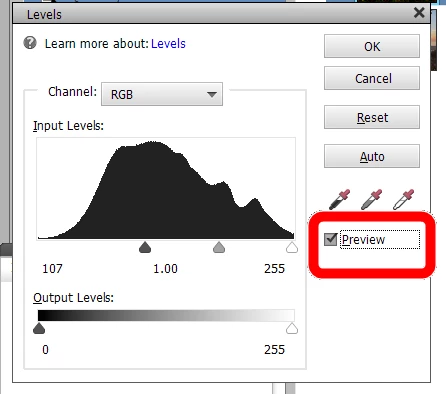
There is no Before/After view in the Expert mode, as such.  Many tools have a preview of the effect that you can turn on or off.  The Levels tool is an example:

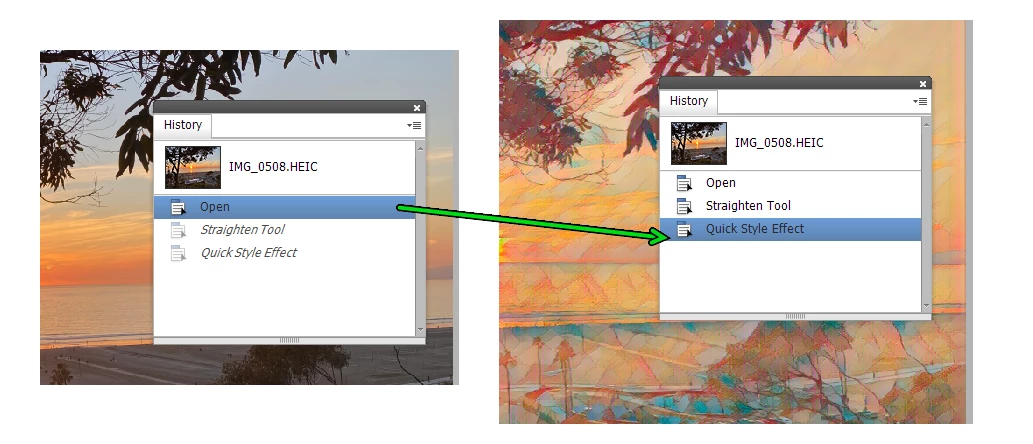
What I normally do in Expert mode is use the History panel which allows me to retrace all my edits from opening the file to the latest edit and everything in between (for a limited number of edits which can be increased, depending on your memory availability).


In Elements 2022, I believe there are also some Quick Edits where the Before/After view is not displayed, even though the text for them is present.

4 replies

Greg_S.
Community Expert
Community Expert
April 3, 2022

No Michel, I was referring to the Editor's File>Duplicate command.   But you are correct.  I was confused by the fact that the command brings up a box in which to give the copy a name, with the default of [File Name] Copy.  I assumed that if you give something a file name, it is going to be saved to disk.  I now see that the file is not saved to any path until you close it and are given a further opportunity to do a Save As to a folder.  (I wonder if a temp file is saved somewhere.) Thanks for bringing this to my attention.  I can see some usefulness for this feature.


Greg_S.
Community Expert
Community Expert
April 3, 2022

@MichelBParis said:

The 'duplicate' is not saved on disk, it is only available in memory. You can easily save it with the option to flatten the layers in your preferred format and size.


Michel, I may be wrong, but aren't you confusing File>Duplicate with Layer>Duplicate (and possibly the History>Snapshot tool in Photoshop CC)?  I rarely use these tools but when you choose File>Duplicate, a new file is created and saved to disk, isn't it?

MichelBParis
Legend
April 3, 2022
quote

@MichelBParis said:

The 'duplicate' is not saved on disk, it is only available in memory. You can easily save it with the option to flatten the layers in your preferred format and size.


Michel, I may be wrong, but aren't you confusing File>Duplicate with Layer>Duplicate (and possibly the History>Snapshot tool in Photoshop CC)?  I rarely use these tools but when you choose File>Duplicate, a new file is created and saved to disk, isn't it?


By @Greg_S.


No Greg, the File > Duplicate you are quoting is in the Organizer. In the Editor in Expert mode, the File > Duplicate opens a dialog asking you if you want to open with flattened layers or not, and nothing is saved on disk at that stage, only in memory. In my opinion, it's a useful feature.


I did not mention in my previous posts that it's very fast to switch from expert to 'Quick' mode if you prefer some quick features, such as color variations, vibrance, smart fix or the present before and after view.

MichelBParis
Legend
April 3, 2022
quote

PSE 21, I don't see 'befoe and after' in Expert mode (it's in the other 2 modes). Can someone help?


By @Tony23870020kh9d

My guess is that most users in expert mode do like Greg: to compare the before and after view, they don't put the two side by side, they use the same zoomed view switching from the history panel. This is much faster and works as well for global view or details view.

I suggest to train to two good practices:

- using the preference options to 'allow floating windows in Expert mode

- using the menu File > Duplicate to create a new view in memory.

As a result

You have the flexibility to compare any stage of the editing process in the history panel to your referenced stage (the copy).

You can compare 'before', that is any previous history stage

You can compare more than one before on the same screen

You can match zoom and windows sizes and positions, switch from floating to tile or cascade and back to floating from the 'layout' icon on the bottom bar.

The 'duplicate' is not saved on disk, it is only available in memory. You can easily save it with the option to flatten the layers in your preferred format and size.

Greg_S.
Community Expert
Greg_S.Community ExpertCorrect answer
Community Expert
April 2, 2022

There is no Before/After view in the Expert mode, as such.  Many tools have a preview of the effect that you can turn on or off.  The Levels tool is an example:

What I normally do in Expert mode is use the History panel which allows me to retrace all my edits from opening the file to the latest edit and everything in between (for a limited number of edits which can be increased, depending on your memory availability).


In Elements 2022, I believe there are also some Quick Edits where the Before/After view is not displayed, even though the text for them is present.