Participant
December 30, 2021
Answered

Bypass the Welcome Screen PSE 2021

  • December 30, 2021
  • 5 replies
  • 871 views

I made a mistake and purchased Photoshop Ellements for Windows 2021 instead of the 2019 version.

The 2019 version is like a DC3 airplane ... the only suitable replacement is another one just like it.


How do I bypass the Welcome Screen and go directly to Photo Editor in PSE 2021 for Windows.

This topic has been closed for replies.
Correct answer Greg_S.

Let me be perfectly clear:

  • Adobe Photoshop Elements 2021.exe exists in the C:\Program Files\Adobe\Photoshop Elements 2021\Elements Home folder.
  • A shortcut to the Adobe Photoshop Elements 2021.exe file is also present in the C:\Program Files\Adobe\Photoshop Elements 2021 folder.
  • The above file and shortcut are  NOT what you want.  They take you to the Home Screen that you seek to avoid.
  • You need to look for the PhotoshopElementsEditor.exe file which is also present in the C:\Program Files\Adobe\Photoshop Elements 2021 folder.  Creating a shortcut to this file on your desktop will take you straight to the Editor.
  • An alternative to creating a desktop shortcut is to open the Editor and pin the program to the Taskbar by right-clicking on the program's icon in the Taskbar.


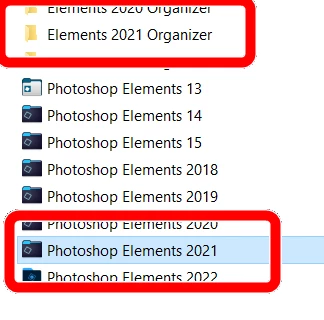
And for anyone who might be having difficulty finding the correct files in Windows File Explorer, do not be confused by the fact that the Editor's program folder is a custom one - not the normal yellow folder icon that we are probably all familiar with.


5 replies

Greg_S.
Community Expert
Community Expert
December 31, 2021

OK.  Looks like you found the correct file before I cross-posted.  You are not the first to be confused by the custom folder icon.

Greg_S.
Community Expert
Greg_S.Community ExpertCorrect answer
Community Expert
December 31, 2021

Let me be perfectly clear:

  • Adobe Photoshop Elements 2021.exe exists in the C:\Program Files\Adobe\Photoshop Elements 2021\Elements Home folder.
  • A shortcut to the Adobe Photoshop Elements 2021.exe file is also present in the C:\Program Files\Adobe\Photoshop Elements 2021 folder.
  • The above file and shortcut are  NOT what you want.  They take you to the Home Screen that you seek to avoid.
  • You need to look for the PhotoshopElementsEditor.exe file which is also present in the C:\Program Files\Adobe\Photoshop Elements 2021 folder.  Creating a shortcut to this file on your desktop will take you straight to the Editor.
  • An alternative to creating a desktop shortcut is to open the Editor and pin the program to the Taskbar by right-clicking on the program's icon in the Taskbar.


And for anyone who might be having difficulty finding the correct files in Windows File Explorer, do not be confused by the fact that the Editor's program folder is a custom one - not the normal yellow folder icon that we are probably all familiar with.


Participant
December 31, 2021

I stand corrected 😞

They changed the ICON for the folder and I thought it was a link.

Peru Bob
Community Expert
Community Expert
December 30, 2021

Go to C:/ Program files/Adobe and create a shortcut for PhotoshopElements.exe on your desktop by right dragging to the desktop and choose "create shortcut." Open it from the shortcut created.

Participant
December 31, 2021

Let me be perfectly clear:

The file "PhotoshopElements.exe" does NOT exist in Adobe Photoshop Elements 2021

(i even checked for hidden files) 

Participant
December 30, 2021

I found several post that state the following:


To make a separate desktop shortcut for the Editor.

  1. Navigate to C:\Program Files\Adobe\Photoshop Elements 2021.
  2. Locate PhotoshopElementsEditor.exe.
  3. Right-click on PhotoshopElementsEditor.exe and chose Send to > Desktop (create shortcut).\


Let me be clear:

neither the directory "C:\Program Files\Adobe\Photoshop Elements 2021"

or the program "PhotoshopElementsEditor.exe" exist.