timb27227825
Participant
March 18, 2018
Question

Can someone change color of layer from white to black?

  • March 18, 2018
  • 5 replies
  • 418 views

Hello,

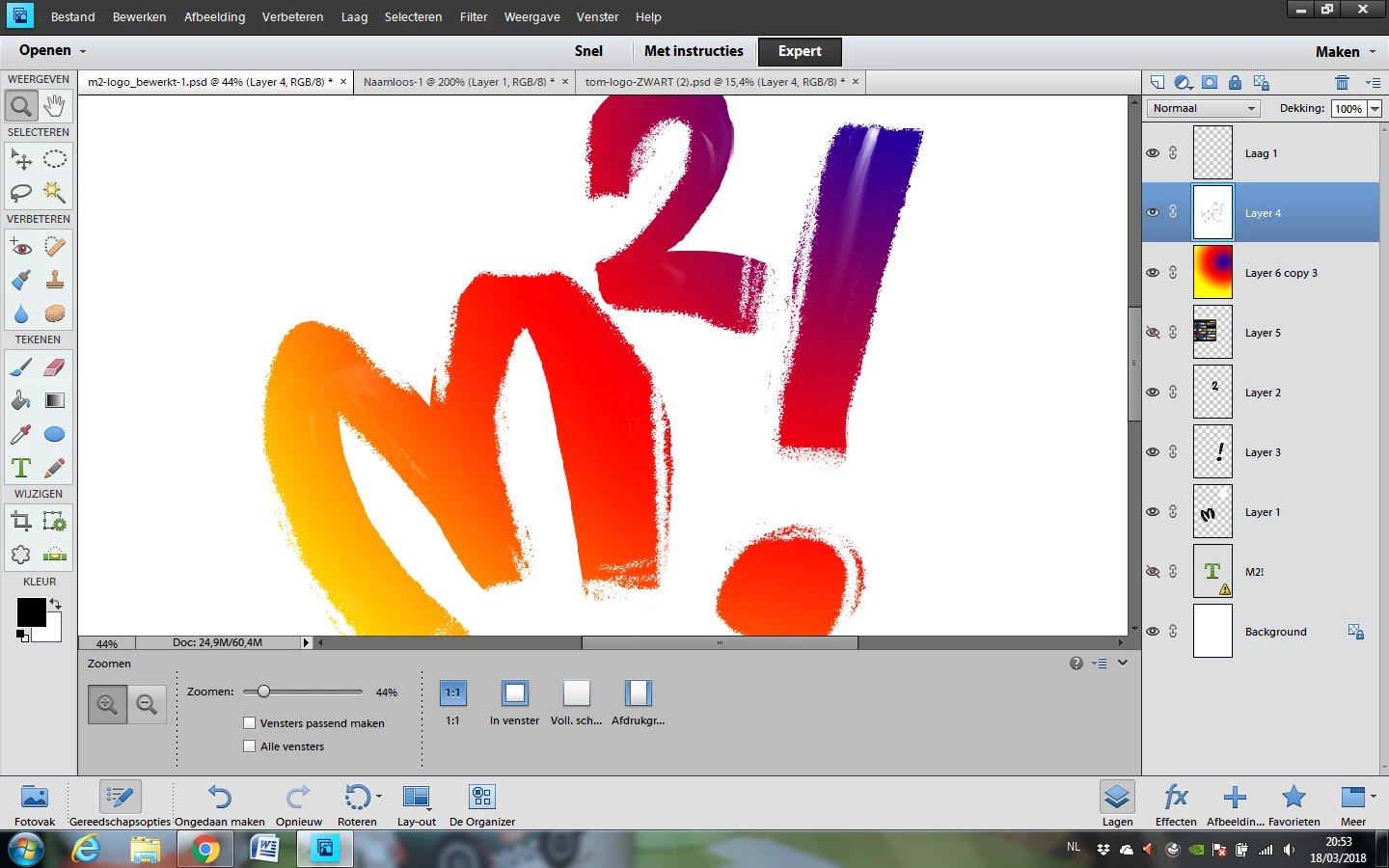
Someone made me a logo for a choir. I want to use the logo to put it on a black shirt but than the background of the logo must be black. I can not change it. Can someone help?

    This topic has been closed for replies.

    5 replies

    Inspiring
    March 19, 2018

    I agree with the previous suggestions to change the white to transparency.

    To do this in your case I suggest the free filter KillWhite.  It does just that...converts all the white to transparency.

    This is especially useful like with your logo where the Magic Wand or other PSE methods are not sufficient to select ALL the white.

    In this example I used the Magic Wand to select the white and deleted the selection. For demonstration purposes I added a black layer below so you can see the result.  Still some scattered white pixels hanging around.

    Here I used KillWhite. See the difference!

    Save the file in a format that supports transparency such as PNG. Note that JPG does not support transparency so if you did save it as JPG the transparency would revert to white.

    You can download KillWhite at KillWhite | Mike's Extra

    Or, if you prefer to upload your logo I can make the change for you.

    Peru Bob
    Community Expert
    Community Expert
    March 19, 2018

    Moved to the Photoshop Elements forum.

    Peru Bob
    Community Expert
    Community Expert
    March 18, 2018

    As previously suggested, you don't want to make the background black, but want transparency, because the black background you add may be a different black color than the shirt and might clash.

    Silkrooster
    Legend
    March 18, 2018

    I don't believe changing the background is required. Since white does not print on most ink jet printers. The printer it self would have to have white ink for it to print white.
    Which means you can assume anything white is transparent as far as the printer is concerned and the black of the shirt will show.

    Norman Sanders
    Legend
    March 18, 2018

    You seem to be working with the Elements version rather than Photoshop so my suggestion may not applicable.

    Make a composite layer (Cmd+Opt+Shift+E)

    Place a layer below your composite image layer and fill it with black

    Go to the top layer, double-ick to bring up Layer Style and in the Blend I section move the top right slider slowly to the left until the white is replaced with black.  Your are has an edge that looks white but actually carries tone. Deleting it in Blend If also compromises some of the color. The sample provided is a  compromise.

    If this method is not available to you, I suggest you post your inquiry at the Photoshop Elements forum.

    Photoshop Elements

    Norman Sanders
    Legend
    March 18, 2018

    As an alternate solution, since the shirt is black, consider making the layer below the image layer transparent. There is no need to print the black panel, only the design. It may even be sufficient to make the composite, and use the Magic Wand to Select and delete the white so that the area is transparent. Much depends on the actual file rather than the copy posted.