
Participant
Nov 27, 2017 5:22 PM UTC
Question

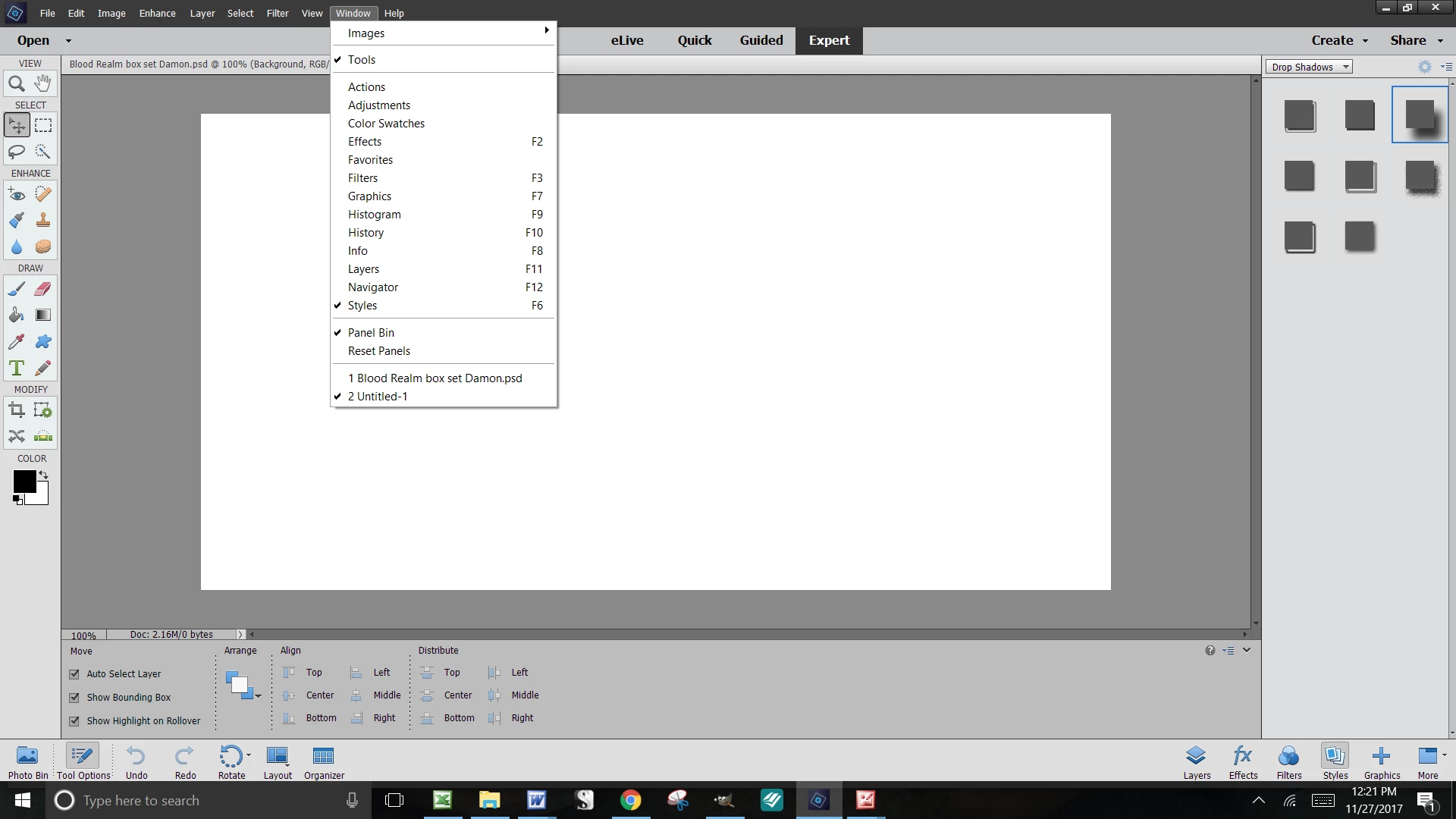
Can't find the character panel. It's not under the Windows menu

Hi, I'm trying to adjust the spacing between letters in my text. For some reason, every font I try puts a ridiculous amount of space between each letter. I know it's called kerning, and I know I need to access the character panel, but I cannot find the character panel. Every article I find says it's under the Window menu, but it's not there.
Help?

9 replies

Barb Binder
Community Expert
Community Expert
Nov 28, 2017 3:02 PM UTC

Hey Jennifer:

I'm going to move this to the Photoshop Elements forum for you.

~Barb

Translate
~Barb at Rocky Mountain Training
Participant
Nov 28, 2017 3:23 PM UTC

I'm sorry, I thought I put it in the Photoshop Elements forum. I certainly tried to. Sigh.

Translate
Barb Binder
Community Expert
Community Expert
Nov 28, 2017 3:29 PM UTC

No worries! It happens all the time.

~Barb

Translate
~Barb at Rocky Mountain Training
Vishu_Aggarwal
Participating Frequently
Nov 28, 2017 3:50 AM UTC

Hi,

Try reseting the preferences of Photoshop elements as follow-

  • Press and hold Alt+Control+Shift (Mac: Option+Command+Shift) immediately after Photoshop Elements begins launching. Click Yes to delete the Adobe Photoshop Elements settings file.

or

  • Go to Edit > Preferences (Mac: Photoshop Elements > Preferences > General), click the Reset Preferences on next launch button, and then click OK. When you restart Adobe Photoshop Elements, all preferences are reset to default settings.
Translate
Vishu AggarwalAdobe Certified Instructor, Professional and Expert
Participant
Nov 28, 2017 2:05 PM UTC

I wouldn't have thought that would work since I just bought the program and I didn't change any type settings. But it did. Thank you!

Just to be clear though, this means that Photoshop Elements 2018 does not have any option for adjusting kerning? There's no way for me to manually change the spacing between characters? This did fix my problem, but as soon as I want to change the spacing again (sometimes I do want more space between letters) I'll be back here asking where the kerning option is again.

Jenny

Translate
Legend
Nov 28, 2017 2:30 PM UTC

Sounds like you really wanted a professional tool. Though to be clear, many would say no to Photoshop for typography! It’s a photo editor with basic captioning as far as I’m concerned.

Translate
Vishu_Aggarwal
Participating Frequently
Nov 27, 2017 5:38 PM UTC

Photoshop Elements does not have a Character panel like the Pro version or known as Adobe Photoshop CC 2018. But it does have few settings accessible using the text tool options.

You can look at the following video for better understanding - Add text to photos in Photoshop Elements 11

Translate
Vishu AggarwalAdobe Certified Instructor, Professional and Expert
Participant
Nov 27, 2017 6:07 PM UTC

That was an interesting video, but there was no mention of kerning or how to fix the spacing between letters. Right now, the default on my program (which I just installed yesterday, brand new) seems to be stupid far apart. The letters in the video are much closer together, so there has to be a way to fix this?

Translate