


Participating Frequently
Jul 15, 2024 10:50 PM UTC
Answered

Can't install 'Camera RAW'

I've just invested in a new camera (Sony Alpha A7 IV).  The previous version of Photoshop Elements I had (2020) wouldn't recognise the RAW files.  Despite trying to install a RAW update, it still wouldn't work.


I've now upgraded to the 2024 version and had the same issue.  I tried installing 'Camera RAW' on this version but it doesn't seem to install as it still doesn't recognise my RAW files and still shows 'Install Camera RAW' on the help menu.


Can anyone help as at the moment it seems I've wasted £80 on something that doesn't actually work?

This topic is closed to new replies. Start a new post to keep the conversation going.
Greg_S.
Greg_S.Correct answer
Community Expert
Jul 17, 2024 7:36 PM UTC

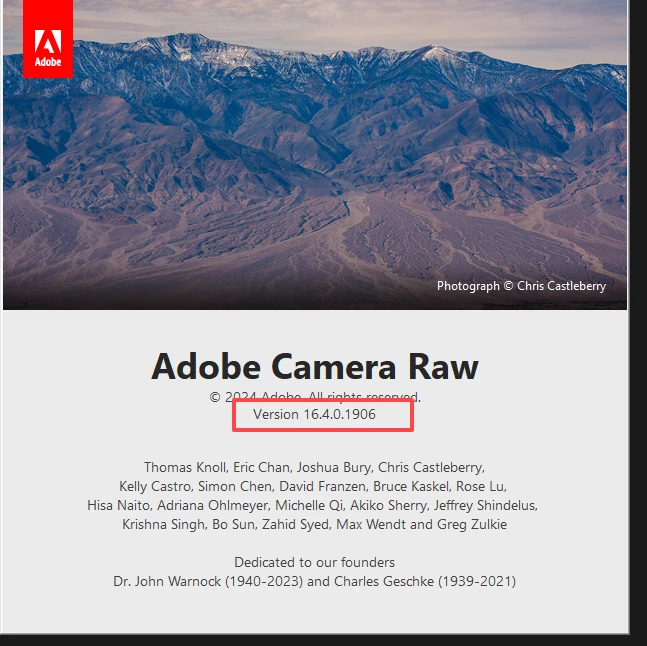
When I asked you for a screenshot of the About Camera Raw splash screen, you responded by saying that it was the same as mine.  I should have been more specific.  I am looking for the version number of ACR as highlighted in the following screenshot:


I don't believe you have the same version as mine because your file size (shown in your latest screenshot) is different.


There are a couple of other suggestions I have:

Rename the File Formats folder to something like File Formats Original.  Then try to Install Camera Raw again from the Help Menu.


Alternatively, install the latest version of Camera Raw manually.  This requires you to follow these instructions precisely:


  • Rename the Camera Raw.8bi file by adding a tilde prefix (~Camera Raw.8bi)
  • Go to the Adobe Camera Raw plug-in installer website   and follow the instructions to download and install Camera Raw version 16.4
  • Navigate to the following folder: C:\Program Files\Common Files\Adobe\Plug-Ins\CC\File Formats and copy the Camera Raw.8bi file
  • Navigate to the the following folder:  C:\Program Files\Common Files\Adobe\Plug-Ins\Elements24\File Formats and paste the Camera Raw file into the folder.

14 replies

Greg_S.
Community Expert
Community Expert
Jul 18, 2024 1:36 AM UTC

I understand your frustration.  I had what may be a similar situation recently.  All of a sudden, when I went to open a raw file in the PSE Editor, I got an error message.  The thumnail in the Organizer grid then became corrupt.  I have no idea what caused this issue, but it could have been a Windows update.

Translate
Greg_S.
Community Expert
Greg_S.Community ExpertCorrect answer
Community Expert
Jul 17, 2024 7:36 PM UTC

When I asked you for a screenshot of the About Camera Raw splash screen, you responded by saying that it was the same as mine.  I should have been more specific.  I am looking for the version number of ACR as highlighted in the following screenshot:


I don't believe you have the same version as mine because your file size (shown in your latest screenshot) is different.


There are a couple of other suggestions I have:

Rename the File Formats folder to something like File Formats Original.  Then try to Install Camera Raw again from the Help Menu.


Alternatively, install the latest version of Camera Raw manually.  This requires you to follow these instructions precisely:


  • Rename the Camera Raw.8bi file by adding a tilde prefix (~Camera Raw.8bi)
  • Go to the Adobe Camera Raw plug-in installer website   and follow the instructions to download and install Camera Raw version 16.4
  • Navigate to the following folder: C:\Program Files\Common Files\Adobe\Plug-Ins\CC\File Formats and copy the Camera Raw.8bi file
  • Navigate to the the following folder:  C:\Program Files\Common Files\Adobe\Plug-Ins\Elements24\File Formats and paste the Camera Raw file into the folder.
Translate
shabbagazAuthor
Participating Frequently
Jul 18, 2024 12:16 AM UTC

Thank you!!!  It has finally worked!  


I massively appreciate all the help and guidance in what has been a frustrating experience.

Translate
Greg_S.
Community Expert
Community Expert
Jul 17, 2024 4:45 AM UTC

Are you sure that the files did not import from the camera?  In the Organizer, do a filename search (Shift+Ctrl+K) for a couple of the files that you think have not been imported. 


If the files don't show up in the catalog, create a new watched folder and move the files to that folder.  If the files do not show up in the Watched Folders dialog, add a new jpg file to the watched folder and see whether it shows up in the watched folders dialog.  (You can create a new blank file in the Editor and save it as a jpg for this purpose.)


If your problem is still unresolved, show us a screenshot of the contents of the following folder:

C:\Program Files\Common Files\Adobe\Plug-Ins\Elements 24\File Formats\

Translate
shabbagazAuthor
Participating Frequently
Jul 17, 2024 6:53 PM UTC

The files did not import from the camera into Organiser, however, they still imported into thhe specified folder on my hard drive (usually the folder is auto-created with the date the photos were taken).


Saving a JPG, organiser did recognise this and imported it.


Here's the screenshot of the folder:


Translate
Glenn 8675309
Legend
Jul 17, 2024 9:59 PM UTC

You find this silly, but it often works to clear wonky things up....

"THE CUP OF COFFEE METHOD"

1. Power your computer all the way down, not just a reboot, turn it all the way off.
2. Go get a cup of coffee.
3. Turn your computer back on.

Translate
Greg_S.
Community Expert
Community Expert
Jul 16, 2024 7:09 PM UTC

Please give us a screenshot of the Editor's Help>About Plug-in>Camera Raw screen.  (Yours may be different than mine shown below.)


Translate
shabbagazAuthor
Participating Frequently
Jul 16, 2024 10:38 PM UTC

That's the same version I have.

Translate
Greg_S.
Community Expert
Community Expert
Jul 16, 2024 5:37 PM UTC

The files in your screenshot are saved in an unusual location and I am wondering whether that may be the cause of the problem.

Have you tried importing directly from the camera using Import>From Camera or Card Reader?  Also try saving to a different location.

Translate
shabbagazAuthor
Participating Frequently
Jul 16, 2024 6:15 PM UTC

I did originally try to import them from the camera.  It seemed it did this and saved them to a specified folder on my hard drive.

The issue is that it wouldn't import them into Organiser either from the camera directly or from the folder on my hard drive.

Translate
Greg_S.
Community Expert
Community Expert
Jul 16, 2024 6:16 AM UTC

I just noticed your following comment:

Just to add to the above, I can open and edit the individual RAW files but I can't import them into Organiser.


What error message are you getting when you try to import into the Organizer?

Translate
shabbagazAuthor
Participating Frequently
Jul 16, 2024 7:13 AM UTC

This is the error I get:


Just to add, I tried updating directly from Organiser and it seemed to install - it appears in Elements under 'About Plug In' and the 'File' menu does give me an option of 'opening in camera RAW'.  It's not ideal though as I really need the abilty to import into organiser.

Translate
Greg_S.
Community Expert
Community Expert
Jul 16, 2024 6:07 AM UTC

Have you installed Camera Raw from the Organizer's Help menu?  If you have tried to do this, did you close all open Adobe programs, including the Organizer at the time you tried the installation? 

If you tried to install the latest version of Camera Raw from the main Adobe ACR update page, it will not install directly in Elements.  The ACR plug-in file (Camera Raw.8bi) will be installed in the following location:

C:\Program Files\Common Files\Adobe\Plug-Ins\CC\File Formats

You must copy it from there and paste it in the following location:

C:\Program Files\Common Files\Adobe\Plug-Ins\Elements 21\File Formats

If that folder location does not exist, create it.


And even when the Camera Raw plug-in has been installed properly, the Help Menu>Install Camera Raw option will still appear to be active.

Translate
shabbagazAuthor
Participating Frequently
Jul 15, 2024 11:10 PM UTC

Just to add to the above, I can open and edit the individual RAW files but I can't import them into Organiser.

Translate