
Answered
Clone Tool problem
Running Elements 2018. Clone tool is leaving obvious circular rings in all sizes. How can the tool be corrected so it does not leave this impression?

Running Elements 2018. Clone tool is leaving obvious circular rings in all sizes. How can the tool be corrected so it does not leave this impression?
I'm guessing you are using a hard brush for the clone. Try a soft brush.
Here I want to remove the flash spot below her eye. For the clone source I used an area next to the flash.
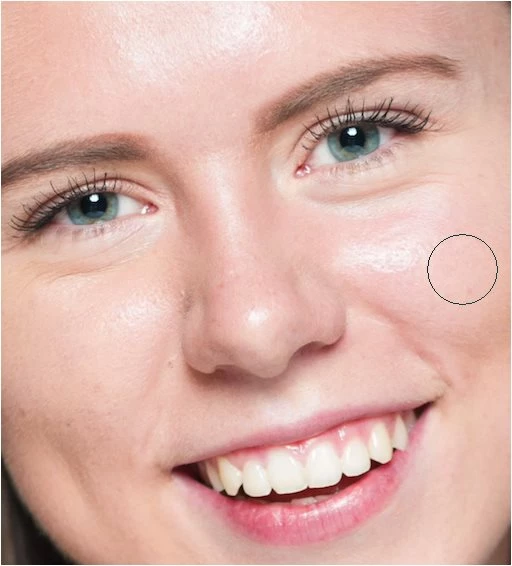
Using a hard brush:

Using a soft brush:

If this is not the problem you are having, please clarify and/or post an example.
Already have an account? Login
Enter your E-mail address. We'll send you an e-mail with instructions to reset your password.
 AdChoices