Participant
May 10, 2017
Answered

Clone tool stopped working properly

  • May 10, 2017
  • 4 replies
  • 19539 views

Hi! I'm having issues with my Photoshop. It's acting goofy.

My clone stamp tool isn't working properly, and there used to be a "preview" after making a sample selection.

Now, the preview is gone, and even if I take a sample, it will only clone a small portion of the selected area, and many times, it will reset the sample to  an area right next to where I'm trying to clone. Does any of that make sense?

Does anyone know how to fix it?

Move already tried the "reset tool" and "reset all tools" option, but they did nothing.

I have a LOT of photos to finish editing by the end of May. HELP!!!!!

This topic has been closed for replies.
Correct answer Dhananjay Sati

Hi steerikat,

Thanks for posting in Adobe forums.

I understand you are facing issue with "Clone Stamp Tool" in Adobe Elements.

Could you please try the following steps:

Firstly,

- Open Photoshop Elements

- Click "Edit"

- Click "Preferences"

- Click "General"

- Click " Reset preferences on the next launch"

- Re-open the program & test "Stamp Tool" again.

If this doesn't help you then secondly,

- Select "Clone Stamp Tool" from the toolbox.

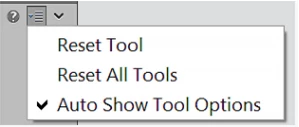
- Click the   to open the menu in Tool Options.

- Click "Reset Tool" or "Reset All Tools" 

- Restart Adobe Photoshop Elements & test "Clone Stamp Tool" again.

Hope this works

Thanks

Regards

Dhananjay

4 replies

Participant
September 19, 2017

Photoshop Elements 15 is acting strange all over.

Dhananjay Sati
Community Manager
Community Manager
May 11, 2017

I am glad it worked for you. Take Care & Keep Smiling

Regards

Dhananjay

Dhananjay Sati
Community Manager
Dhananjay SatiCommunity ManagerCorrect answer
Community Manager
May 10, 2017

Hi steerikat,

Thanks for posting in Adobe forums.

I understand you are facing issue with "Clone Stamp Tool" in Adobe Elements.

Could you please try the following steps:

Firstly,

- Open Photoshop Elements

- Click "Edit"

- Click "Preferences"

- Click "General"

- Click " Reset preferences on the next launch"

- Re-open the program & test "Stamp Tool" again.

If this doesn't help you then secondly,

- Select "Clone Stamp Tool" from the toolbox.

- Click the   to open the menu in Tool Options.

- Click "Reset Tool" or "Reset All Tools" 

- Restart Adobe Photoshop Elements & test "Clone Stamp Tool" again.

Hope this works

Thanks

Regards

Dhananjay

SteerikatAuthor
Participant
May 11, 2017

This worked!! THANKYOUTHANKYOUTHANKYOU!!!!!

Peru Bob
Community Expert
Community Expert
May 10, 2017

Have you reset the preferences?

Restore default preferences

Preference settings control how Photoshop Elements Editor displays images, cursors, and transparencies, saves files, uses plug‑ins and scratch disks, and so on. If the application exhibits unexpected behavior, the preferences file could be damaged. You can restore all preferences to their defaults.

Note: Deleting the preferences file is an action that cannot be undone.

Do one of the following:

  • Press and hold Alt+Control+Shift (Mac: Option+Command+Shift) immediately after Photoshop Elements begins launching. Click Yes to delete the Adobe Photoshop Elements settings file.
  • Go to Edit > Preferences (Mac: Photoshop Elements > Preferences > General), click the Reset Preferences on next launch button, and then click OK. When you restart Adobe Photoshop Elements, all preferences are reset to default settings.

A new preferences file is created the next time you start Photoshop Elements Editor. For information on a specific preference option, search for the preference name in Help.

from here:

Preference file locations for Photoshop Elements and Premiere Elements

SteerikatAuthor
Participant
May 11, 2017

This worked!! THANKYOUTHANKYOUTHANKYOU!!!!!