Participating Frequently
July 27, 2024
Answered

Color codes in Photoshop Elements 2024

  • July 27, 2024
  • 1 reply
  • 990 views

Hello community!  I am new to Photoshop Elements 2024 and certainly frustrated at its limitations.  I am attempting to edit a hand drawn image.  When I enter the color code, i.e. 855c16 for a portion of the drawing, the color is different than my previously saved version.  I am certain that I am entering the color code correctly.  So, I would like to verify this by finding the color code of my original piece, but I can't find a way to do this.  How do I check the color code in a specific part of the drawing?
This topic has been closed for replies.
Correct answer Greg_S.

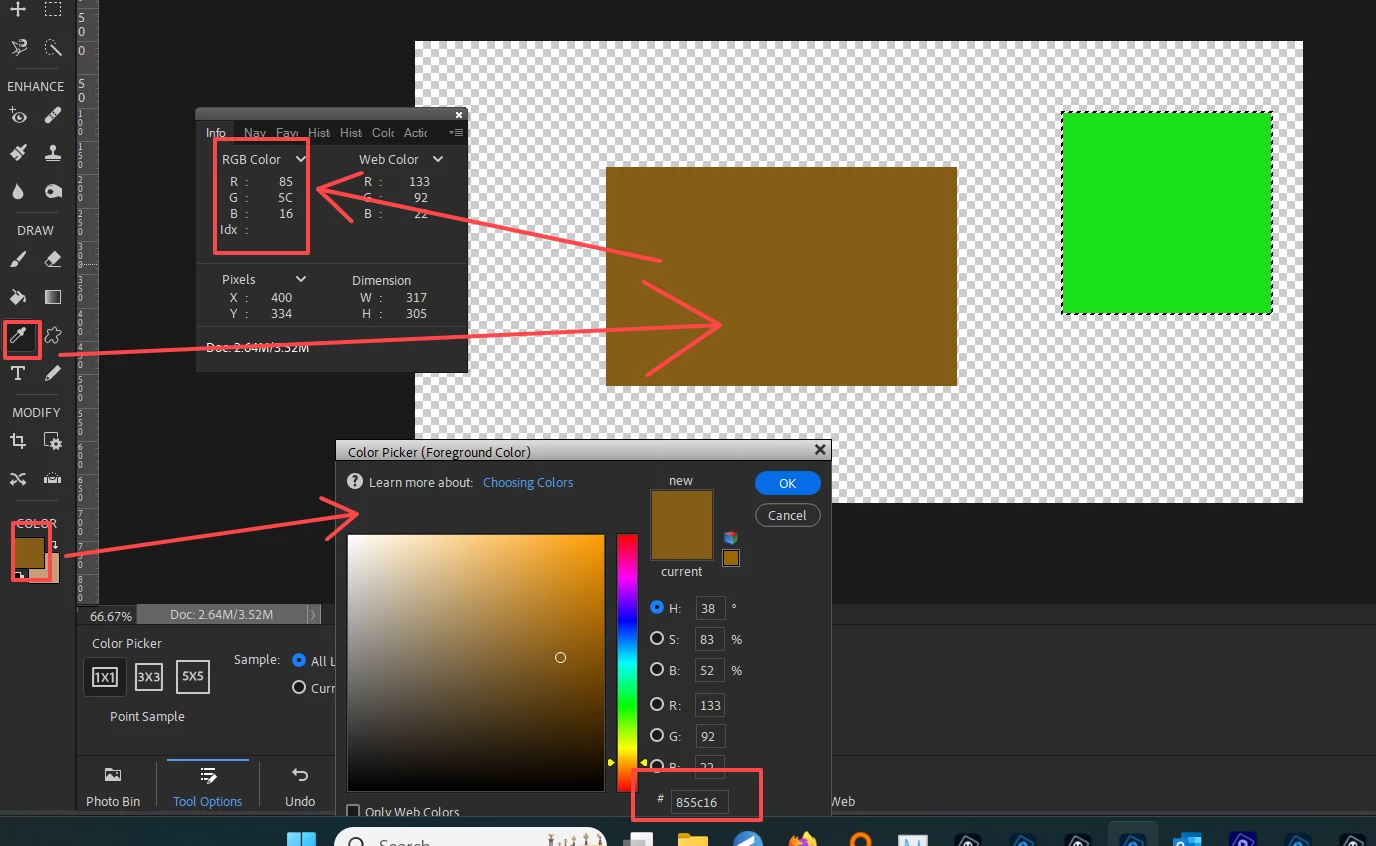
You can click on the eye-dropper icon for the Color Picker tool (or press I).  Then when you hover over the image, the RGB numbers will be displayed in the pop-up dialog.


If you click on the Color foreground (or background) box at the bottom of the tool panel a different pop-up will allow you to enter your desired color number:


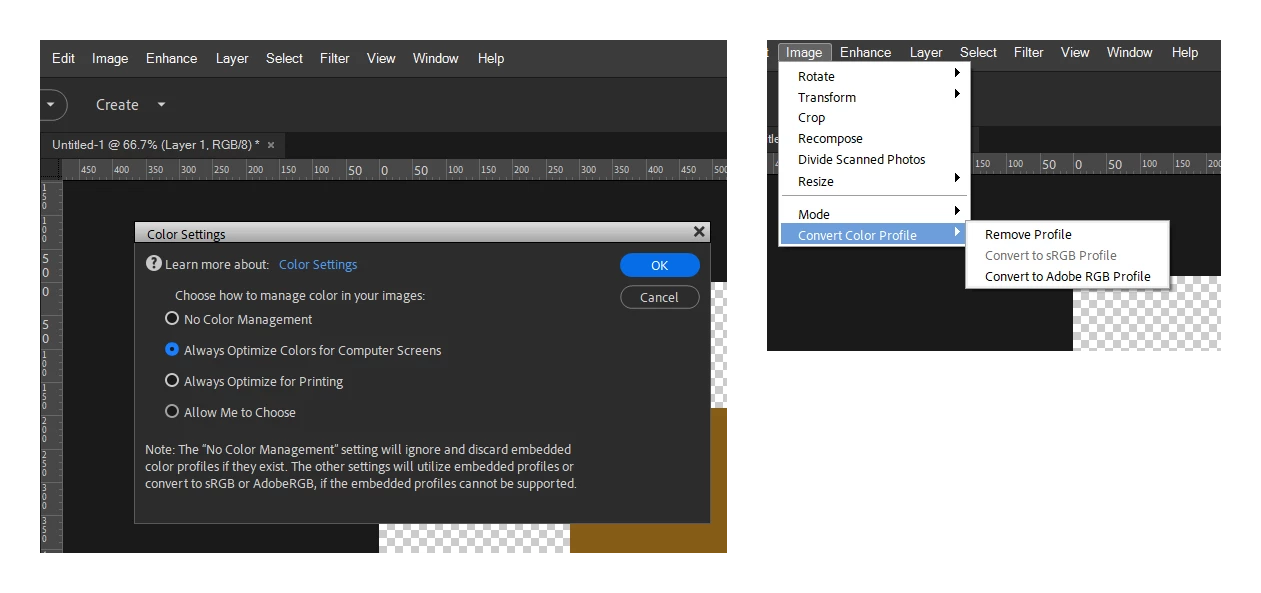
If the colors look different than expected, check to see what color profile is being used.  See the Color Settings under the Edit menu and the Convert Color Profile dialog under the Image menu:


1 reply

Greg_S.
Community Expert
Greg_S.Community ExpertCorrect answer
Community Expert
July 27, 2024

You can click on the eye-dropper icon for the Color Picker tool (or press I).  Then when you hover over the image, the RGB numbers will be displayed in the pop-up dialog.


If you click on the Color foreground (or background) box at the bottom of the tool panel a different pop-up will allow you to enter your desired color number:


If the colors look different than expected, check to see what color profile is being used.  See the Color Settings under the Edit menu and the Convert Color Profile dialog under the Image menu:


SwatersAuthor
Participating Frequently
July 29, 2024

Thanks Greg!  Really appreciate you taking the time to give me exactly the information I needed!