
Participant
October 21, 2017
Answered

Colour black and white photo's

  • October 21, 2017
  • 3 replies
  • 1040 views

Hi.

I have Adobe Photoshop Elements 15 and am asking if anyone can give me a step by step guide to colourising/adding colour to black and white photo's?  I've looked online but can not find anything for Elements 15.

Thanks in advance.
    This topic has been closed for replies.
    Correct answer hatstead
    1. Open the Expert tab
    2. Open the b/w file
    3. Select the object with one of the selection tools, e.g. Lasso tool, selection brush
    4. Place object on its own layer (CTRL+J)
    5. Open a Hue/saturation adjustment layer above the layer created in step #4, and link these two layers (CTRL+G)
    6. In the dialog that opens, check the "colorize" box and work the hue/saturation/lightness sliders.

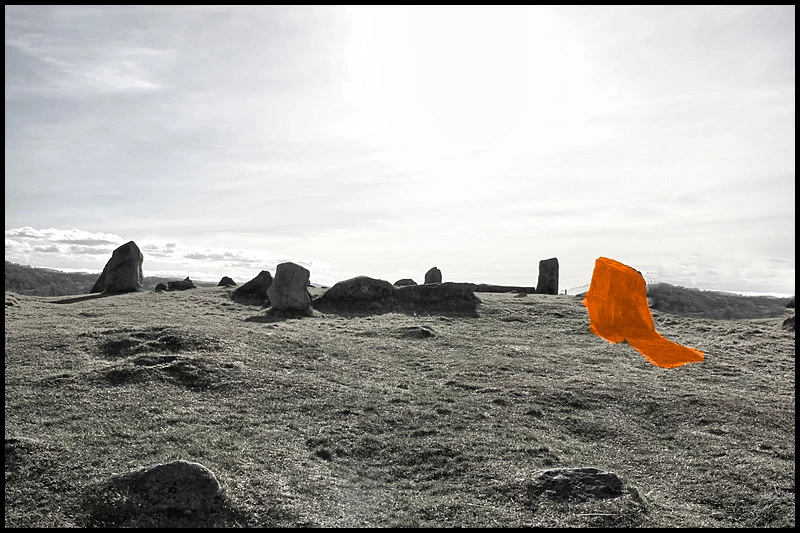
    Here in the picture of standing stones I have colorized one - orange red

    3 replies

    Inspiring
    October 22, 2017

    Another method to try:

    1. Convert the picture to color mode if not already so: Image>Mode>RGB Color

    2. Select the area to be colorized.

    3. Add a Solid Color fill layer and set the Blending Mode to Color.

    Experiment with other Blending Modes such as Overlay, Darken, Soft Light, and change the Opacity to get different looks.

    You can also change the color by clicking the fill layer's thumbnail in the Layers Palette.

    Participant
    October 22, 2017

    Thank you for that I will try it later

    hatstead
    Inspiring
    October 22, 2017

    davef83950274  wrote

    Thank you for that I will try it later

    You're welcome. Let us know if you should encounter a problem.

    Participant
    October 22, 2017

    I will do thanks again for your very detailed instructions.  I will try these methods when I am off work next.

    hatstead
    hatsteadCorrect answer
    Inspiring
    October 21, 2017
    1. Open the Expert tab
    2. Open the b/w file
    3. Select the object with one of the selection tools, e.g. Lasso tool, selection brush
    4. Place object on its own layer (CTRL+J)
    5. Open a Hue/saturation adjustment layer above the layer created in step #4, and link these two layers (CTRL+G)
    6. In the dialog that opens, check the "colorize" box and work the hue/saturation/lightness sliders.

    Here in the picture of standing stones I have colorized one - orange red