Participating Frequently
June 21, 2022
Answered

Combine 2 photos vertically

  • June 21, 2022
  • 4 replies
  • 3071 views

Hello all,

In Photoshop Elements 2022, I would like to combine two photos vertically into one photo.  Some how I accidently did it for another set, but can't seem to replicate the process again.  The originals were so large I had to save into two separate files.  I've looked at the various dicussions and the Quick, Guided and Expert modes with no luck.  Any assistance would be greatly appreciated.

This topic has been closed for replies.
Correct answer Greg_S.

If the two halves of the photo are the same size, you can do the following:


  • Open both halves of the photo (I have named them Top and Bottom in the following screenshots).
  • Select the Top photo.
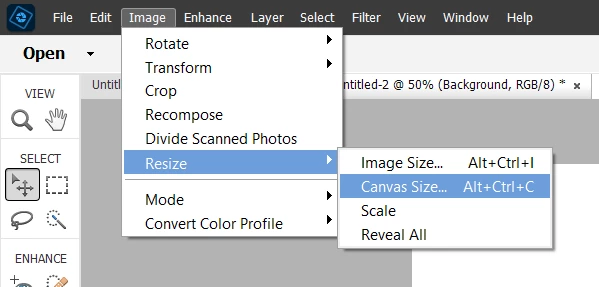
  • Go to Image>Resize>Canvas Size

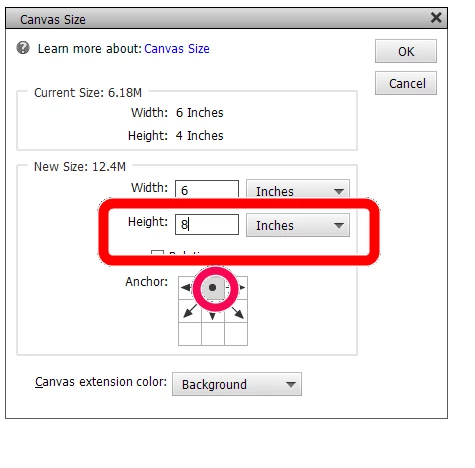
  • In the dialog box that opens, change the dimensions of the Height to double the size of the original image.  Here, I have doubled the canvas size of the 6x4 image to a 6x8 canvas.
  • Click the top center Anchor point and click OK.

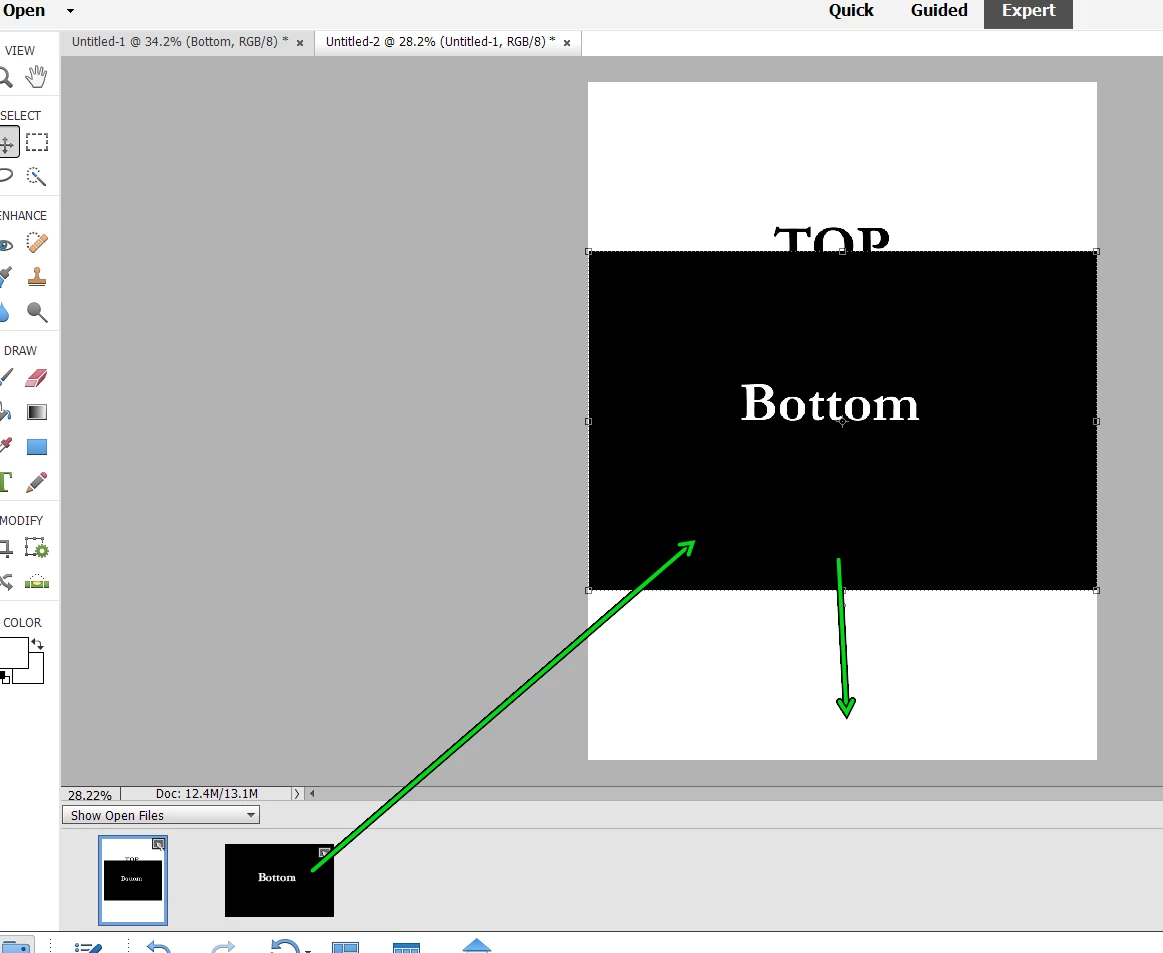
  • Drag the Bottom image from the Photo Bin to the Top photo.  It should appear in the center of the image.  You can then drag the bottom layer down to fit below the top image.


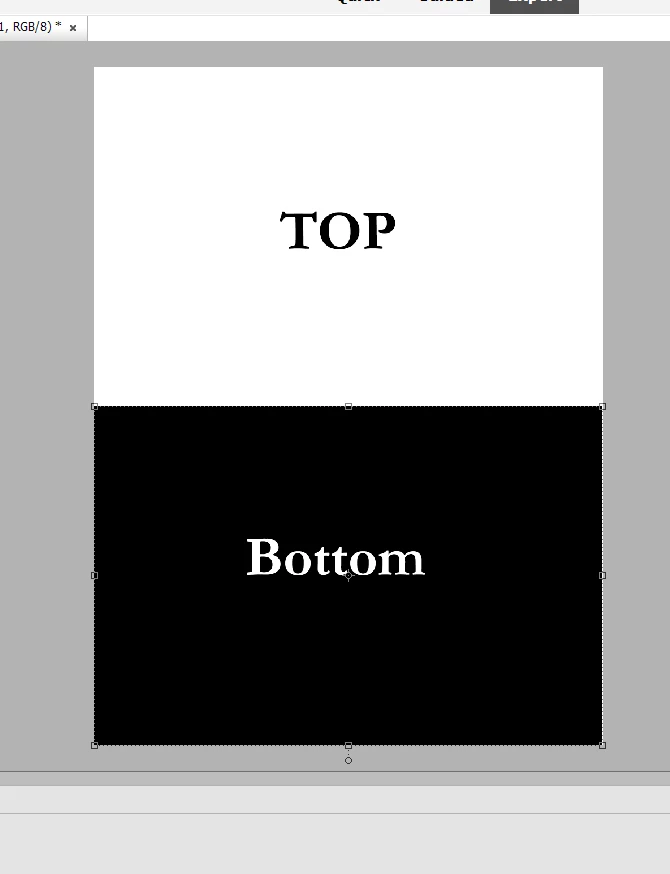
  • Here is your final result:

4 replies

Greg_S.
Community Expert
Community Expert
June 27, 2022

Alternatively, you can create a new file (File>New) and enter the dimensions of your final photo.  Drag the two halves of your photo from the Photo Bin up to the new file and reposition the top and bottom layers.

Greg_S.
Community Expert
Greg_S.Community ExpertCorrect answer
Community Expert
June 27, 2022

If the two halves of the photo are the same size, you can do the following:


  • Open both halves of the photo (I have named them Top and Bottom in the following screenshots).
  • Select the Top photo.
  • Go to Image>Resize>Canvas Size

  • In the dialog box that opens, change the dimensions of the Height to double the size of the original image.  Here, I have doubled the canvas size of the 6x4 image to a 6x8 canvas.
  • Click the top center Anchor point and click OK.

  • Drag the Bottom image from the Photo Bin to the Top photo.  It should appear in the center of the image.  You can then drag the bottom layer down to fit below the top image.


  • Here is your final result:

khunter08Author
Participating Frequently
July 9, 2022

@Greg_S. 

Yea!  I finally had time to go back and do this.  It looks good as my first Photoshop project.

Greg_S.
Community Expert
Community Expert
June 21, 2022

There are several ways to do this. But you may want to look at the Create>Photo Collage method:


You can use this Editor in Expert Mode and make any changes you desire in the layers that are created.


khunter08Author
Participating Frequently
June 27, 2022

@Greg_S. ,


Maybe I'm just dense, but I don't understand.  I have photo A and photo B.  They are two parts of the original photo.  I want to combine them back vertically to look like the original photo.

photo A

photo B


into


photo AB


Peru Bob
Community Expert
Community Expert
June 21, 2022

Moved from the Photoshop forum to the Photoshop Elements forum.