brucec42231002
Participant
November 24, 2016
Answered

Custom Rotate stopped working

  • November 24, 2016
  • 3 replies
  • 2420 views

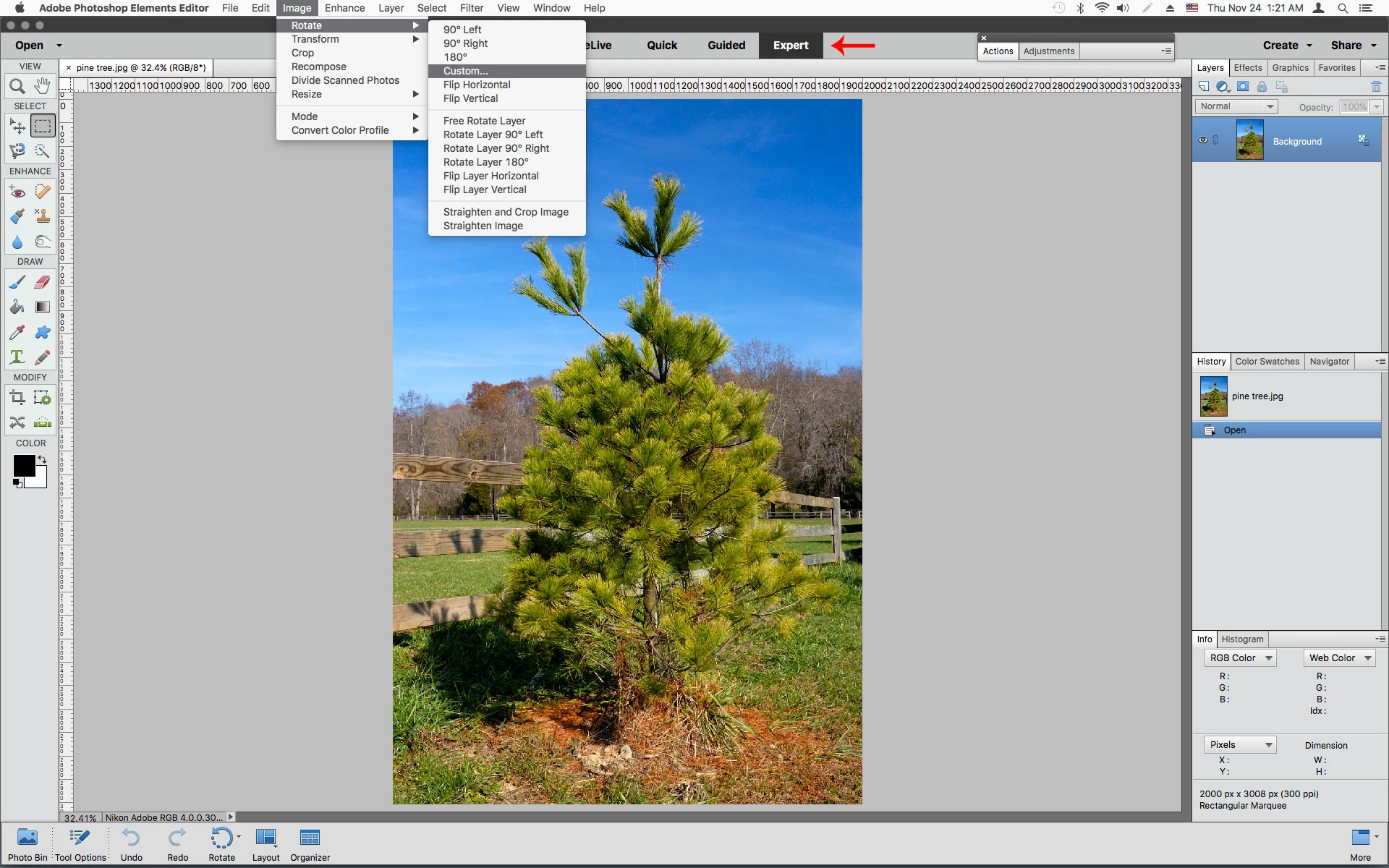
I needed to rotate a pix (JPG) using the custom rotate feature and it is greyed out. I've used it before and it worked fine. Is the program corrupted? What is the fix?

    This topic has been closed for replies.
    Correct answer Jeff Arola

    What version of photoshop elements are you using?

    Are you in Expert mode?
    3 replies

    Participant
    March 5, 2024

    First step is to be on Advance mode.

    then >image >transform>free transform.


    mytaxsite
    Inspiring
    November 24, 2016

    If R_Kelly's suggestions don't work then you could try Free Transform Mode.  For that I suggest watch this video:

    The idea is you press CTRL+T and you get a boundary around the image.  Point your mouse just outside one of the corners and slowly rotate the picture with your mouse.  Watch the Video and see if that works better for you.

    The Video is for Photoshop but it works in Photoshop Elements as well so worth a try.

    Jeff Arola
    Community Expert
    Jeff ArolaCommunity ExpertCorrect answer
    Community Expert
    November 24, 2016

    What version of photoshop elements are you using?

    Are you in Expert mode?

    arnolds4
    Participant
    February 9, 2018

    In my very, very old version, rotating by degrees was easy to find/do. Now I have to know that I must first click on the Expert tab. Wasted a lot of time getting here.

    "Are you in Expert mode?" was the answer. Thank you very much.

    Participant
    July 25, 2020

    I've also been using Photoshop forever. Got my first version on 3.5 floppy disks in the 1990s. Today i was trying to rotate a picture and it was grayed-out. I thought, "I've used that so many times before (in Photoshop Elements). I know, I probably have to convert to a .PSD." So I did that and it didn't work. So I went hunting and found this. Many thanks to Jeff Arola.