Known Participant
June 7, 2020
Answered

Editor shows white as yellow

  • June 7, 2020
  • 1 reply
  • 886 views

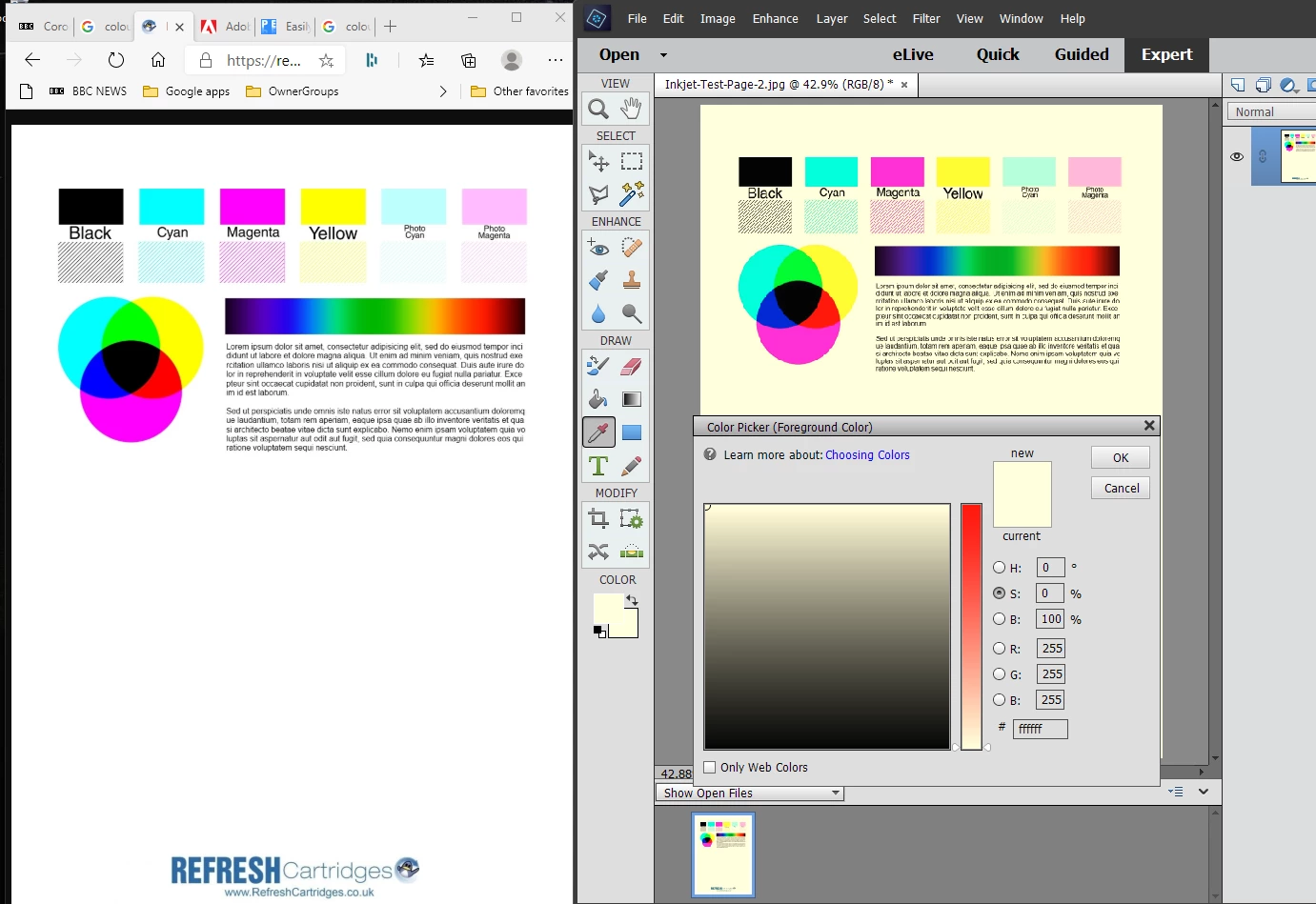
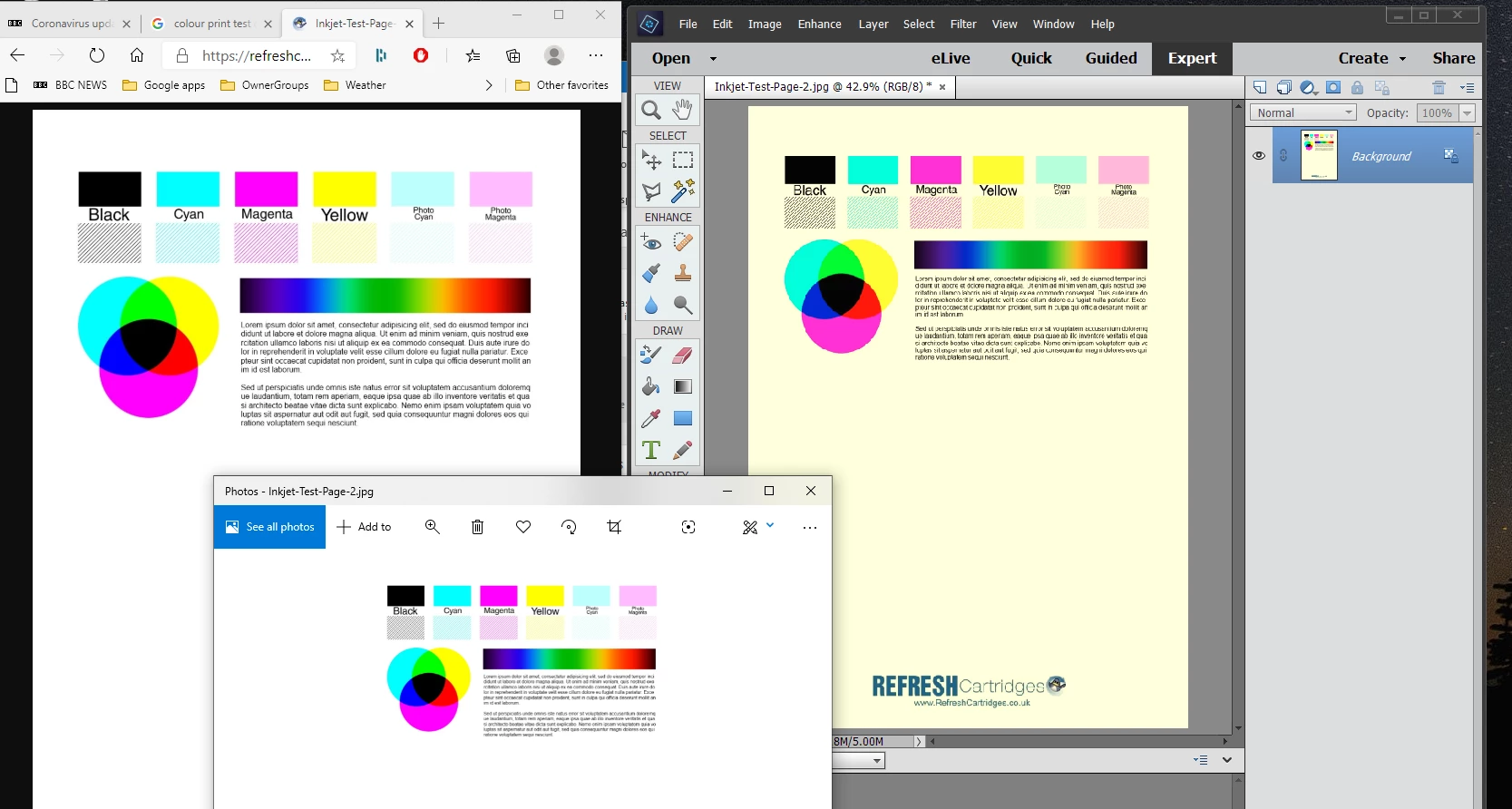
After working perfectly well for years my Elements Editor has suddenly started showing white as yellow. No other programmes are affected including Elements Organiser which shows white correctly. The colour picker shows the white background #fffff as yellow. See attached screenshot images. Help please!  

This topic has been closed for replies.
Correct answer Peru Bob

Try this:

Restore default preferences
Preference settings control how Photoshop Elements Editor displays images, cursors, and transparencies, saves files, uses plug‑ins and scratch disks, and so on. If the application exhibits unexpected behavior, the preferences file could be damaged. You can restore all preferences to their defaults.

Note: Deleting the preferences file is an action that cannot be undone.

Do one of the following:

Press and hold Alt+Control+Shift (Mac: Option+Command+Shift) immediately after Photoshop Elements begins launching. Click Yes to delete the Adobe Photoshop Elements settings file.
Go to Edit > Preferences (Mac: Photoshop Elements > Preferences > General), click the Reset Preferences on next launch button, and then click OK. When you restart Adobe Photoshop Elements, all preferences are reset to default settings.
A new preferences file is created the next time you start Photoshop Elements Editor. For information on a specific preference option, search for the preference name in Help.

from here:

https://helpx.adobe.com/photoshop-elements/kb/preference-file-locations-photoshop-elements.html

1 reply

Peru Bob
Community Expert
Peru BobCommunity ExpertCorrect answer
Community Expert
June 8, 2020

Try this:

Restore default preferences
Preference settings control how Photoshop Elements Editor displays images, cursors, and transparencies, saves files, uses plug‑ins and scratch disks, and so on. If the application exhibits unexpected behavior, the preferences file could be damaged. You can restore all preferences to their defaults.

Note: Deleting the preferences file is an action that cannot be undone.

Do one of the following:

Press and hold Alt+Control+Shift (Mac: Option+Command+Shift) immediately after Photoshop Elements begins launching. Click Yes to delete the Adobe Photoshop Elements settings file.
Go to Edit > Preferences (Mac: Photoshop Elements > Preferences > General), click the Reset Preferences on next launch button, and then click OK. When you restart Adobe Photoshop Elements, all preferences are reset to default settings.
A new preferences file is created the next time you start Photoshop Elements Editor. For information on a specific preference option, search for the preference name in Help.

from here:

https://helpx.adobe.com/photoshop-elements/kb/preference-file-locations-photoshop-elements.html

slastAuthor
Known Participant
June 8, 2020

Thank you very much!  I could not follow the initial part of your instruction - when I launch Elements (it's the 2018 version) I get the initial start screen with the option to then start Photo Editor, Organiser or Video Editor. Selecting Photo Editor and pressing ctrl-Alt-Shift at the same time didn't produce anything and the Eitor opened normally with no reference to deleting the settings file. However going to Edit>preferences>general and selecting "reset on next launch" seems to have solved the problem.  Thanks again.      

Participant
September 24, 2021

Thanks for the post, I tried to go to settings and do as you mentioned above to see if that would solve my yellow background issue, but I dont have the option to reset on next launch. I can get to edit preferences general but this option is missing. I'm using Windows 10 on my HP. Do you know if this is different in some way?