
Participant
March 7, 2018
Question

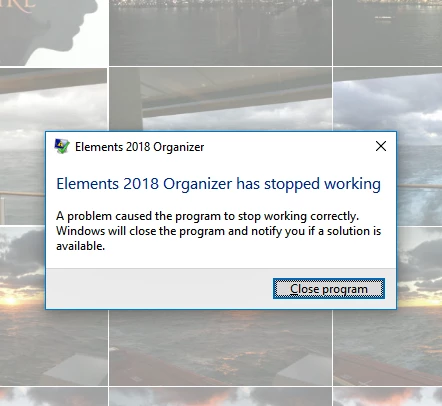
Elements 2018 Organizer has stopped working

  • March 7, 2018
  • 3 replies
  • 1228 views

I just bought Photoshop Elements and installed. I have updated to the latest version and also restarted the PC. 

I ran organizer and imported the library ( around 32,000 pictures).  That seemed to go OK.  I then asked it to start the facial recognition and went to work.  When I came home I found the message that said Elements 2018 Organizer has stopped working, and the only option is to close the program.

I have tried starting the editor and going to the organizer from there but with the same result. 

How can I fix this issue? 

The system is a Dell PC - i7 processor, 16GB ram, GXT 960 (EVGA) GPU running Windows 10 Home 64-bit
Thanks!

This topic has been closed for replies.

3 replies

Participating Frequently
January 9, 2020

half way true downloading photos the process stoped only half the photos downloaded this is the second time it has happened 

and i do not want to go cloud?

Inspiring
March 7, 2018

Lets see. You are NOT alone. This has happened to me at least couple dozen times. Always when doing facial recognition. Generally the program has not really stopped responding as can be seen in the task manager (cpu usage by the organizer will be high). Sometimes it just slows to a crawl. When you click on anything in the Organizer at that point, it may take a couple of minutes for the program to respond.

It will act flaky until recognition is finished. I posted my estimates for this to complete previously, 500 photos per hour with a SSD. For you that is about 3 days running around the clock!. OR you can turn off smart tags and face recognition in the Edit Preferences.

It may happen again when you do more new faces though. Also be prepared for memory writing errors if you attempt to close the program while its busy doing the recognition. Otherwise its safe to close the software if the CPU usage by the Organizer is 1-5%. Also be on the lookout for memory usage to be very high, way in excess of what was allotted in preferences. Once it gets to be above 90% of your total (>14gb) it is prone to strange behavior as well.

Once all the facial recognition and smart tags complete PSE will become very responsive and the "stopped responding" and "memory writing" errors will stop. There are numerous posting in the forum regarding this behavior.

AviosAuthor
Participant
April 1, 2018

Thanks for the response.

I tried this.  Created a new catalog.  Left it running for days to catalog everything.  Now it's crashing again every time I open the organizer so I guess I'm back to square 1 with software that I bought that just plain doesn't work. 

Adobe Employee
March 7, 2018

You can try either of these workarounds:

1. Long Press Shift Key and launch the Organizer. This will give you the option to create a new catalog. You can create a new catalog and start afresh.

2. Go to 'AppData\Roaming\Adobe\'. Rename the folder 'OnlineServices'.

     Go to 'AppData\Roaming\Adobe\Elements Organizer'. Rename the folder '16.0'

     Launch Elements Organizer again.

Thanks,

Somya

AviosAuthor
Participant
March 7, 2018

Thank you Somya.   I'm trying the long press and rebuild now - it will take a while.