Participant
October 14, 2024
Answered

Elements 2019 - Drucken aus dem Fotoeditor nicht möglich.

  • October 14, 2024
  • 2 replies
  • 4428 views

Hallo,
ich kann aus dem Fotoeditor heraus nicht mehr drucken. Der Fotoeditor findet beide Drucker nicht. Mit dem Organizer geht es aber.  Unter Windows 10 sind auch beide Drucker erreichbar.
Woran kann das liegen?
Bernd

This topic has been closed for replies.
Correct answer Dhananjayy

Hi Entwickeln,


This is Dhananjay Sati from Adobe Technical Support.


It appears you're encountering an issue where the Photo Editor in Photoshop Elements cannot detect your printers.


To resolve this, kindly follow the steps below:


1. Open the Adobe Photoshop Welcome Screen.
2. Before clicking on Photo Editor, press and hold the Ctrl + Shift + Alt keys on your keyboard.
3. A pop-up message will appear asking, "Delete the Adobe Photoshop settings file?". Click Yes.
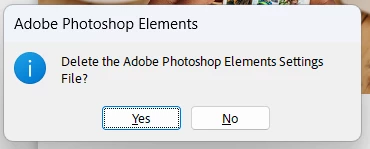

4. Launch Photoshop Elements and restart it once more.
5. Check if the issue persists.


We hope this resolves the issue.


Regards
Dhananjay Sati

2 replies

Dhananjayy
Adobe Employee
DhananjayyCorrect answer
Adobe Employee
October 14, 2024

Hi Entwickeln,


This is Dhananjay Sati from Adobe Technical Support.


It appears you're encountering an issue where the Photo Editor in Photoshop Elements cannot detect your printers.


To resolve this, kindly follow the steps below:


1. Open the Adobe Photoshop Welcome Screen.
2. Before clicking on Photo Editor, press and hold the Ctrl + Shift + Alt keys on your keyboard.
3. A pop-up message will appear asking, "Delete the Adobe Photoshop settings file?". Click Yes.


4. Launch Photoshop Elements and restart it once more.
5. Check if the issue persists.


We hope this resolves the issue.


Regards
Dhananjay Sati

Participant
October 14, 2024

Thx Dhananjay, that works fine 🙂

hatstead
Inspiring
October 14, 2024

The print engines in Organizer and Editor are not the same. 

Open the Editor, go to Edit>Preferences>General and click on the button to reset preferences on next launch. Close the program and then open again. This may fix it.