
Known Participant
June 20, 2024
Question

Elements 2023 Colors Washed Out

  • June 20, 2024
  • 6 replies
  • 1191 views

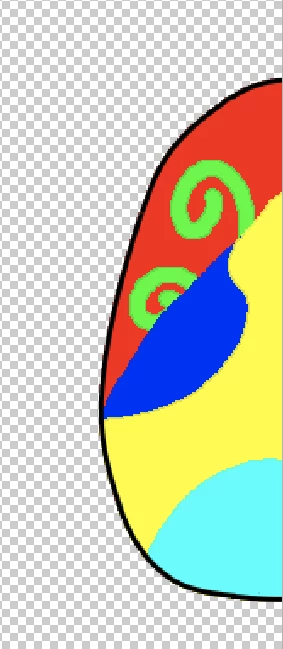
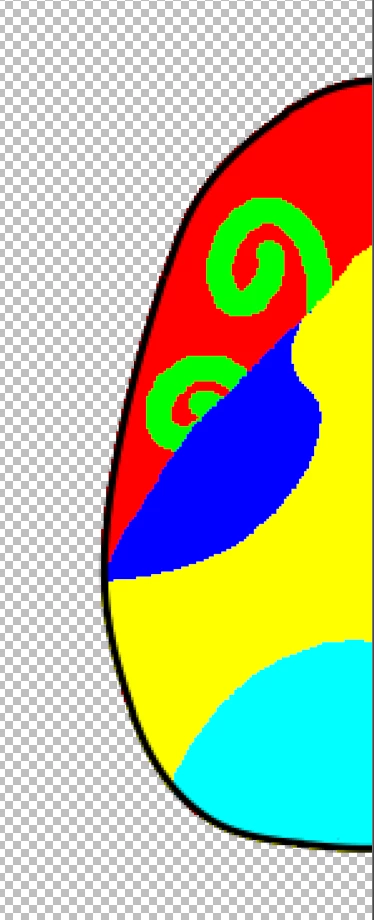
Every image I open in Elements 2023 is significantly desaturated compared to the same file in other paint programs. The image on the left is the washed out version Elements displays, and the one on the right is how it should look. How do I fix this? Every picture is like this, and it's seriously aggravating!
  

This topic has been closed for replies.

6 replies

Greg_S.
Community Expert
Community Expert
June 21, 2024

A couple more suggestions.  I have no idea if they will work:

  • Reset the preferences file. Go to Edit>Preferences>General tab and click the Reset Preferences on next launch button.
  • Uninstall and reinstall the program (and choose the option to delete the preferences on uninstall).
Known Participant
June 23, 2024

Neither of them fixed it... so if it's not the files or the Elements settings, what on Earth could it be?

Greg_S.
Community Expert
Community Expert
June 21, 2024
Known Participant
June 21, 2024

I just tried it, and it didn't fix the problem, and also made everything way darker and less accurate.

Greg_S.
Community Expert
Community Expert
June 21, 2024

You are right - I cannot recreate your issue.  But this is because you haven't explained your workflow.  I have opened both the png and psd files in Elements 2023 and they are identical.  The RGB colors are all pure in the Info panel e.g. Red is 255/0/0 in both images.  It is the same with the Hex code in the Color Picker.

And the images are identical to my view:


What I notice is that your original screenshots are different dimensions. 


So, at some point, I assume that you have resized one of the images.  I suppose it is possible that during this process the compression algorithm has substituted the color.  (I'm not an expert in this and am just guessing.)


So, what is your workflow that created this problem?  What other paint programs are you using?  Which program created the file?  How was it saved and what settings were used to save it?

Known Participant
June 21, 2024

Nothing was resized, I was just lazy with taking screenshots. 🙂 Even brand new, unsaved images I create in Elements display improperly, and when I export an image created in Elements it displays correctly in other programs (I use Paint.NET mainly). So the files and the way they're saved/exported are not the issue - it's Elements itself, possibly a broken setting somewhere.

Greg_S.
Community Expert
Community Expert
June 21, 2024

Can you attach a sample file for us to look at?

Known Participant
June 21, 2024

Sure, though I doubt you all will be able to recreate the problem given the RGB codes/color profile/etc. are all correct. This screenshot proves the issue further - if you use the eyedropper on the current/new color you get something other than FF0000.


Greg_S.
Community Expert
Community Expert
June 20, 2024

Go to Edit>Color Settings and see if changing the settings there makes a difference:


Known Participant
June 21, 2024

I've tried all of these and restarted in between changes, and it made no difference.

hatstead
Inspiring
June 20, 2024

What is the resolution of these "desaturated" files?

Also, go to Image>Mode and be sure that RGB color is checked.

When printing one of your files, have either PSE or the printer manage colors, not both.

Known Participant
June 21, 2024

All sizes are affected, although I normally work in the 128 x 128 to 2048 x 2048 range, and the mode settings don't make a difference. I'm not printing these images, they're staying digital.