
Participant
November 8, 2021
Answered

elements organizer shows two copies of each photo from my iPhone when downloading

  • November 8, 2021
  • 2 replies
  • 2128 views

I'm using Photoshop Elements 19.0 on Windows 10 and an iPhone 7. 

I click Import from Camera and then Get Photos from Apple iPhone.  After a moment, it finishes scanning the photos on my phone and displays thumbnails in the Photo Downloader window.  For almost every photo on my phone, I see two copies in the downloader window -- same filename, same date, same size, same thumbnail.  

Why?  How do I fix this?  It is a huge pain to have to manually clean up the duplicates that Photoshop Elements is creating.

Thanks.
This topic has been closed for replies.
Correct answer Greg_S.

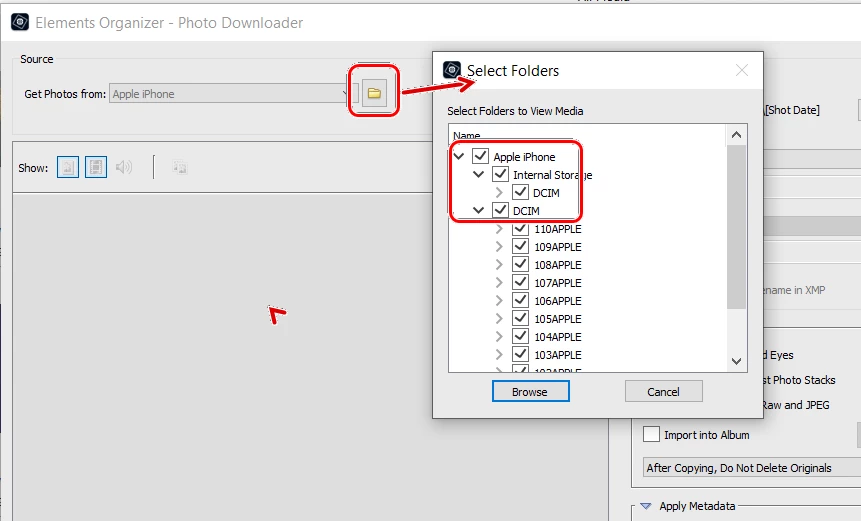
Yes, this can be a huge annoyance.  If you click on the Select Folders icon, a dialog with a folder tree of your iPhone should open.  Do you see two DCIM folders similar to those shown in my screenshot? If you expand both folders, you will probably see identical sub-folders.  (My screenshot shows only one of the folders expanded.)  If you uncheck one of the DCIM folder boxes and click the Browse button, the Photo Downloader should only display (and import) one of each photo.  As far as I am aware, you are the only other person besides me who has reported this issue.  I would appreciate you confirming that you are seeing the same duplicate folder tree as I am.  It will help me report the bug to Adobe.


BTW, to help clean up the duplicates, you may be able to do the following:

The duplicate photos probably have a suffix of -1.  You can do a search for file names in the Organizer by pressing Shift+Ctrl+K.  In the search box, type -1.  You can then select all of the found files and delete them with one command.  (If you sort by Import batch, this will help confirm that the search results are duplicates of the files you have just imported from the phone.)

2 replies

Greg_S.
Community Expert
Community Expert
November 9, 2021

Thanks for confirming this issue.  I no longer feel so alone. 

LetsdoLunch
Participant
September 7, 2022

It's not just phones - I was having this issue with my Nikon D90.  Thanks for the help!

Greg_S.
Community Expert
Greg_S.Community ExpertCorrect answer
Community Expert
November 8, 2021

Yes, this can be a huge annoyance.  If you click on the Select Folders icon, a dialog with a folder tree of your iPhone should open.  Do you see two DCIM folders similar to those shown in my screenshot? If you expand both folders, you will probably see identical sub-folders.  (My screenshot shows only one of the folders expanded.)  If you uncheck one of the DCIM folder boxes and click the Browse button, the Photo Downloader should only display (and import) one of each photo.  As far as I am aware, you are the only other person besides me who has reported this issue.  I would appreciate you confirming that you are seeing the same duplicate folder tree as I am.  It will help me report the bug to Adobe.


BTW, to help clean up the duplicates, you may be able to do the following:

The duplicate photos probably have a suffix of -1.  You can do a search for file names in the Organizer by pressing Shift+Ctrl+K.  In the search box, type -1.  You can then select all of the found files and delete them with one command.  (If you sort by Import batch, this will help confirm that the search results are duplicates of the files you have just imported from the phone.)

GatorEricAuthor
Participant
November 9, 2021

Thank you, Greg! 

That is exactly the problem I am also having.  When I select only one of the DCIM folders, then I get only one of each photo. Now, at least I can work around the problem until there's a fix.


Eric