
Inspiring
March 3, 2024
Answered

Enlarging menus

  • March 3, 2024
  • 3 replies
  • 386 views

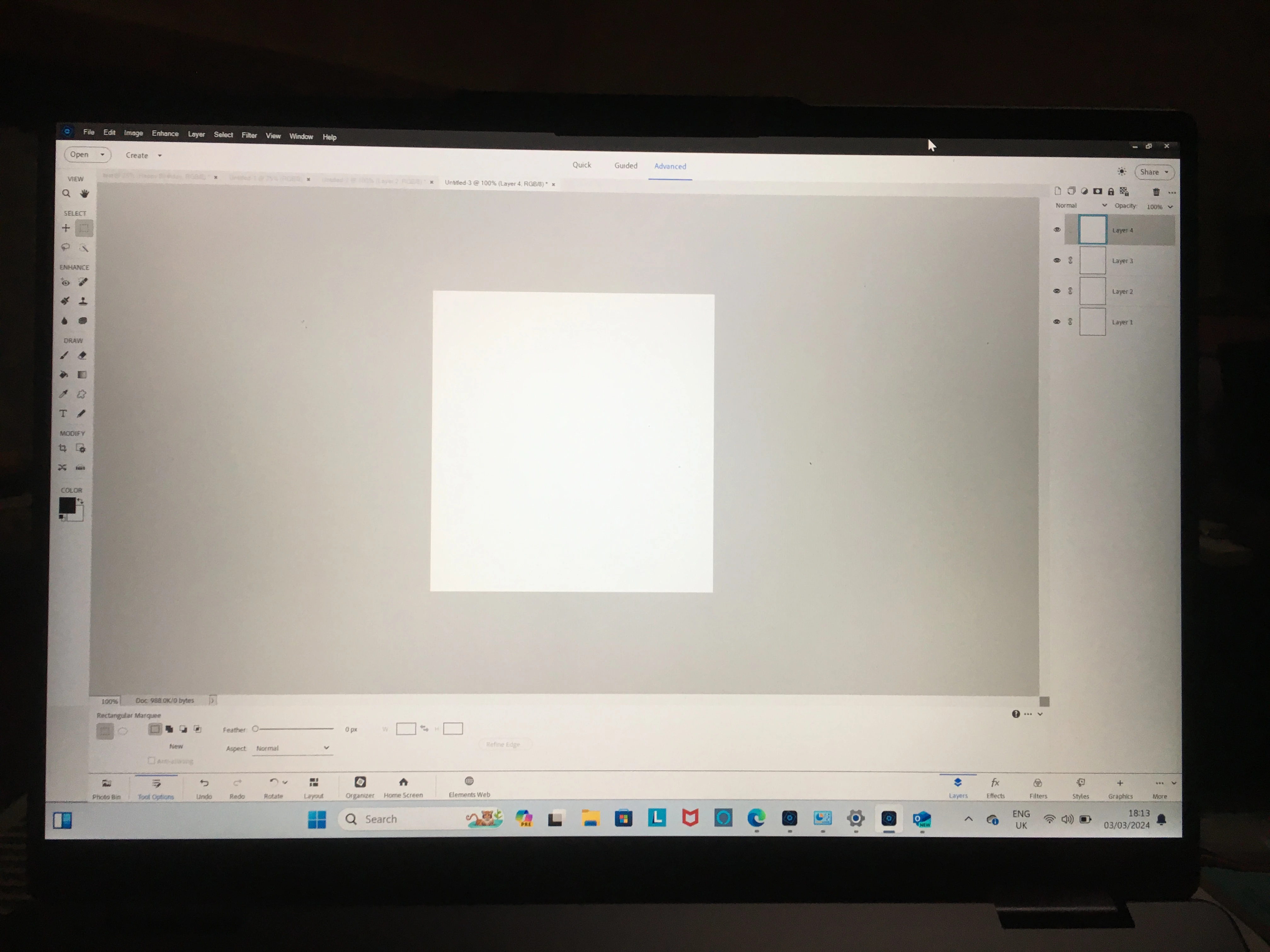
I have the free 30-day trial of the current version of PSE for evaluation. The details on the screen are tiny! Please can you tell me how to enlarge it? I’m on a Lenovo Yoga 7i, Win 11, i5 with Iris graphics so I think the pc is up to it! Display is 14" FHD IPS (1920 x 1080) 300 nits, wide viewing angle touchscreen, 72% NTSC, 16:9, anti-glare. Altering UI only enlarges the cursor, not the screen. TIA
 

Correct answer Chris Maddrell

Solved! What worked for me was

Leave the UI Scale Factor on auto and follow Sameer K’s instructions which were

Right-click on PhotoshopElementsEditor.exe > Properties > Compatibility > Change Settings for all users > Change High DPI Settings > High DPI Scaling Overide > Check the option 'Override High DPI scaling behavior.' > Scaling Performed by > Test & choose from the following options one by one > Application , System & System (Enhanced) and apply each of these settings and test which works best for you.

3 replies

Participant
June 26, 2024

To enlarge the details in PSE on your Lenovo Yoga 7i, adjust the Windows scaling settings:

  1. Right-click on the desktop and select Display settings.
  2. In the Scale and layout section, change the scaling to 125% or 150%.

This should make text and interface elements larger.


On my website, I provide solutions for common display issues, helping users optimize their software experience on high-resolution screens.

Chris MaddrellAuthorCorrect answer
Inspiring
March 3, 2024

Solved! What worked for me was

Leave the UI Scale Factor on auto and follow Sameer K’s instructions which were

Right-click on PhotoshopElementsEditor.exe > Properties > Compatibility > Change Settings for all users > Change High DPI Settings > High DPI Scaling Overide > Check the option 'Override High DPI scaling behavior.' > Scaling Performed by > Test & choose from the following options one by one > Application , System & System (Enhanced) and apply each of these settings and test which works best for you.

Glenn 8675309
Legend
March 3, 2024

That's about as big as you can make it.       You do have a rather small display- have you considered purchasing a bigger montior?

Inspiring
March 3, 2024

@Glenn8675309 It's plenty big enough for edits on the go!!