ESL-------
Known Participant
November 29, 2024
Question

"filter" shows many frames but not my pic

  • November 29, 2024
  • 5 replies
  • 1737 views

Hi 🙂

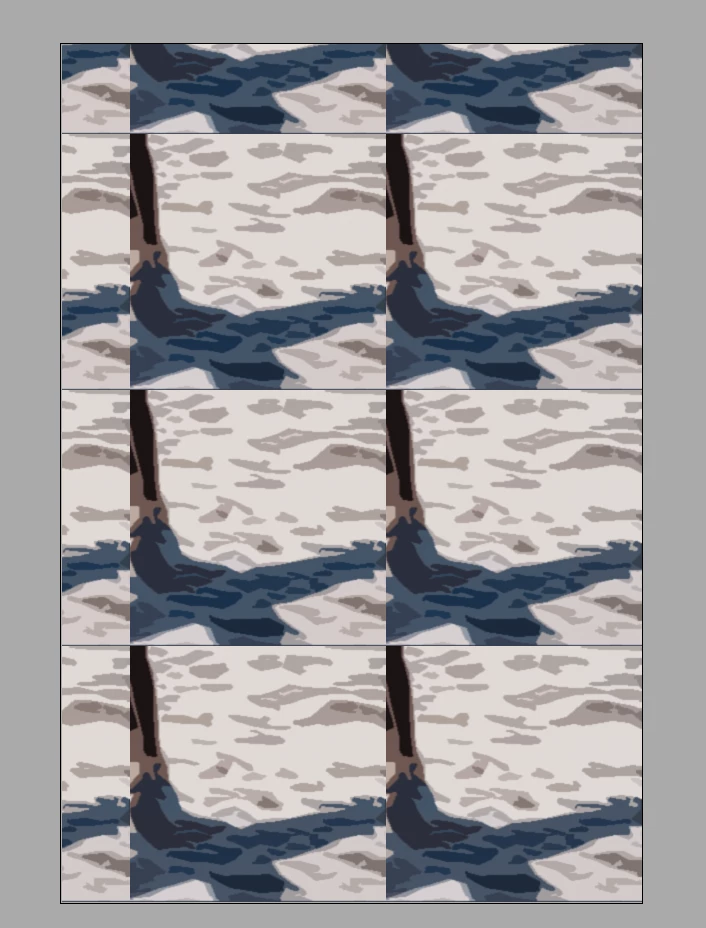
Impossible to use "filters" 😞  When the new window is opening :

- before, it was showing my full pic

- but now, it shows many frames (here attached)

Thank u so much for any help ! 🙂
This topic has been closed for replies.

5 replies

Jeff Arola
Community Expert
Community Expert
December 3, 2024

Try a more thorough preferences reset by going to

Macintosh HD/Users/UserName/Library/Preferences


and trashing the following files/folder:


Adobe Photoshop Elements 19 Settings folder

Adobe Photoshop Elements 19 Paths

com.adobe.PhotoshopElements.plist

ESL-------
Known Participant
December 3, 2024

thx again...

I did it : no change

So I removed all Adobe files in my laptop, reinstalled it : no change 😞 


Glenn 8675309
Legend
December 3, 2024

Please post a screenshot of the entire program when this happens.  The image you posted does not show any critical information- and now there is a lot of "back and forth" as uses try to figure things out. 

Below is a screnshot of pse 2025- It shows the entire program- which is helpful.  The image you posted is not very helpful.

ESL-------
Known Participant
December 3, 2024

@Glenn 8675309 

Thx a lot !

So here are 3 screenshots

1 : i go to "filter"

2 : i go to "étalement"

3 : the result (impossible to see my pic but only somes squares)

thx a gain!

c.pfaffenbichler
Community Expert
Community Expert
December 3, 2024

Which exact application are you using? 

That doesn’t look like Photoshop. 

Greg_S.
Community Expert
Community Expert
December 2, 2024

@ESL------- I don't understand your problem.  Your screenshot is not telling me what panel or part of the window you are showing. 

  • Are you talking about what is displayed in the Filters panel? 


  • Or are you talking about some other filter from the Filters menu? 
  • Are you in Advanced or Quick mode?
  • Please describe what you are expecting to see.

In the meantime, you can try resetting the preferences file. Go to the Edit>Preferences>General tab and click the Reset Preferences on next launch button.  That will put the program back into its out-of-the-box condition.


ESL-------
Known Participant
December 3, 2024

@Greg_S. 

Thx a lot Greg.

On your pic, the problem happens AFTER I choose one of those filters (and problem happens with each filter...)

I'min Advenced mode.

3 weeks ago (after choosing one the filter) : I hade my full pic; but now, I have only a small part of it, in many squares (like on my pic)

I reseted but not solving the problem 😞

thx again !

Jeff Arola
Community Expert
Community Expert
December 2, 2024

What macOS do you have?

(the system info for photoshop elements doesn't always give the right info since there is no macOS 10.16)


Which particular filter are you using?


You can reset the Photoshop Elements preferences by going to

Adobe Photoshop Elements 2021 Editor>Settings (Preferences)>General, clicking Reset Preferences on next Launch, then restarting the Photoshop Elements Editor


ESL-------
Known Participant
December 3, 2024

@Jeff Arola Thx a lot !


My OS is : 14.0 with Sonoma.

I did the reset : still same problem 😞

The problem happens with all the filter, when clicking "Filters" than "Artistic" (hope it the correct words in english because my settings r not in english)

thx again 🙂

Sameer K
Community Manager
Community Manager
November 29, 2024

Hey, @Encyclopédie St Louis. Welcome to the Photoshop Community. I'll need more information to help you figure this out. Please share the system information from Photoshop Help > System Info > Copy and paste into a text document > upload and attach here. 


Does the problem exist if you use Photoshop (beta) v26.2? Get Photoshop (beta) from the Apps section > Beta Apps in the Creative Cloud desktop app.


If that does not help, please ensure there are no stale preferences in your Photoshop.


You can go to the location of the preference folder below and rename it to back it up. (https://adobe.ly/3u7u84j)

macOS: Hold down the Option key in the Finder when using the Go menu. The library will appear below the current user's home directory.

Library > Preferences > Adobe Photoshop [version] Settings

Rename the Adobe Photoshop folder by adding a .old at the end. (Adobe Photoshop 2025 > Rename > Adobe Photoshop 2025.old)


This will give a fresh start to Photoshop as a new installation.

Let me know if it helps. Thanks!
Sameer K

(Type '@' and type my name to mention me when you reply)

ESL-------
Known Participant
December 1, 2024

Thx for answer 🙂

Here the text attached.

I also tried your solutions but it send me to a link to pay. I allready pay every month 17 euros for Acrobat Pro and I don't want to pay again for Photoshop Elements...

THx for your help

ESL-------
Known Participant
December 2, 2024

@Sameer K  (I forgot to put @ in my answer above) it means that I need to buy again Photoshop ?
