Participating Frequently
April 11, 2022
Answered

Fixing photos

  • April 11, 2022
  • 3 replies
  • 431 views

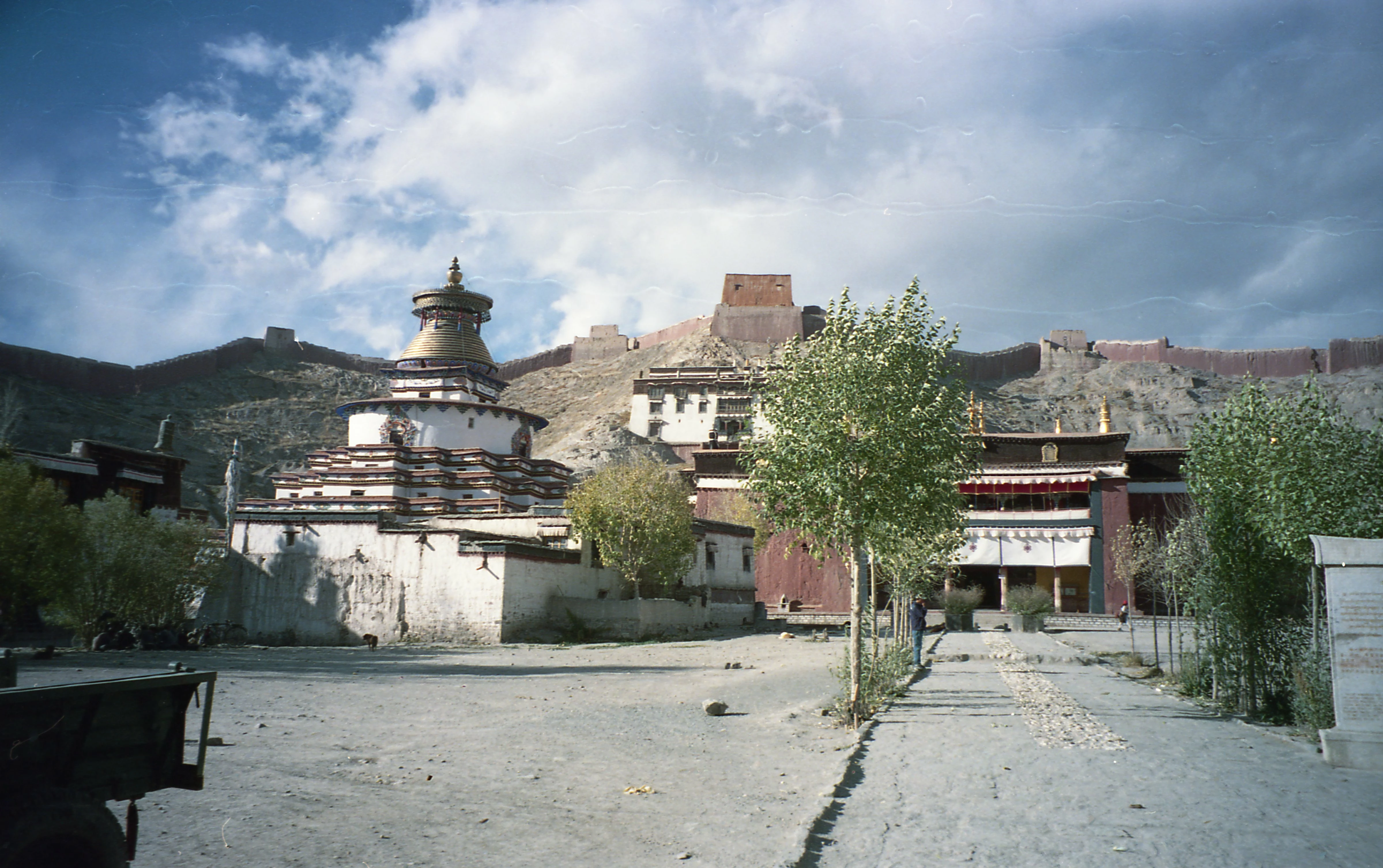
I'm digitizing photos from negatives that are 20 years old and a number of them are damaged as you might imagine. Several of them have the damage across the sky and I've been trying to fix with the Clone Stamp, but it's difficult as matching the sky all across the negative is difficult.  Is there an easier way to fix them?  

This topic has been closed for replies.
Correct answer hatstead

I am not aware of a batch process for your project, meaning that you will need to do the correction individually. 

Suggest that you replace the sky completely on each picture file. You will need a picture of a nice blue sky with clouds. You can take this yourself, or, obtain one from another source. 

1. Open your picture file and the picture of the new (replacement) sky.

2. Copy the sky  replacement to the clipboard, then paste to your original picture

3. Drag the replacement sky over the sky on the picture using the move tool, and set the layer blending mode to darken. If the replacement is too large or small, use the corner handles of the bounding box to adjust so that it will cover the "old" sky.

4.Set your foreground color chip to white

5. Activate the Gradient tool and select the foreground to transparent linear gradient. Drag the gradient from below up to the top of the tree line.

3 replies

Glenn 8675309
Legend
April 12, 2022

Generally more than one way to do things in PSE.


Greg_S.
Community Expert
Community Expert
April 11, 2022

If you have Elements 2021 or 2022, you can replace the sky with a couple of clicks using the Perfect Landscape GE:


hatstead
hatsteadCorrect answer
Inspiring
April 11, 2022

I am not aware of a batch process for your project, meaning that you will need to do the correction individually. 

Suggest that you replace the sky completely on each picture file. You will need a picture of a nice blue sky with clouds. You can take this yourself, or, obtain one from another source. 

1. Open your picture file and the picture of the new (replacement) sky.

2. Copy the sky  replacement to the clipboard, then paste to your original picture

3. Drag the replacement sky over the sky on the picture using the move tool, and set the layer blending mode to darken. If the replacement is too large or small, use the corner handles of the bounding box to adjust so that it will cover the "old" sky.

4.Set your foreground color chip to white

5. Activate the Gradient tool and select the foreground to transparent linear gradient. Drag the gradient from below up to the top of the tree line.
hatstead
Inspiring
April 11, 2022

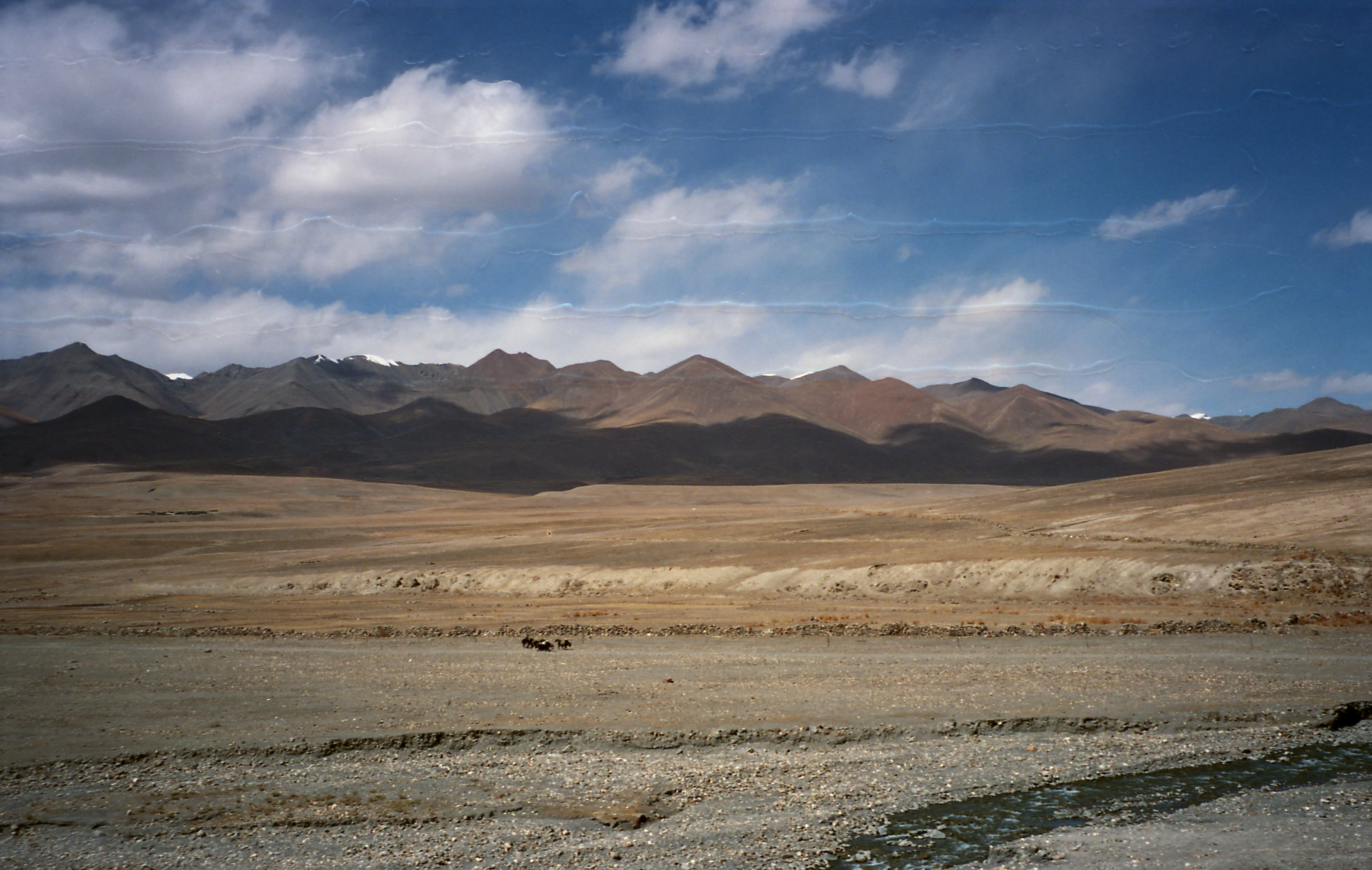
Further to above, this is the sky picture that I use from time to time for this purpose. Feel free to use it.


Participating Frequently
April 11, 2022

You are most kind!!  Thank you!!