
January 21, 2019
Answered

Help with un-filling shapes

  • January 21, 2019
  • 2 replies
  • 680 views

Hello,

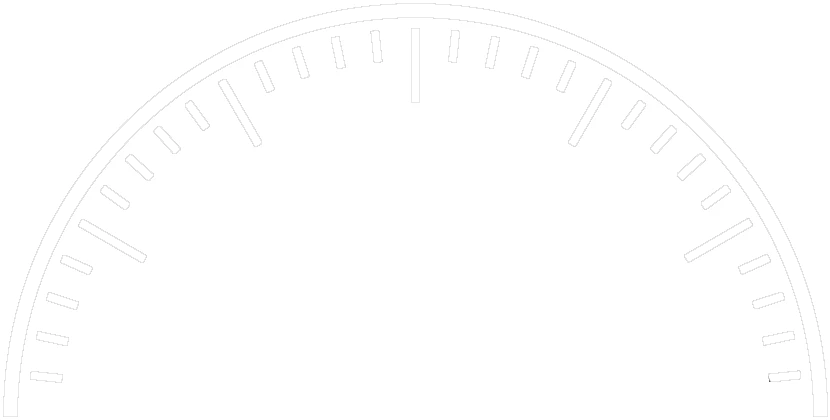
I want to make the background white, the black shape (The semi circle and the dashes) to be transparent, but I still need the shape :/. So when I use it in the mobile app I am using, I can place a view behind this and give any color to the view to make it fill the black shape and dashes with what ever the color I want.

    This topic has been closed for replies.
    Correct answer 99jon

    You could add a fill layer of solid white & flatten the image. Then make the selection again or use:

    Filter >> Stylize >> Find Edges

    Then create the selection and use the eraser with tolerance set to 100%

    2 replies

    Inspiring
    January 21, 2019

    It sounds like you want the white background with transparent meter.

    The file you posted is a png with the black meter on transparent background.

    Make the background white:

    - Select Magic Wand tool with Contiguous option unchecked.

    - Click anywhere in transparent portion to select it.

    - Fill with white.

    Make the meter transparent:

    - With the Magic Wand still activated, click any part of the meter to select all of it.

    - Delete the selection.

    Save this as a png which preserves transparency.

    To demonstrate, I added a blue layer below.

    If this is not what you are trying to do, please clarify.

    99jon
    Genius
    January 21, 2019

    The simplest method is to use the magic wand selection tool and click once on the transparent pixels.

    From the menu choose Select >> Inverse

    That will leave the black pixels selected

    Then choose the brush tool, select a color with the color picker and brush over everything to change the selection.

    Re-save using save for web and choose PNG24 from the pull-down menu to maintain transparency.

    January 21, 2019

    Thanks for your reply! That was helpful, but how can I choose not to pick a color?

    After I reversed the selection, I want these object to have no color (Since this will be used to as a progress meter in an iOS app, so I want the semi-circle and dashes to have no color)

    99jon
    99jonCorrect answer
    Genius
    January 21, 2019

    You could add a fill layer of solid white & flatten the image. Then make the selection again or use:

    Filter >> Stylize >> Find Edges

    Then create the selection and use the eraser with tolerance set to 100%