
Participant
June 13, 2018
Answered

Horizontal Type Tool causing Photoshop Elements 11 to crash

  • June 13, 2018
  • 2 replies
  • 1557 views

Hiya.

I'm running Photoshop Elements 11 on Windows 7 Pro 64-bit, SP1.

Out of the blue, the Horizontal Type Tool has stopped working.

I open the tool by clicking the "T" symbol on the sidebar, and the Horizontal Type Tool work area pops up, as usual, at the bottom of the screen.

Then, a second or two later, I get this error message, and Elements crashes:
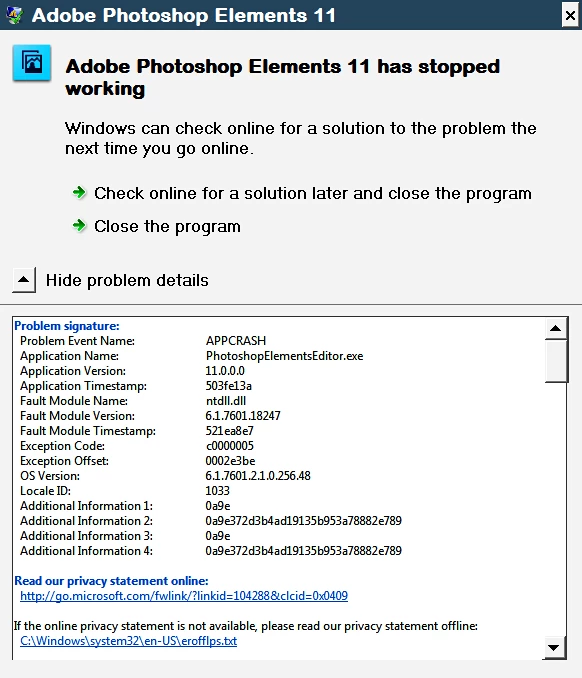
Can anyone suggest a fix or reset that doesn't involve reinstalling the software?

As far as I can tell, the Horizontal Type Tool is the only feature on the fritz. Everything else seems to be working fine.

Kind thanks for your help.

This topic has been closed for replies.
Correct answer Mark_Sand

"Do you have the same problem with other Type tools besides Horizontal?"

The werewolf's curse is on the entire Type Tool palette, unfortunately.

It's not a corrupted font, because the same fonts work fine in other applications. Something in Elements has derailed, and since a reset didn't fix it, I may have to reinstall from scratch. (First, I may try playing with Windows System Restore.)

Thanks very much for the YouTube link. You've shown me an option I never knew existed! I won't be able to test it until Elements is fixed, because even a single click on the Type Tool crashes the program.

You've been great, Mark. Thanks again for everything.


Did you try both Reset Tool and Reset All Tools?

Try searching this forum for "photoshop elements type tool crash" or similar.

Also, a Google search on the same.

Many users, both Elements and CS, have had this problem with the Type tool.

2 replies

mjag
Participant
July 31, 2018

I have PS Elements 2018 and when I try to use the Horizonal Type Tool to type a line and then hit the enter button to type another line below the first line the tool changes from the Horizonal T.T. to the Move Tool, sometimes it will work correctly but most times it doesn't...Why???

Inspiring
June 13, 2018

Two things to try:

1. On the tool options bar, click the "T" and then select "Reset Tool".

Note: this screenshot is for an older PSE version.   Reset Tool might be somewhere else in PSE11.

2. Sometimes PSE problems pop up for no apparent reason and which are not fixed by Reset Tool. In this case, it could be that the preferences file has become corrupted.

To restore this file:  Edit>Preferences>General and click "Reset Preferences on next launch".

BrooksNYCAuthor
Participant
June 13, 2018

Mark,

I really appreciate your quick response. Thanks!

Option #1 wasn't doable on my version of Elements, so I went with option #2 (Reset preferences). The crashes persist, unfortunately.

Here's how things unfold:

Any other suggestions? If not, I'll try to find my old installation CD, and hope it still works!

Thanks again,

Brooks

Inspiring
June 14, 2018

Here is how to reset a tool in PSE15. I'm guessing it's the same for PSE11.

Photoshop Elements 15 Tutotial Resetting Brush and Tool Settings Adobe Training - YouTube

Do you have the same problem with other Type tools besides Horizontal?