Known Participant
March 21, 2026
Answered

How can I copy the Default hard and soft round brushes from PSE 2025 to PSE2026

  • March 21, 2026
  • 3 replies
  • 119 views

Since installing PSE 2026, I no longer have the Soft Round and Hard Round bushes in my Default brushes.  I have tried other brushes (mostly the mechanical ones) and they don’t seem to be the same.  I have used Google and CoPilot to try and find an answer, but the results don’t work.

I still have PSE 2025 installed, so I could copy/install them from there, but I can’t find these 2 specific brushes.

Has anyone found any options that work?
    Correct answer Jeff Arola

    Essentially what you need to do, since the missing brushes are actually hard coded into the PSE program and not in an actual .abr file, is in PSE 2025:


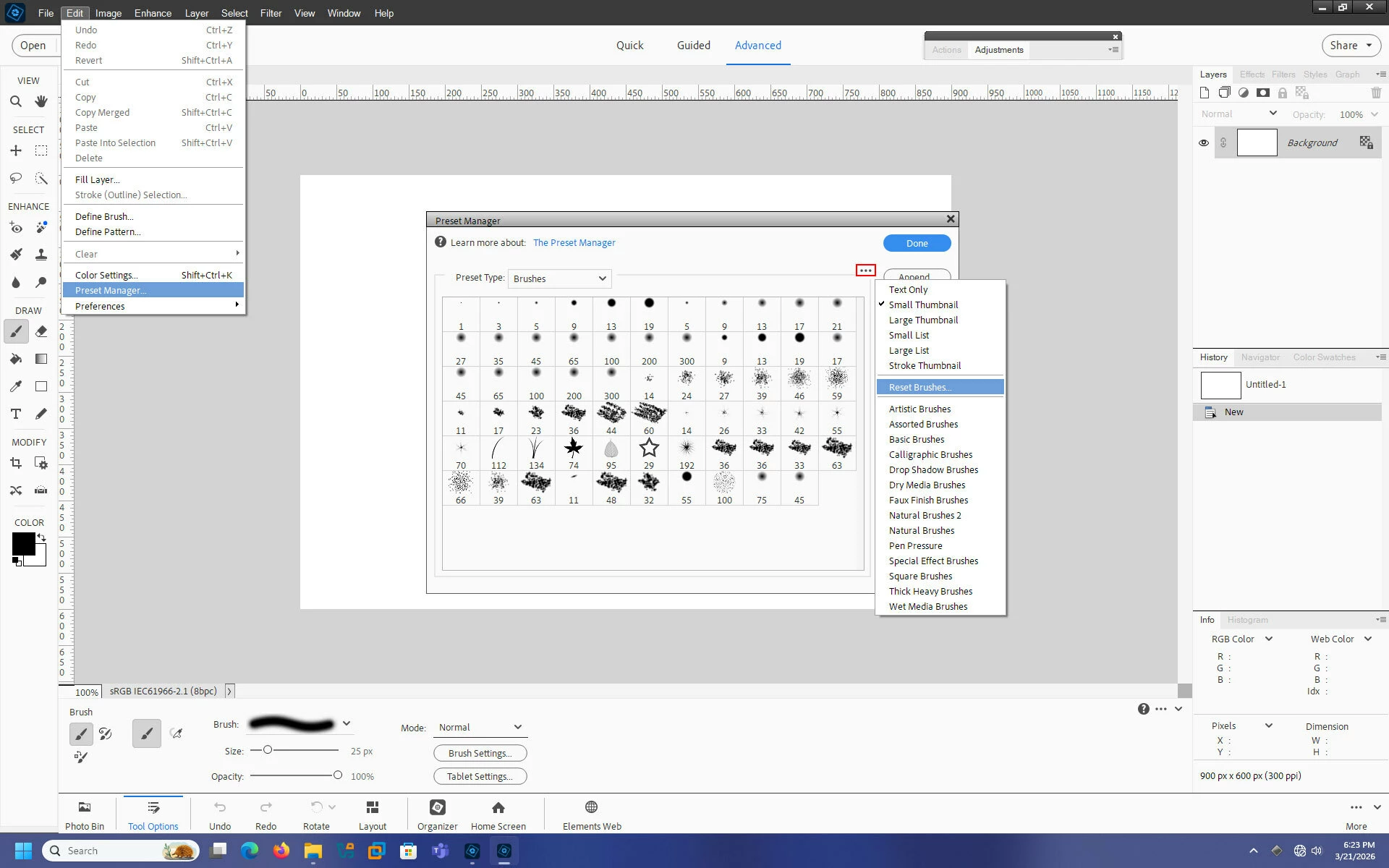
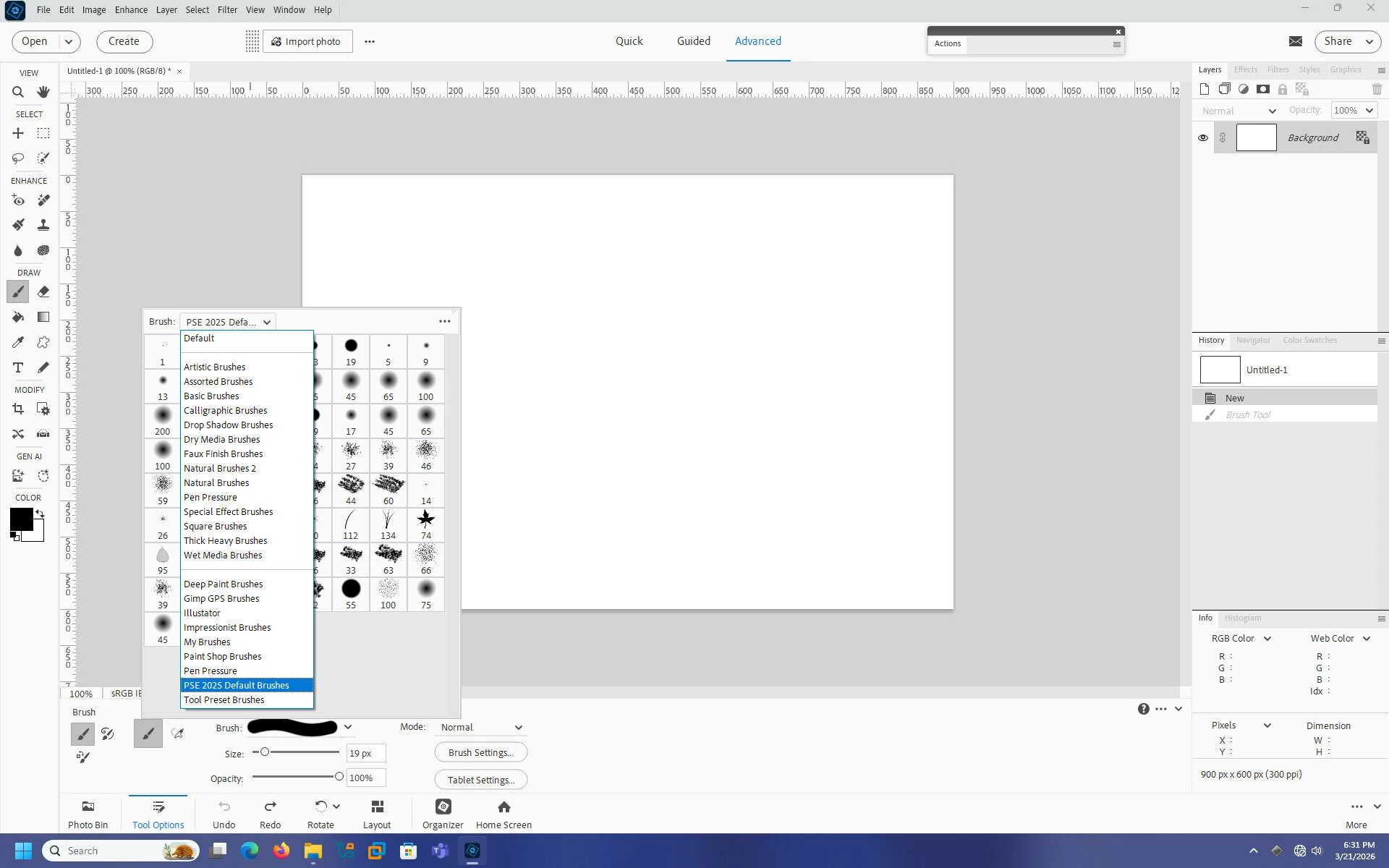
    Go to Edit>Preset Manager, set the Preset Type to Brushes, click on the three little dots to see a list of the brush presets, click on Reset Brushes to ensure the Default Brushes are loaded.


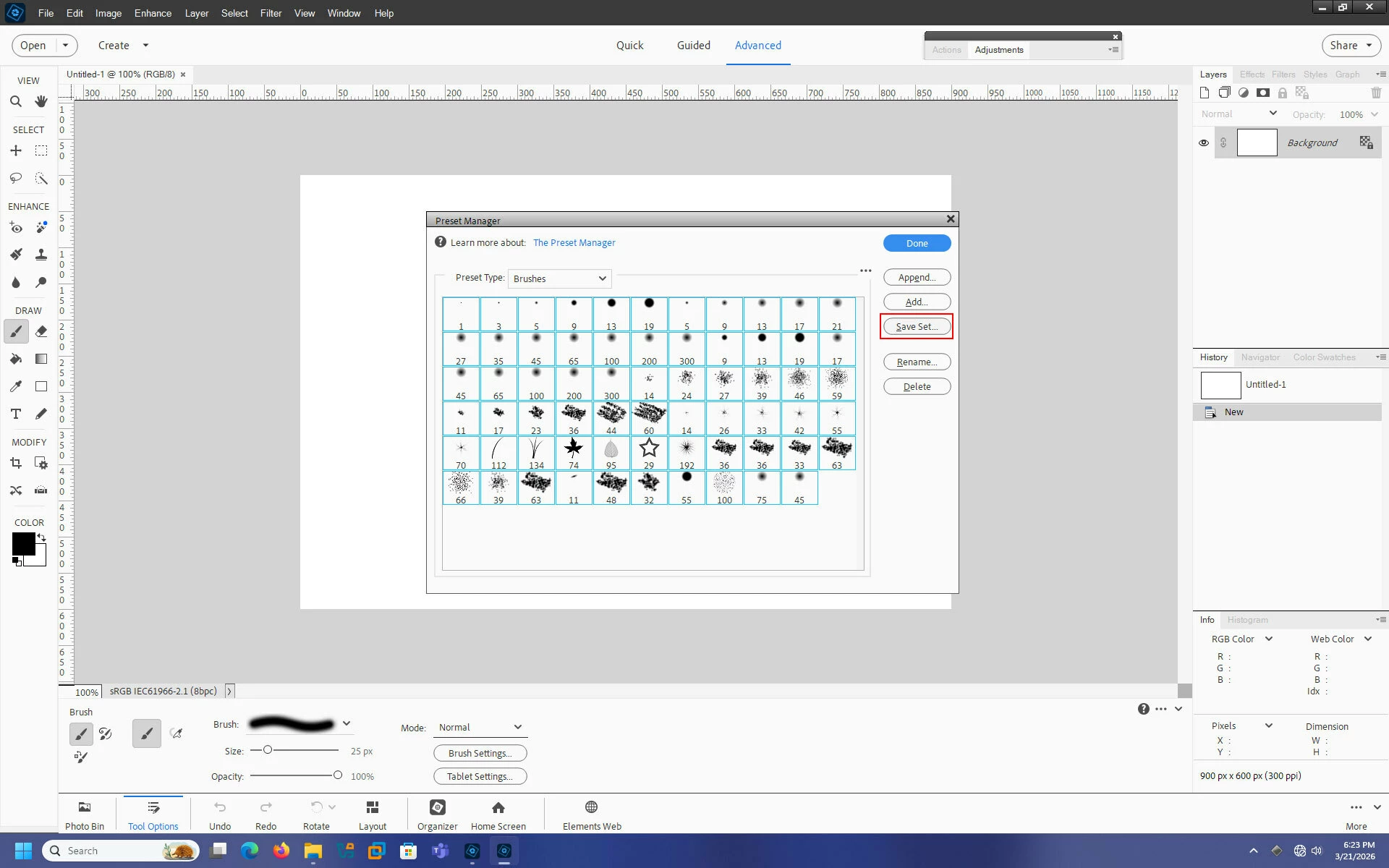
    Select all of the brushes by clicking the first then Shift clicking the last and Save Set to

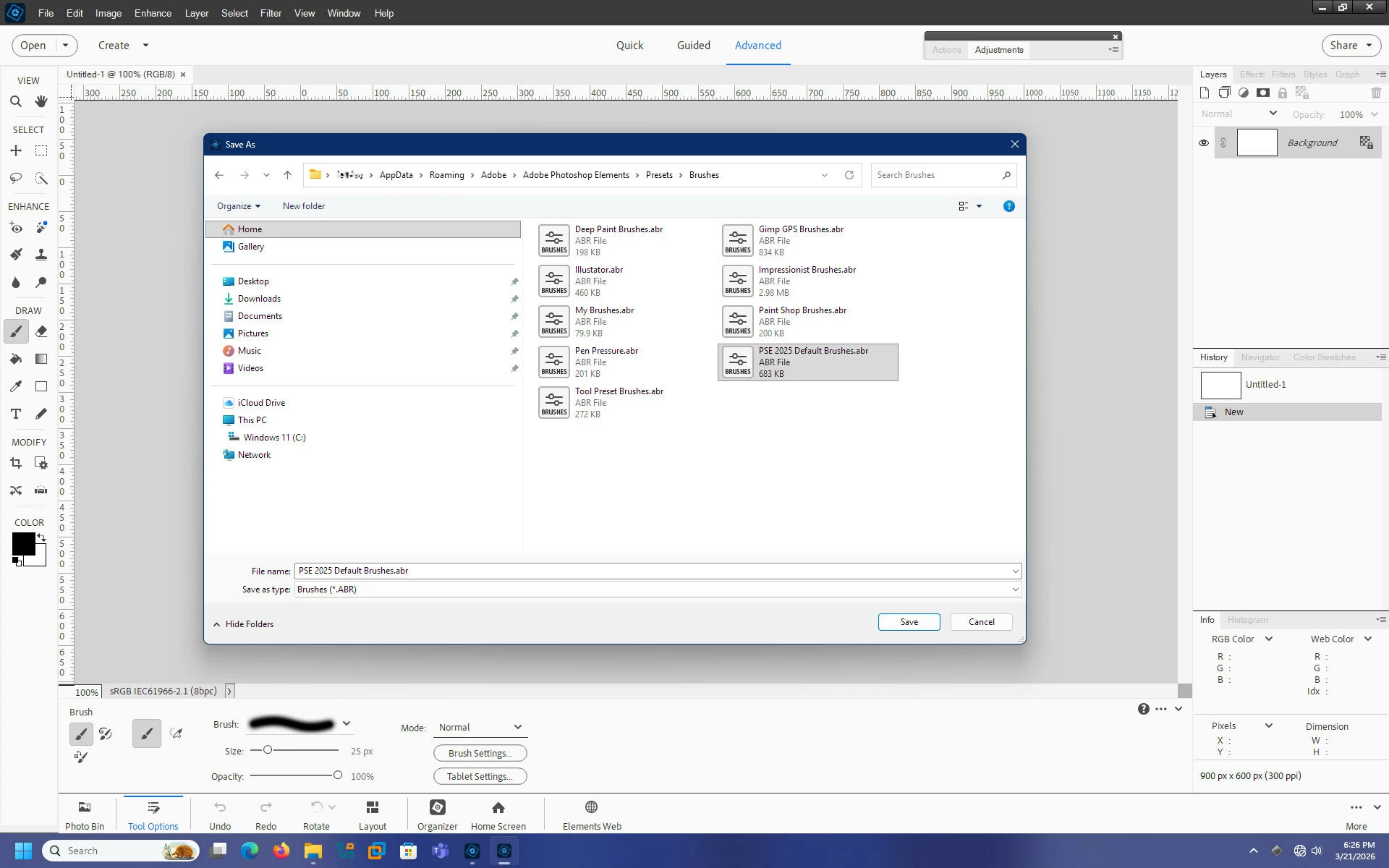
    C:\Users\UserName\AppData\Roaming\Adobe\Adobe Photoshop Elements\Presets\Brushes


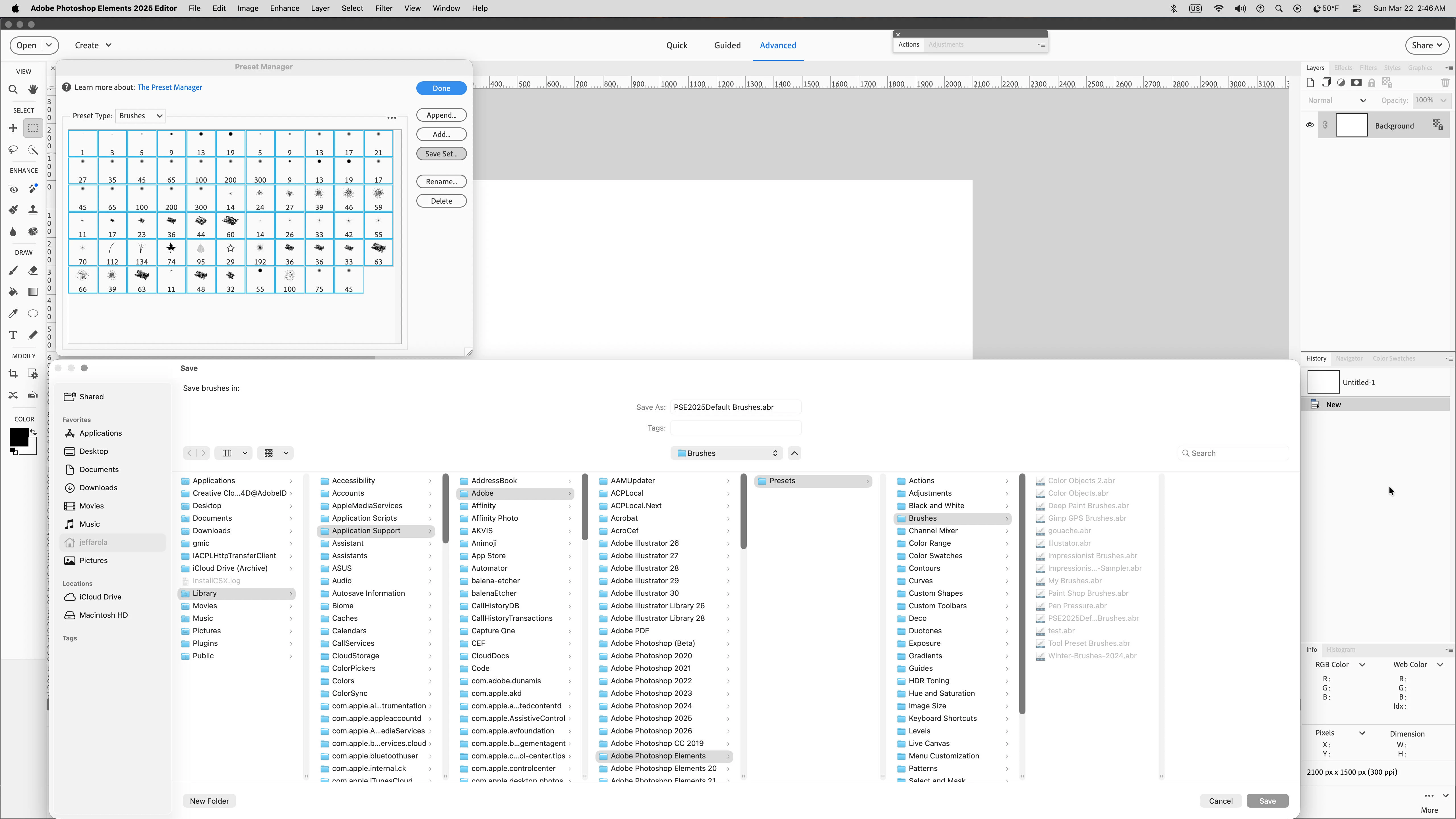
    On the Mac side the path would be

    Macintosh HD/Users/UserName/Library/Application Support/Adobe/Adobe Photoshop Elements/Presets/Brushes

    access the Mac User Library

    https://helpx.adobe.com/x-productkb/global/access-hidden-user-library-files.html


    I gave it the name PSE 2025 Default Brushes


    In PSE 2026 in the Brush Preset picker list hopefully you should see your saved set listed.


    3 replies

    Jeff Arola
    Community Expert
    Jeff ArolaCommunity ExpertCorrect answer
    Community Expert
    March 21, 2026

    Essentially what you need to do, since the missing brushes are actually hard coded into the PSE program and not in an actual .abr file, is in PSE 2025:


    Go to Edit>Preset Manager, set the Preset Type to Brushes, click on the three little dots to see a list of the brush presets, click on Reset Brushes to ensure the Default Brushes are loaded.


    Select all of the brushes by clicking the first then Shift clicking the last and Save Set to

    C:\Users\UserName\AppData\Roaming\Adobe\Adobe Photoshop Elements\Presets\Brushes


    On the Mac side the path would be

    Macintosh HD/Users/UserName/Library/Application Support/Adobe/Adobe Photoshop Elements/Presets/Brushes

    access the Mac User Library

    https://helpx.adobe.com/x-productkb/global/access-hidden-user-library-files.html


    I gave it the name PSE 2025 Default Brushes


    In PSE 2026 in the Brush Preset picker list hopefully you should see your saved set listed.


    Known Participant
    March 24, 2026

    sorry for the delay in responding.  This worked perfectly!  Thanks so much for the great instructions.  

    Phinny
    Legend
    March 21, 2026

    You should be able to adjust harness/softness setting of your brush by holding down the shift key, then toggling with left bracket or right bracket key.  Alternately you should see a brush settings button in the brush tool options panel that will bring up a hardness/softness slider along with several other options.

    Known Participant
    March 21, 2026

    I don’t want to be adjusting various brushes. I am looking to install brushes that are the same as the old definitely brushes. I know those work from using them on prior versions and I just want them back. 

    Jeff Arola
    Community Expert
    Community Expert
    March 21, 2026

    What operating system do you have?

    Known Participant
    March 21, 2026

    I’m using a MacBook Pro with Tahoe.