keithb5893500
Participant
August 9, 2017
Answered

How do I change image color and keep transparent background

  • August 9, 2017
  • 1 reply
  • 894 views

Hi, I'm new to PSE 15. I would like to change the dark blue of this image to white and have a transparent background. Not having any luck doing this. Thanks!


    This topic has been closed for replies.
    Correct answer hatstead
    1. Open the image file in Editor, expert tab
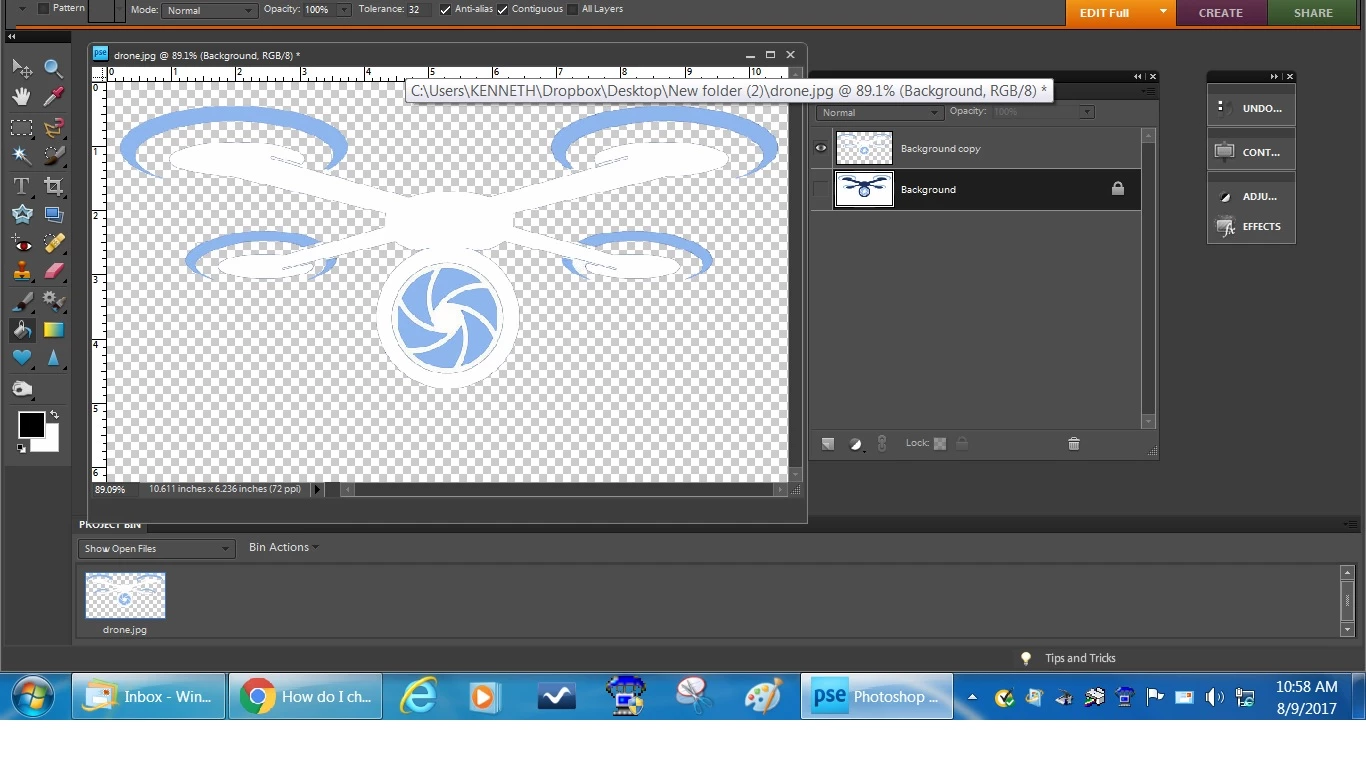
    2. Duplicate the Background layer and shut off its visibility by clicking on the eye icon. Work on Background copy layer
    3. Activate the Magic wand tool and check "Contiguous" and set tolerance to 32 on the tool's option bar. Then, left click on the white background, and then hit delete on the keyboard.
    4. Set your foreground color chip to white
    5. With the Magic wand tool, click on a dark blue area and hit delete
    6. Activate the Paint-bucket tool and click on a spot that was blue previously.
    7. Press CTRL+D to get rid of the "marching ants"

    If you wish to save this with the transparent background, save as PNG or PSD file.
    1 reply

    hatstead
    hatsteadCorrect answer
    Inspiring
    August 9, 2017
    1. Open the image file in Editor, expert tab
    2. Duplicate the Background layer and shut off its visibility by clicking on the eye icon. Work on Background copy layer
    3. Activate the Magic wand tool and check "Contiguous" and set tolerance to 32 on the tool's option bar. Then, left click on the white background, and then hit delete on the keyboard.
    4. Set your foreground color chip to white
    5. With the Magic wand tool, click on a dark blue area and hit delete
    6. Activate the Paint-bucket tool and click on a spot that was blue previously.
    7. Press CTRL+D to get rid of the "marching ants"

    If you wish to save this with the transparent background, save as PNG or PSD file.

    keithb5893500
    Participant
    August 9, 2017

    Hatstead, thanks for the quick reply! That worked perfectly!

    hatstead
    Inspiring
    August 9, 2017

      wrote

    Hatstead, thanks for the quick reply! That worked perfectly!

    You're welcome. Glad to help.