I used a plugin called GMIC in photoshop elements 2022 in several steps, with the most important step of using a FFT filter to remove the pattern, then some noise removal, sharpening and spot removal basically following this video.
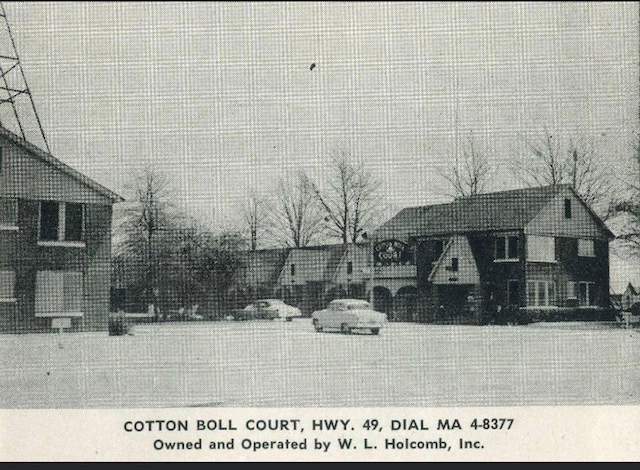
To truly remove the texture is a very complex technical proposition. There are some available plug-ins that take a lot of work to use in the full Photoshop. These plug-ins also employ some Actions that are not available in Elements (but can be done with a lot more work manually). Here is an example of what I am talking about.
As Peru Bob suggests, you can try using a blur filter to remove the texture but you will then need to sharpen it to get back some detail. In the following example gif, there are 4 layers.
The original
A Filter>Noise>Dust and Scratches filter to remove most of the texture.
Application of the Elements Sharpen tool which brings back some of the texture
Application of a third-party plug-in sharpener to layer #2 which gives a slightly better result





 AdChoices