cglenn7777
Known Participant
August 15, 2018
Answered

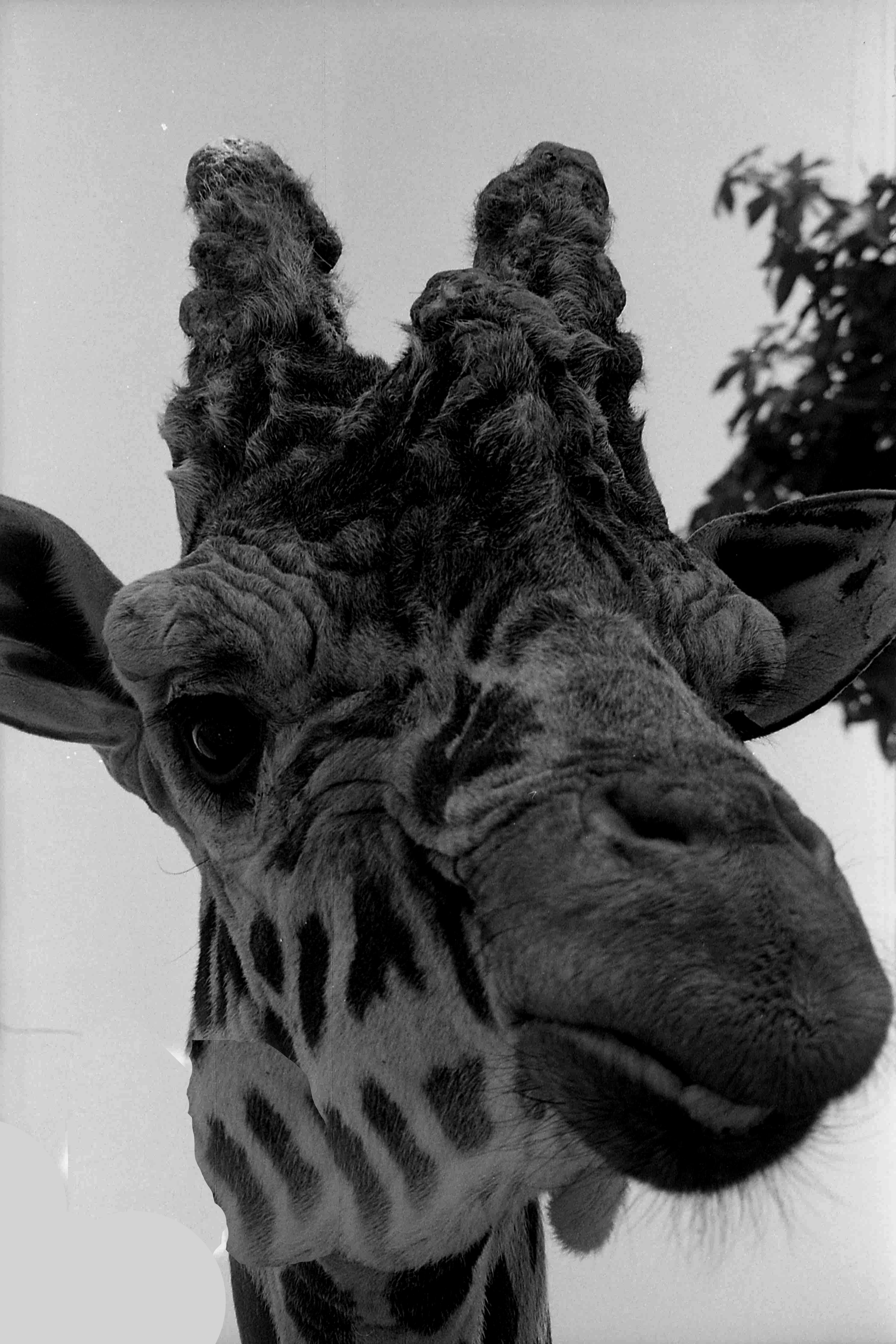
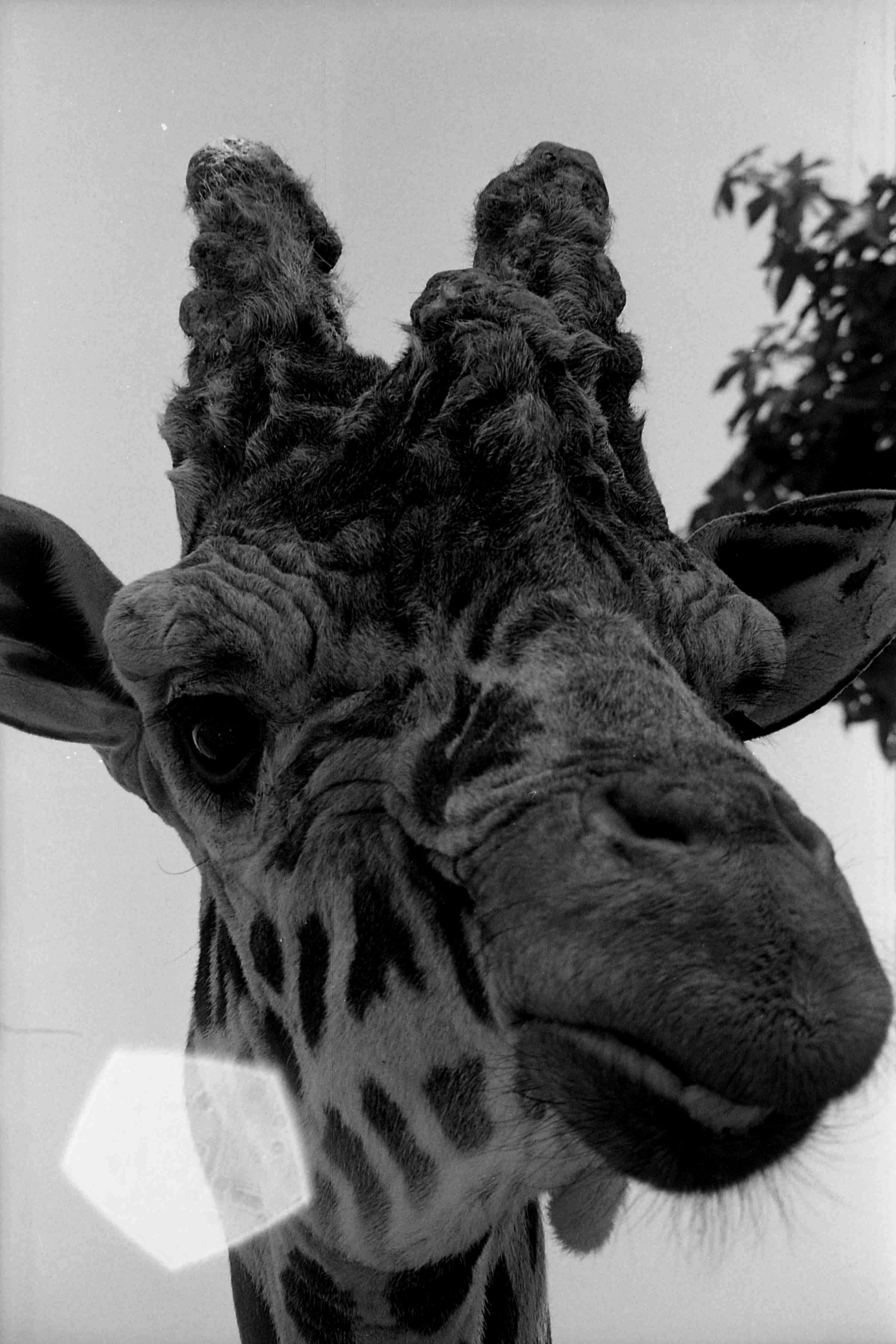
How do I remove this (and what is it called)?

  • August 15, 2018
  • 1 reply
  • 482 views

I thought it was called lens flair, but google lead me to other things.  Searching under 'lens reflection' did not work either.  The spot healing brush w/ content aware did not work (it replaced some of the sky with some of the eye). Burn tool still left a lot behind regardless of settings, and with clone tool, I could not find a large enough area of sky to clone just the sky part, but regardless of this, there is no appropriate (or practical) clone area for the giraffe.

I can see (almost) all the information under the 'reflection,' so shouldn't I be able to just remove it?  The original was a B&W negative.

P.S. I used to be notified of replies, but I can't find where to set this now.  I can't find it under preferences or at the bottom of this page.  Where did that setting go?
    This topic has been closed for replies.
    Correct answer hatstead

    Try this:

    1. Activate the Lasso tool and outline a patch from giraffe's skin. You should see "marching ants" when your selection is complete.
    2. Place the skin patch on its own layer  - press CTRL+J ( Layer 1)
    3. Activate the move tool, and nudge the patch over the blemish. You can use the arrow keys on the keyboard for this. Still on this layer, use the Eraser tool to tidy up the patch if there is excess.
    4. Go back to the original Background layer and create a patch for the defective sky. (layer 2) in the same manner.

    1 reply

    hatstead
    hatsteadCorrect answer
    Inspiring
    August 15, 2018

    Try this:

    1. Activate the Lasso tool and outline a patch from giraffe's skin. You should see "marching ants" when your selection is complete.
    2. Place the skin patch on its own layer  - press CTRL+J ( Layer 1)
    3. Activate the move tool, and nudge the patch over the blemish. You can use the arrow keys on the keyboard for this. Still on this layer, use the Eraser tool to tidy up the patch if there is excess.
    4. Go back to the original Background layer and create a patch for the defective sky. (layer 2) in the same manner.

    cglenn7777
    Known Participant
    August 15, 2018

    So the Lasso Tool in this instance is basically a part of a cloning process?

    hatstead
    Inspiring
    August 16, 2018

    No. I used the lasso tool to make a selection of a patch of hide and then a patch of normal sky. Then, I dragged the patches to cover the defects. You need to have the layers palette open in order to see the layers.

    Sent from my iPad