Known Participant
June 4, 2024
Answered

How do I replace Artistic/Classic pane with layers pane?

  • June 4, 2024
  • 2 replies
  • 396 views

Sorry, I'm sure this is a simple one. The title says it all... I did something that replaced my usual pane showing the layers in my image with one showing Artistic/Classic "thingies" (I don't even know what they are called as I don't use PE for anything artistic). I do need those layers, though, as I copy some from one image to another.


Advice, please...

Paul.
This topic has been closed for replies.
Correct answer Greg_S.

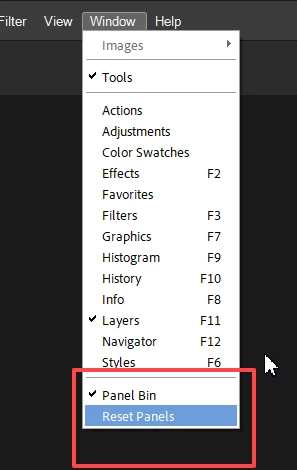
To get back to the default panel layout, go to the PSE Window menu and click on Reset Panels:


There are several other methods to restore the Layers Panel:

  • Use the F11 keyboard shortcut
  • Select Layers from the Window menu
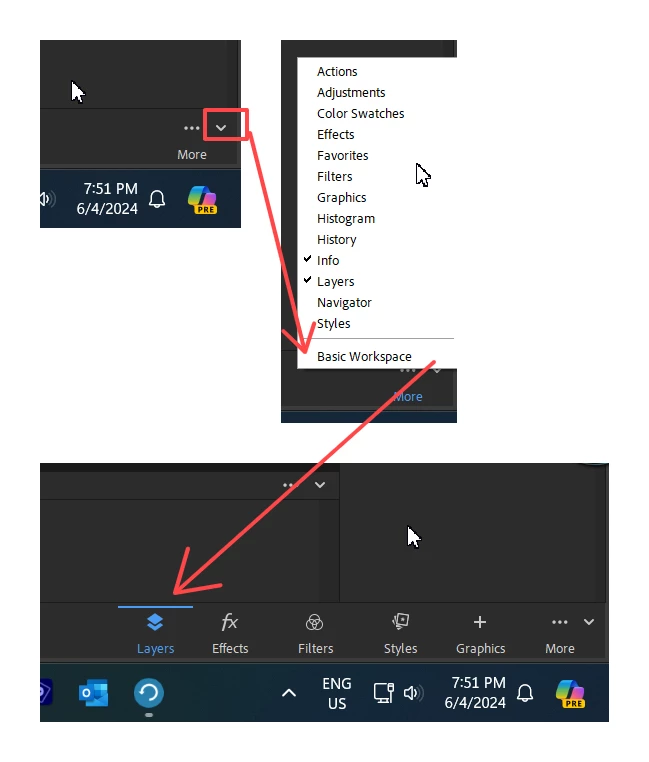
  • In Elements 2024, click on the Down chevron arrow at the lower right of the screen.  This will open a context menu. Click on Basic Workspace and this will return the program to the default workspace.  (In older versions, the dropdown menu is found next to the More button.

2 replies

Greg_S.
Community Expert
Greg_S.Community ExpertCorrect answer
Community Expert
June 5, 2024

To get back to the default panel layout, go to the PSE Window menu and click on Reset Panels:


There are several other methods to restore the Layers Panel:

  • Use the F11 keyboard shortcut
  • Select Layers from the Window menu
  • In Elements 2024, click on the Down chevron arrow at the lower right of the screen.  This will open a context menu. Click on Basic Workspace and this will return the program to the default workspace.  (In older versions, the dropdown menu is found next to the More button.

cplloyd42Author
Known Participant
June 5, 2024

Thanks, Greg_S. I thought there might be more than 1 way of doing what I wanted. As you might have noted, I have already achieved my aim, but I'll keep your options in mind should I strike the same problem. I got to this unwelcome state by accidentally hitting some keys (I don't know which!) and this caused my image to close down (I'd just saved it) and the Artistic/Classic panel to appear. That will teach me to be clumsy.


Kind regards,

Paul.

Glenn 8675309
Legend
June 5, 2024

I never paid much attention to it in the past. 

The panel bin (the stuff you see on the right) has the same behavior as using a brush:  by default it will open the program with the last brush you used.

In this case:  It will open whatever you last used:  Effects, layers, grahics, whatever. 


Peru Bob
Community Expert
Community Expert
June 4, 2024

Try this:

Restore default preferences
Preference settings control how Photoshop Elements Editor displays images, cursors, and transparencies, saves files, uses plug‑ins and scratch disks, and so on. If the application exhibits unexpected behavior, the preferences file could be damaged. You can restore all preferences to their defaults.

Note: Deleting the preferences file is an action that cannot be undone.

Do one of the following:

Press and hold Alt+Control+Shift (Mac: Option+Command+Shift) immediately after Photoshop Elements begins launching. Click Yes to delete the Adobe Photoshop Elements settings file.
Go to Edit > Preferences (Mac: Photoshop Elements > Preferences > General), click the Reset Preferences on next launch button, and then click OK. When you restart Adobe Photoshop Elements, all preferences are reset to default settings.
A new preferences file is created the next time you start Photoshop Elements Editor. For information on a specific preference option, search for the preference name in Help.

from here:

https://helpx.adobe.com/photoshop-elements/kb/preference-file-locations-photoshop-elements.html

cplloyd42Author
Known Participant
June 5, 2024

Thank you, Peru Bob. What you suggest is fairly drastic and something to use as fallback, if another way could not be found. And I thought a bit and came up with the following:


I hadn't closed PE down since I lost the layers panel, so I checked the time stamp of the prefs file - it was last night when I had used PE last. So, I copied it, then closed PE down. The time stamp changed to now, and when I restarted PE, the Artistic/Classic panel was showing. I closed PE down again, swapped the new prefs file for the one I had backed up, restarted PE and, hey presto!, I have my layers panel back.


Thanks for putting me on to that prefs file. It's made the problem solution rather easy for me.


Kind regards,

Paul.