KirkPetersen
Participating Frequently
December 23, 2020
Answered

How do I specify pixels when resizing images?

  • December 23, 2020
  • 2 replies
  • 2118 views

I just installed my Photoshop Elements 15 to a new computer, and some things I'm used to apparently got reset.

The only unit of measure I use for image sizes is pixels. I can crop an image in pixels by typing "750 px" or whatever into the fields on the cropping tool. But when I then want to resize the image, the dropdown on the image size popup will not show me pixels as an option. Here's what it looks like:
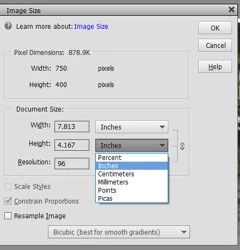
 

The current size is in pixels, but the new size cannot be specified in pixels.

I went to Edit > Preferences > Units & Rulers to set pixels as the measurement default (that dropdown DOES offer pixels, but it made no difference.

I seem to vaguely recall having this problem long ago, but for years I've been happily resizing in pixels, and I don't know what I did to fix it.

Help?

This topic has been closed for replies.
Correct answer John Waller

I'm just getting back to this, Happy New Year...


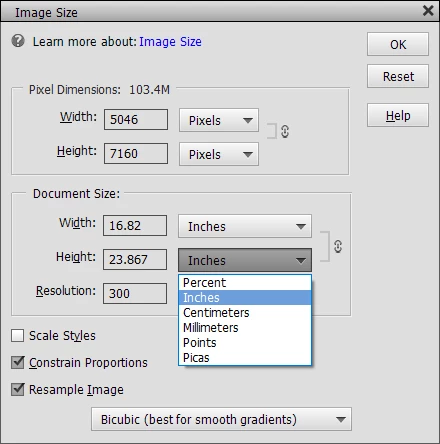
John Waller, thanks for responding. Where is this "Pixel Dimensions section" of which you speak? Below is a screen shot of what I get after ticking Resample Image. The drop-down offers every measurement unit except pixels. 


>>>Where is this "Pixel Dimensions section" of which you speak?


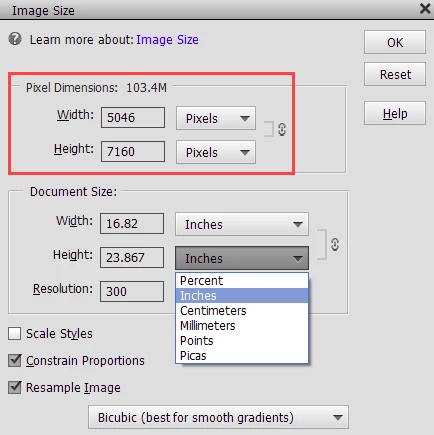
In the red section in the screenshot below:


There are two ways of resizing in this dialog:

  1. Change the pixel size of the image (in the Pixel Dimensions section), which is what you're trying to achieve. You check the Resample Image box to activate that. Or
  2. Keep all the pixels and fit them into specific dimensions for printing (in the Document Size section). That's the area you've been unsuccessfully wrestling with.

2 replies

Peru Bob
Community Expert
Community Expert
December 24, 2020

Try this:

Restore default preferences
Preference settings control how Photoshop Elements Editor displays images, cursors, and transparencies, saves files, uses plug‑ins and scratch disks, and so on. If the application exhibits unexpected behavior, the preferences file could be damaged. You can restore all preferences to their defaults.

Note: Deleting the preferences file is an action that cannot be undone.

Do one of the following:

Press and hold Alt+Control+Shift (Mac: Option+Command+Shift) immediately after Photoshop Elements begins launching. Click Yes to delete the Adobe Photoshop Elements settings file.
Go to Edit > Preferences (Mac: Photoshop Elements > Preferences > General), click the Reset Preferences on next launch button, and then click OK. When you restart Adobe Photoshop Elements, all preferences are reset to default settings.
A new preferences file is created the next time you start Photoshop Elements Editor. For information on a specific preference option, search for the preference name in Help.

from here:

https://helpx.adobe.com/photoshop-elements/kb/preference-file-locations-photoshop-elements.html

KirkPetersen
Participating Frequently
December 24, 2020

Thank you, but no joy. I tried both options: I pressed and held Alt-Ctrl-Shift as PSE began launching, but nothing happened -- there was no option to delete anything.


I found and clicked the Reset Preferences on Next Launch button, then closed and relaunched the program. Still cannot select pixels as the measurement unit when changing image sizes.

hatstead
Inspiring
January 11, 2021

Try points. I have never seen pixels in this dialog as an option. 

MichelBParis
Legend
December 23, 2020

You may need to tick the 'resample' box.

KirkPetersen
Participating Frequently
December 23, 2020

Thanks, but I'm afraid it didn't help.

John Waller
Community Expert
Community Expert
December 24, 2020

When you tick the Resample box, you should be able to resize via pixels in the Pixel Dimensions section above.