Known Participant
December 17, 2020
Answered

How do we constrain rounded corners to have matching symmetry?

  • December 17, 2020
  • 1 reply
  • 799 views

ROUNDED CORNERS – We want matching rounded corners to crop or frame an image.  The problem with the Cookie Cutter tool is that the corners are fine if we cut out a square.  However, if we extend the cutter to a rectangle, the rounded corners become skewed in favor of the longer side.  It is no longer a symmetrical rounded corner.  Ideally, we would be able to select the rounding radius for all corners regardless of the size or shape.  How do we set the tool so that all the corners match?

This topic has been closed for replies.
Correct answer Jeff Arola

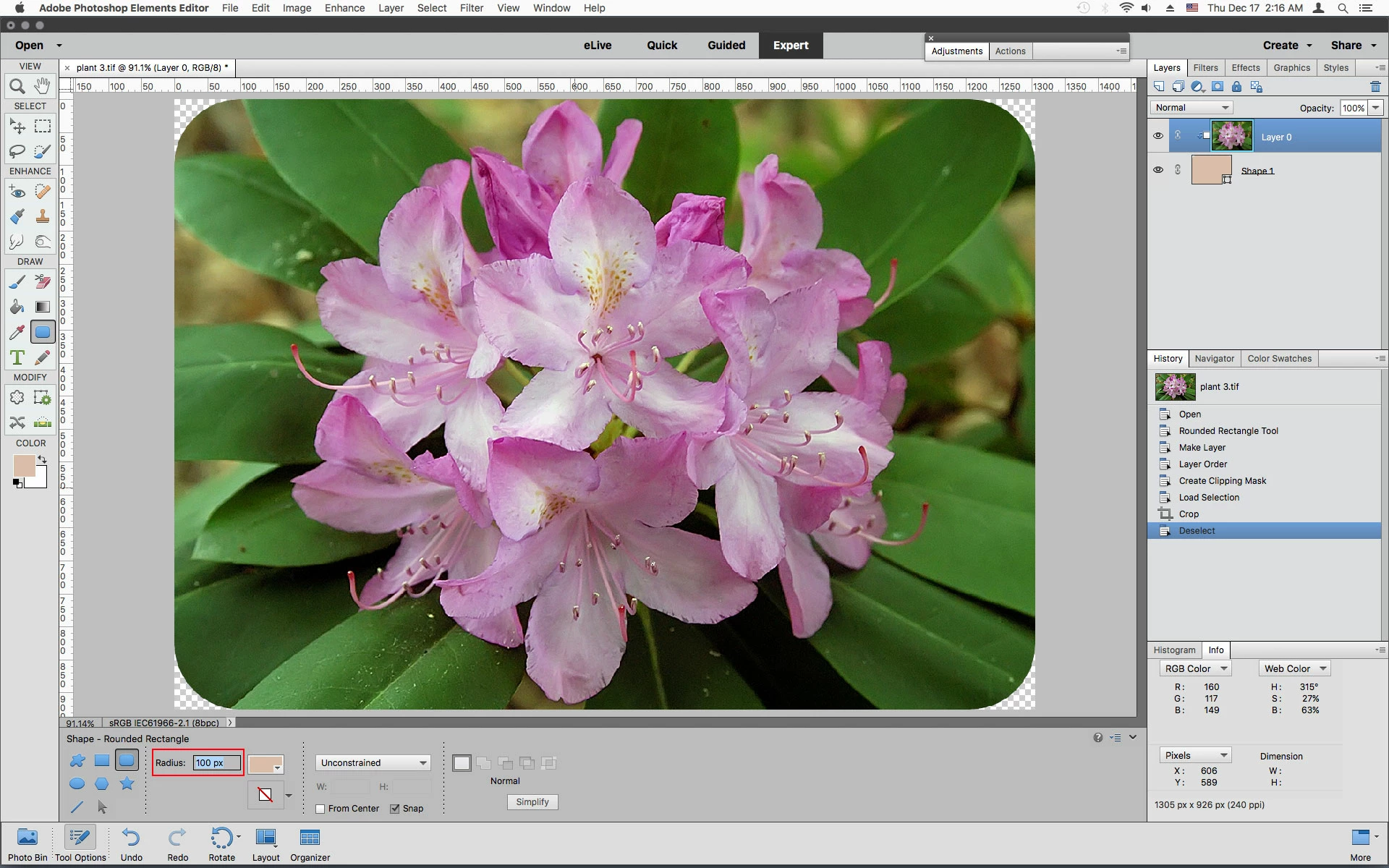
You can use the Rounded Rectangle Tool in order to control the rounded corner size.


1. Select the Rounded Rectangle Tool, set the Radius and draw out your rectangle.


2. Double click on your Background Layer to turn it to a regular layer and move it above the Shape layer


3, Go to Layer>Create Clipping Mask


4. To crop the image Ctrl or Cmd click on the Shape layer to load a selection around the rectangle


5. Go to Image>Crop


6. Select>Deselect


1 reply

Jeff Arola
Community Expert
Jeff ArolaCommunity ExpertCorrect answer
Community Expert
December 17, 2020

You can use the Rounded Rectangle Tool in order to control the rounded corner size.


1. Select the Rounded Rectangle Tool, set the Radius and draw out your rectangle.


2. Double click on your Background Layer to turn it to a regular layer and move it above the Shape layer


3, Go to Layer>Create Clipping Mask


4. To crop the image Ctrl or Cmd click on the Shape layer to load a selection around the rectangle


5. Go to Image>Crop


6. Select>Deselect


Known Participant
January 26, 2021

Thank you, Jeff, so nice when you know what you're doing!  I knew we had done this before, but got stuck on the cropping tool instead of using the rectangle tool.  Thank you so much.