


Participant
April 29, 2021
Answered

How to create a Place tag, without using the map

  • April 29, 2021
  • 2 replies
  • 972 views

For many years, I was able to create place names in Photoshop Elements that reflected the name of where I was: Legoland CA; Aquarium of the Pacific; Minnesota State Fair, etc. A few rev's ago, the Map feature was added, which forces me to pinpoint the location on the map. So now, my Place tags are along the lines of United States > California>Palmdale>Angeles Forest Highway. In addition, I have to be connected to the internet so the map can do its magic - so much for taking my laptop to a park and tagging a bunch of photos. Is there a way to avoid the map feature and create/attach Place tags that have meaning to me? (I'm confident the Angeles Forest Highway was a hike I did....but which trail?) My workaround is to add my Place names in Events, or to copy/paste "Legoland CA" (for example) in each of the photo's captions.

This topic has been closed for replies.
Correct answer Greg_S.

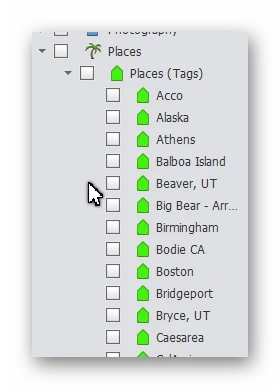
You can still use keyword tags as you have in the past.  For various reasons, I have not adopted the Places/Maps metaphor.  Instead, I tag my places with names that are meaningful to me.   It is possible to create a keyword structure 3 levels deep if you want to.  So, for example, you could have a hierarchy of Country>Region/City>Point of Interest.  I don't bother so much with a hiearchy.  Instead, I may place multiple keyword tags on a file.  I could then tag my photos of Disneyland with keyword tags for the USA, California, Anaheim, and Disneyland.  My photos of Sea World would be tagged with USA, California, San Diego and Sea World.  If I checked my keyword tag box for California, I would see my photos of both Disneyland and Sea World.  Here is a portion of my Keyword Tags hierarchy.

For me, keyword tagging for places is an easy task.  Generally, if I have multiple photos of a place I have just visited,  I simply import the files and tag them all at once.  If I have visited multiple places on a trip, each location will be in sequential order, so it is easy to shift-click select the photos of each place and apply a particular tag or tags to each place.

2 replies

Greg_S.
Community Expert
Community Expert
May 10, 2021

Yes, that is how I do it.

Participant
May 11, 2021

Thank you!

Greg_S.
Community Expert
Greg_S.Community ExpertCorrect answer
Community Expert
April 29, 2021

You can still use keyword tags as you have in the past.  For various reasons, I have not adopted the Places/Maps metaphor.  Instead, I tag my places with names that are meaningful to me.   It is possible to create a keyword structure 3 levels deep if you want to.  So, for example, you could have a hierarchy of Country>Region/City>Point of Interest.  I don't bother so much with a hiearchy.  Instead, I may place multiple keyword tags on a file.  I could then tag my photos of Disneyland with keyword tags for the USA, California, Anaheim, and Disneyland.  My photos of Sea World would be tagged with USA, California, San Diego and Sea World.  If I checked my keyword tag box for California, I would see my photos of both Disneyland and Sea World.  Here is a portion of my Keyword Tags hierarchy.

For me, keyword tagging for places is an easy task.  Generally, if I have multiple photos of a place I have just visited,  I simply import the files and tag them all at once.  If I have visited multiple places on a trip, each location will be in sequential order, so it is easy to shift-click select the photos of each place and apply a particular tag or tags to each place.

Participant
May 10, 2021

So if I am understanding you correctly, you don't use the "Places" heading at all (which forces use of the online map, and forces the country>state>city>place of interest heirarchy), and instead you create a heading you have named "Places" under Keywords, and put the place headings that are meaningful to you under that. Is that correct?