OK. It is a line drawing on a transparent background. Unfortunately, the outline of the figure contains some breaks, which make it more difficult to select. There are several ways to do this. So, here is what I suggest:
- To make the lines a little darker and therefore easier to see and work with, use the Magic Wand selection brush. Uncheck the Contiguous option, and click on an area of black pixels. This will select everything but the transparent areas - in other words, the drawing.
- Press Ctrl+J to copy the layer and change the Blend mode of the copy to Darken. You can select the layer and press Ctrl+J once or twice more to darken it even further.
- Create a new layer below the top layer and fill it with white using the Paint Bucket tool.
- Create a mask on the white layer. The drawing will now have a white background.
- With the mask thumbnail selected, use the Brush Tool (press B) and black as the foreground color, to paint over the areas you want to keep as transparent. If you make a mistake with painting the mask, simply press X to change the brush color to white and paint over the parts of the area that should remain white.
You should end up with something like this:
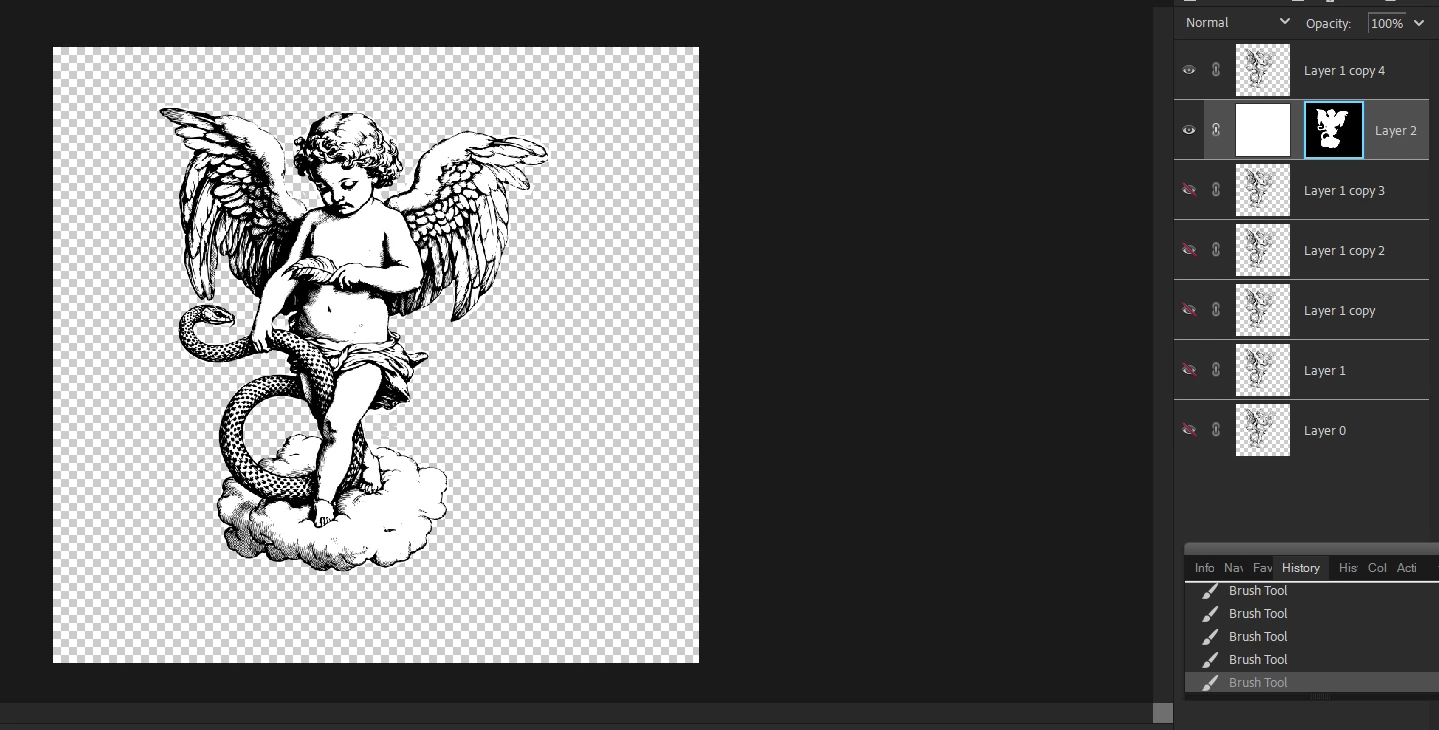
I don't know how experienced you are with the Editor. So if any of my instructions are unclear to you, please let me know and I will explain further. But as I think about it, there is probably an even simpler way to do it:
- Open the file
- Click on the Layer>New>Background from Layer menu choice - the background should change to white
- Double-click on the layer in the Layers panel (to convert it back to a regular layer)
- Use the Eraser Tool to remove the white around the drawing. It will be replaced with transparency.
- If you make a mistake with the Eraser Tool, press Ctrl+Z to go back a step.
I prefer the first method because it is easier to change mistakes.




 AdChoices