
Participant
October 20, 2019
Answered

How to move folders to new catalog

  • October 20, 2019
  • 3 replies
  • 632 views

I have been using PSE 2018 on Windows 10. I want to import just the 2019 folders/files from my PSE catalog into Lightroom. I have managed to create a new catalog in PSE and get to the point where I can import files to it.  But it seems I have to add files one by one. I have several hundred folders and thousands of individual files in those folders -way too time consuming. I see there is a bulk import option but I have not been able to select just the folders I want to add to the new 2019 catalog. Any help on this is much appreciated.
This topic has been closed for replies.
Correct answer Greg_S.

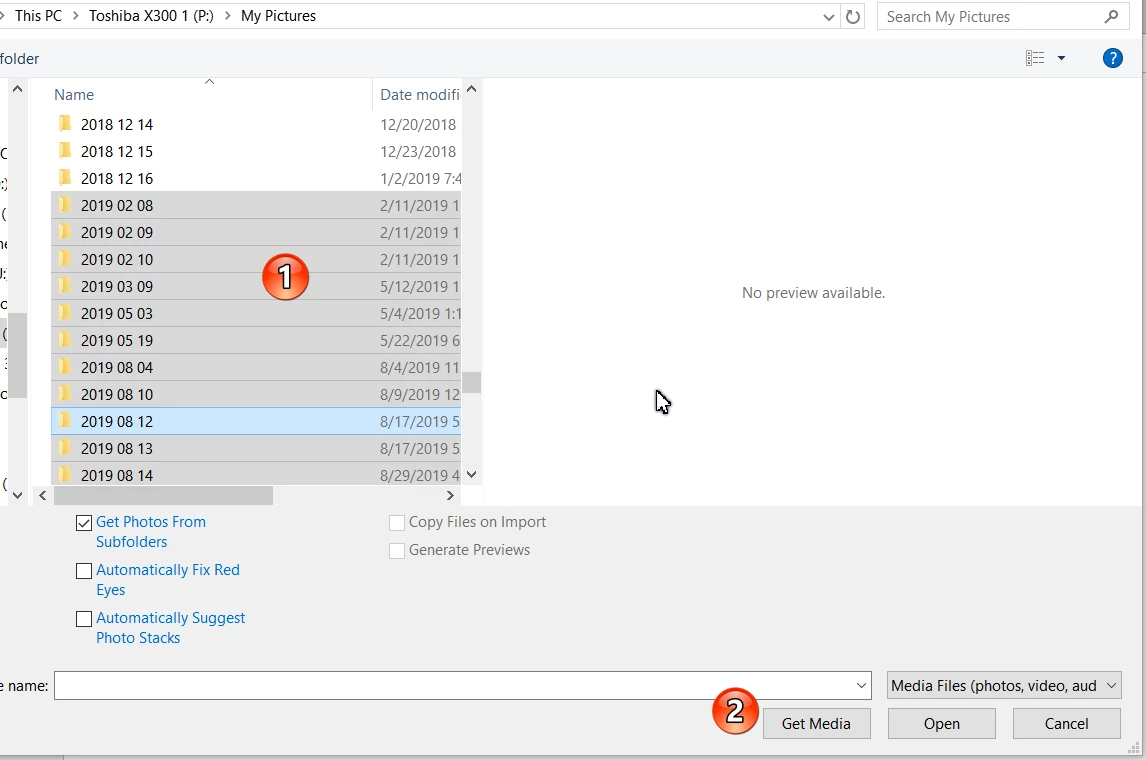
Use the Import>From Files and Folders option.  In the navigation dialog, select all of your 2019 folders (Shift-click if contiguous, Ctrl-click if non-contiguous folders), then click the Get Media button:


3 replies

MichelBParis
Legend
October 22, 2019

"I did complete the "save metadata to files" step but my keywords, tags, etc. did not get embedded. After more thought and research I concluded that could only happen if I was copying files from an existing PSE catalog (where the info actually was) to a new catalog, not from my hard drive as was what I was doing. And it seems there is no way to actually do the former. Please correct me if I am wrong."

You are right, you can write the metadata stored in the catalog to the files themselves, but you can't update your catalog with metadata added externally, something which would be possible in Lightroom. One little known feature of the organizer is that you can recover in your catalog only captions added externally via the command 'update thumbnails'.

Participant
October 22, 2019

Thank you for your reply.

99jon
Legend
October 21, 2019

To add to Gregs reply, when you have all the 2019 folders imported to a new catalog you may wish to select all media in the Organizer (Ctrl+A) and write metadata to files.

File >> Save Metadata to Files (Ctrl+W)

Any keywords, captions etc should then get embedded and will be available after import into Lightroom.


Participant
October 22, 2019

I did complete the "save metadata to files" step but my keywords, tags, etc. did not get embedded. After more thought and research I concluded that could only happen if I was copying files from an existing PSE catalog (where the info actually was) to a new catalog, not from my hard drive as was what I was doing.  And it seems there is no way to actually do the former. Please correct me if I am wrong.


Anyway, I ended up importing my complete PSE catalog into Lightroom which went smoothly and then deleting what I didn't want. Maybe I should have done that in the first place, but then I have learned a lot in the process!

Greg_S.
Community Expert
Greg_S.Community ExpertCorrect answer
Community Expert
October 21, 2019

Use the Import>From Files and Folders option.  In the navigation dialog, select all of your 2019 folders (Shift-click if contiguous, Ctrl-click if non-contiguous folders), then click the Get Media button:


Participant
October 22, 2019

Greg, you describe what I did try a number of times without success, although going through the steps again I discovered that I was making some rather stupid mistakes (like hitting the open button instead of the get media button!) Thanks much for your reply.