
Known Participant
April 13, 2025
Answered

How to quickly find a folder in Organizer "My Folders"

  • April 13, 2025
  • 3 replies
  • 665 views

Adobe Elements Organizer 2023 V. 21.0 in Windows 11 Pro

I have hundreds of file folders arranged by date under my root folder "Pictures 2" 

Example:  1997 09 Italy Rome

Folders ranging from 1964 - 2025

Currently I click and hold on the scroll bar and drag through the years.

Is there a quicker more precise way to accomplish this?
 

Correct answer Greg_S.

Is there a cheat sheet of speed keys for this software?

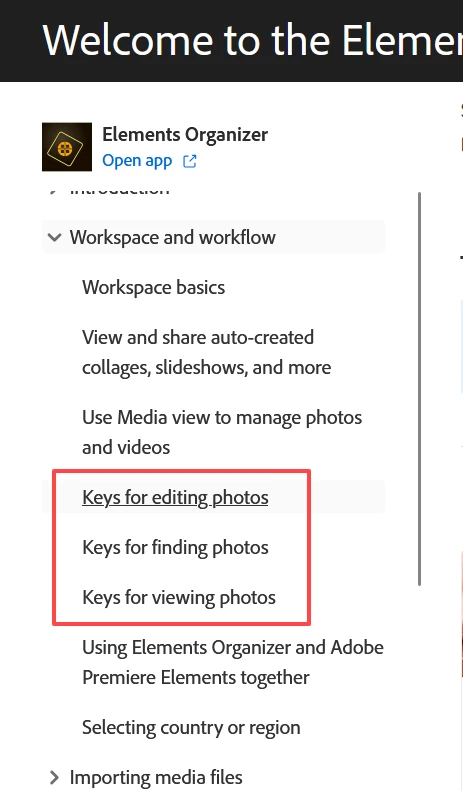
Yes.  Go to the Organizer's online User Guide and you will find the keyboard shortcuts under the Workspace and workflow category:


You may be particularly interested in Ctrl+Alt+F which allows you to find photos within a date range.  It is a little clunky to set the dates and may not be faster than scrolling.  But it may be useful for you.


Some times the Time Line appears but is greyed out and not functional. I am sorting by "Most Recent". What am I doing wrong?

I'm not sure what you mean by greyed out.  Please give us a screenshot when this happens. 


And you may be interested in this old article written by an Adobe employee which explains how dates are used in the Organizer. 


3 replies

Greg_S.
Community Expert
Greg_S.Community ExpertCorrect answer
Community Expert
April 16, 2025

Is there a cheat sheet of speed keys for this software?

Yes.  Go to the Organizer's online User Guide and you will find the keyboard shortcuts under the Workspace and workflow category:


You may be particularly interested in Ctrl+Alt+F which allows you to find photos within a date range.  It is a little clunky to set the dates and may not be faster than scrolling.  But it may be useful for you.


Some times the Time Line appears but is greyed out and not functional. I am sorting by "Most Recent". What am I doing wrong?

I'm not sure what you mean by greyed out.  Please give us a screenshot when this happens. 


And you may be interested in this old article written by an Adobe employee which explains how dates are used in the Organizer. 


Rammer47Author
Known Participant
April 17, 2025

Screen shot attached. 

Click on a date on the time line or drag the marker across the time line and nothing happens.

The marker pops back to the start of the time line. It was working at one point. I must have some setting incorrect.

Thank you

Greg_S.
Community Expert
Community Expert
April 16, 2025

Your post is a little ambiguous about how you name your files rather than your folders.  I believe the timeline is using the adjusted date displayed in the grid.  But after reading your post, I took a look at my timeline and found that it only goes back to 1928 which is (almost) the first date displayed for my images.  However, the first date is 1/1/1601.  IIRC, this is the earliest date that can be displayed by the Windows OS.  That date was given to the images either by the camera (perhaps after the battery had died and the date not being reset) or by me assigning a fuzzy date to the photos, using ??/??/????  Or perhaps I was testing the earliest available dates.


The timeline is certainly not using the folder names for the dates.


If you name your files with the date, then you could search for a date (or partial date) using Shift+Ctrl+K which allows you to search by filename.

Rammer47Author
Known Participant
April 16, 2025

I appreciate your speed keys and am using them now regularly.

95% of my File Names in "My Folders"  start with year / month and then description. EX: 1975 02 Cape Cod.

Unfortunately many of my image files name do not contain the correct date the image was taken due to reasons already stated.

All of this is very helpful. 

? Is there a cheat sheet of speed keys for this software?

? Some times the Time Line appears but is greyed out and not functional. I am sorting by "Most Recent". What am I doing wrong?

Greg_S.
Community Expert
Community Expert
April 14, 2025

I have a similar problem because most of my folders are arranged by date taken.  I am in the process of re-arranging my folders into years with the date taken folders as sub-folders.


But here is another suggestion:

  • Use the Timeline feature to quickly access photos for a particular month.  If you are not familiar with this, use the Keyboard toggle Ctrl+L.  (I assume your media grid is sorted by date.  It won't work if you sort by Filename or Import Batch.)


  • Right-click on an image and choose Go to folder from the context menu.  This will take you to a nearby folder in the My Folders panel and you can scroll around from there.


Another method that may be helpful would be the following:

  • Click on the Search button
  • Click on the Folders tab
  • Scroll through the folders.  Because of the way they are presented, I believe this can be a lot faster than scrolling through the My Folders Panel.
  • Once you have found your desired folder, select it.
  • Click on the Back to Grid button.  This is the only way you can do anything with the images in the found folder.


As you may see in my screenshot below, when you click on the Folders tab, it takes a while for the thumbnails of a photo in the folder to display.  However, the names of the folders appear immediately and you can scroll through them right away.


Rammer47Author
Known Participant
April 16, 2025

My File Folders go back to 1900 [see screen shot] but the time line only goes back to 2009. When I right click on an image and "adjust date and time.." it allows me to go back to that new date. Most folders are listed by year and sometimes year and month such as "1975 02 Cape Cod". It appears it is being sorted by the date on the image, not the file name date. Many of my .jpg images are converted from slides so the date on them is irrelevent. 

Some times the Time Line appears but is greyed out and not functional. I am sorting by "Most Recent". What am I doing wrong?

Your second and third solution worked fine.

Many thanks,