Participant
October 12, 2018
Answered

How to stop 'Elements Auto Creations 2019.exe'

  • October 12, 2018
  • 6 replies
  • 35998 views

I just installed Photoshop Elements 2019.  In the Organizer, I went to Edit | Preferences | Media-Analysis and I un-checked everything on the tab, including:

  • Generate Auto Creations
  • Automatically Analyze Media: Images and Videos

However, the file 'Elements Auto Creations 2019.exe' runs in the background, even when PSE is closed.  This causes my computer fan to run loudly all the time, because of the cpu cycles the file is using.  How can I prevent 'Elements Auto Creations 2019.exe' from running in the background?

This topic has been closed for replies.
Correct answer arshla jindal

Hi,

We apologize for the inconvenience you've faced.

Please find the details of how Elements Auto Creations 2019 exe works:

1. It performs the analysis for smart tagging, auto curate and auto creations. So if you are switching off this preference, you would not be able to leverage these features also. Along with Auto creations, Face recognition process is also running in parallel, which might be using your system resources initially, if the media count is large. This system resource usage would decrease gradually as the processing approaches completion, until you import more media.

2. Elements Auto creations 2019 exe works only when your system is in idle state, i.e. when it is not in use by you. When you are using your system, this exe would continue to remain in activity monitor but not use your system resources and your system should work smoothly. Let us know if this is not the case with you.

3. In case you still want to turn off these preferences, you can do so from Organizer.

When you turn of these preferences, they come in effect when Elements Auto Creations 2019 exe launches again, and not in the same session. For this, you can Force Quit the exe from activity monitor. Post this, when you would reboot your system or would start Elements, this exe would still launch and exit after a while without doing any analysis.

Use Activity Monitor to Force Quit Apps

Activity Monitor is a powerful way to forcibly quit any app, task, daemon, or process running on Mac OS X. You can find it in /Applications/Utilities/ or open it from Spotlight with Command+Space and then type ‘Activity Monitor’ and the return key. Using Activity Monitor is very easy: Select the process name or ID you wish to kill (unresponsive apps will usually appear as red), and hit the red “Quit Process” button.
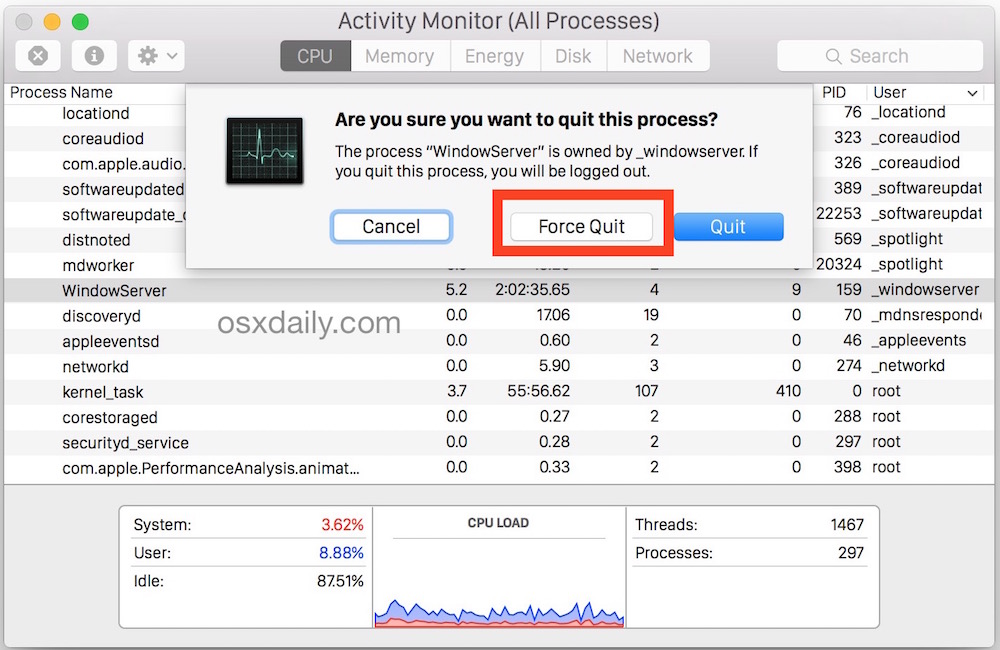
Force quit apps from Activity Monitor in Mac OS X

Thanks

Arshla Jindal

6 replies

Participant
October 1, 2022

My own solution with PSE from decades ago has been always to run ONLY the Editor program, from shortcuts pointing directly to its exe, and not to engage with Organizer or the Elements start screen at all.


However, just today I've been doing some pruning of unused programs on my C drive, and especially bulky ones, and I was wondering about actually deleting the whole Organizer folder. Although it's not doing any harm actively, it's a space hog, and increases the duration and resources used for any system scan.


I'm not one for recklessness, so what I've just done, rather than delete at once, is to rename the Organizer folder, then to run the Editor, load a photo, make a change, and see what's showing on the Save dialog. No problems. I checked various menus to see if there was anything that uses Organizer, but all I found was one link, I think 'Open in Organizer' or similar. I clicked on that, and the program paused for a minute or two, saying 'Loading Organizer', being unresponsive to clicks on its window, but then that attempt timed out without error message, and there was no problem. Clealy no cause to click on that link anyway.


I rather think that I am going to delete that folder. I myself definitely neither want nor need it, for I use other, more lightweight and non-intrusive software for organizing my photos: XNView and Photo Mechanic. -- Yet for my purposes I find Elements by far the most effective, intuitive and quick photo editor out of many that I've tried at different times, so, as long as I can purchase a non-subscription upgrade as needed, I'll stick with it.


All the best,

Philip


Philiphttps://www.philipgoddard.com
Walter_H
Legend
April 14, 2021

Maybe an underpowered computer with not enough memory or disk space. I am frequently disappointed that my 2013 Genesis 5.0 R-Spec Sedan does not perform as well as a 2021 Dodge Challenger SRT Hellcat. Oh well!


--Walter in Davie, FL
Participant
December 3, 2020

I'm so glad that I saw this question.  I was about to purchase Elements, but now I won't.  I hate automatic "features" that are forced on me by some egotistical software engineer.  I'll just keep using CS2 until I find a non Adobe alternative.

Inspiring
February 19, 2021

Hi:

I had this same "challenge" in my Windows 10 version of Premiere and Photoshop Elements 2020.  I located the 'Elements Auto Creations 2019.exe' file and renamed it to 'Elements Auto Creations-RENAMED 2019.exe' and then, in Organizer Edit-->Preferences-->General-->Media-Analysis, I turned off all the options.  I then rebooted both the PC and Adobe and it all seems to be "not" running.  Yay!


I agree about the painful and imposed challenges this sort of thing causes.  It's almost not woirth it.  I also use Ashampoo and it's much more user-friendly.

Inspiring
February 19, 2021

Hi:

I forgot to mention that you can also disable the "Elements Auto Creations.exe" when your PC boots by pressing Ctrl-Atl-Delete and selecting Task Manager then selecting the Startup tab.  For me, the item is "Elements Auto Creations 2020".

Click on it to highlight it and then select "Disable" in the lower right corner and close Task Manager.  Auto Creations will then not start when the PC boots.

I did both - disable it at startup and rename the file so it will not autoexecute when either Premiere Elements or Photoshop Elements start.

Hope this helps.

Known Participant
February 1, 2019

Hi Guys,

I'm running (October 2018) Windows 10 and I seem to have a similar/related  issue,

After booting the computer and logging on I get the display as shown here :


I do not use Adobe Organiser.  Can someone please clarify how to remove the cause of this message?


Cheers

Pete

ps

If I'm posting in the wrong area please let me know.

Participant
November 16, 2019

Windows 10 antivirus (with ransomware: on) block Auto Creation

Participating Frequently
October 14, 2018

I agree!  This thing is a freaking virus!  I bought Photoshop elements and premiere elements last week to replace my previous 15 version.  I have had to kill it many times.

After rebooting and not even opening any adobe stuff, Elements Auto Creations 2019 has stolen 800MB of my memory processes!

Elements organiser is a dog of a program too, so so slow and I had to kill it.

I am running iMac 24GB, 3.4GHz quad core i7 and this thing crippled my computer.

What has Adobe done to this!!!!!

offroadrunner
Participant
October 29, 2018

I really think that you need to have a coffee machine on hand to use this program. Every time I press anything it locks up my machine for anything from 2-5 minutes. There is no prospect of disabling a series of options - that would take all day!

I only have Chrome (with a couple of tabs open) and Outlook so wouldn't expect my PC to grind to a halt.

MichelBParis
Legend
October 12, 2018

Did you re-boot your computer before checking?

For me, the 'Elements Auto Creations 2019.exe' task is only invoked briefly and is negligible in the task manager, then it disappears.

Participant
October 12, 2018

I haven't rebooted since installing PSE 2019.  'Elements Auto Creations 2019.exe' is not negligible on my computer.  It takes up around a third of the available cpu cycles.  Using Window's Resource Monitor I can see which files it is reading.  It is going through and reading each of the photo files in my PSE library.  With 10s of thousands of pictures in my PSE library, it looks like it's going to be doing this for a long time. :-(

MichelBParis
Legend
October 13, 2018

Then the first thing is to reboot.

After that, you should see the message in the Home Screen:

On my computer, the exe files appears briefly, with a peak at 10% for the processor and disappears totally after a couple of minutes.
