



Valentina ♡
Inspiring
Nov 27, 2023 5:10 PM UTC
Answered

How to use Liquify and see both layers?

Hello I have a question. I'm trying to change a little the shape of the hat. 
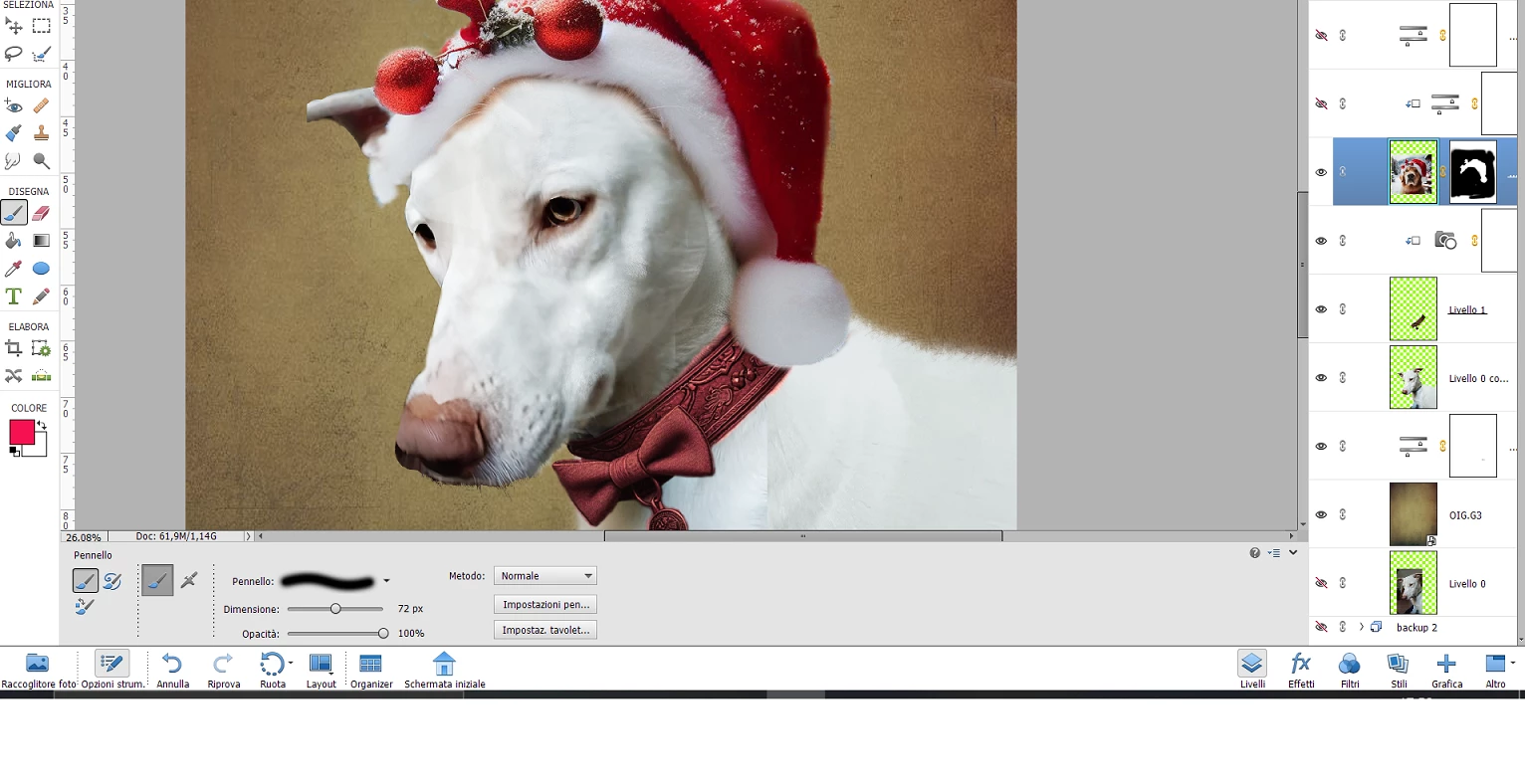


Now the problem is that when I select the hat - layer, and I go to Filter .-> Liquify, 

the new windows opened show just the hat, I can't see the image of the dog. 
So, I have to liquify the hat 'randomly'without actually see the shape I want to give because I can't see also the head of the dog.
So what I should do? I wish to see both dog and hat (even if are in 2 separated layers). 
There's a way to liquify the hat by watching actually how it looks over the dog head?  (his name is "Argo" ) 😄

Thank you in advance for the help!


This topic is closed to new replies. Start a new post to keep the conversation going.
Valentina ♡
Valentina ♡Correct answer
Inspiring
Nov 27, 2023 9:03 PM UTC

Thank you, I see, thanks for let me know, I think it could be useful if one day Photoshop updates will have the possibility to liquify and see two layers together . Maybe I could even duplicated the 2 layers, so one is merged and I will adjust the hat over the layer of the dog, then, return to the photoshop and mask the merged layer and work again as if I have 2 separated layers... in this way I can have the hat separated again from the dog (as I need to make 2 images, one with hat and one without hat, at the end of the edits)
I like the retouch of the hat as you made, thanks it's good that way!
 

6 replies

Greg_S.
Community Expert
Community Expert
Nov 28, 2023 4:46 PM UTC

You did a great job getting Argo ready for Xmas.  😁

Translate
Valentina ♡
Inspiring
Nov 29, 2023 10:57 AM UTC

Thanks! Yes! 

Translate
Greg_S.
Community Expert
Community Expert
Nov 27, 2023 9:41 PM UTC

@Valentina ♡, you have a very good grasp of working with layers, and I'm sure your idea will work too.   And I'm also  sure you can do a much better job with the hat than my quick edit. 


The full Photoshop CC allows you to see all layers in the Liquify Filter.  I really doubt whether Elements will add this feature in the future.

Translate
Valentina ♡
Inspiring
Nov 28, 2023 2:35 PM UTC

Oh, ok, I see, thanks again for always helping us on the community! 


 almost ready, thank you again!

Translate
Greg_S.
Community Expert
Community Expert
Nov 27, 2023 7:02 PM UTC

I think you can use the Liquify Filter on only one layer at a time. My suggestion is that you edit the rest of the image and flatten it before using the Liquify Filter.  Or, you could just merge 2 or more of the layers that you want to see, and work on the merged layer.


Translate
Valentina ♡
Valentina ♡AuthorCorrect answer
Inspiring
Nov 27, 2023 9:03 PM UTC

Thank you, I see, thanks for let me know, I think it could be useful if one day Photoshop updates will have the possibility to liquify and see two layers together . Maybe I could even duplicated the 2 layers, so one is merged and I will adjust the hat over the layer of the dog, then, return to the photoshop and mask the merged layer and work again as if I have 2 separated layers... in this way I can have the hat separated again from the dog (as I need to make 2 images, one with hat and one without hat, at the end of the edits)
I like the retouch of the hat as you made, thanks it's good that way!
 

Translate